Whether you want to record gameplay, create YouTube tutorials, capture online meetings, or make professional presentations, you need a reliable screen recorder. Modern screen recording software now offers advanced features like 4K video capture, webcam overlays, AI-powered noise reduction, live streaming support, and built-in video editing tools.
There are plenty of screen recorders available for Windows, but not every tool is suitable for every user. Some software is designed for gamers and streamers, while others focus on tutorials, business presentations, or quick screen captures. Free tools are good for basic recording, but paid software usually offers better editing features, higher recording quality, and watermark-free exports.
In this article, we list the best screen recorders for Windows in 2026. We included both free and paid options to help you find the right software for gameplay recording, online classes, tutorials, video creation, and professional work.
Also see:
- Best and Free Screen Recorders for Android
- Best Screen Recorder Apps For Mac
- Best Ringtone cutter apps
Best Screen Recorder for Windows
Check this list, read about the software, and decide what suits your work.
1. OBS Studio

OBS Studio is one of the best free screen recording and live streaming software available for Windows. It is widely used by gamers, YouTubers, streamers, educators, and professional content creators because of its powerful features and flexibility.
The software lets you record your full screen, a selected window, webcam feed, gameplay, or multiple sources at the same time. You can also create custom scenes with overlays, text, images, browser sources, and transitions. OBS Studio supports high-quality recording up to 4K resolution and works well for both local recording and live streaming.
One of the biggest advantages of OBS Studio is its advanced customization options. It supports hardware acceleration technologies like NVIDIA NVENC, AMD, and Intel Quick Sync for smoother recording with lower CPU usage. The software also supports multiple audio tracks, noise suppression, audio mixing, hotkeys, and plugin support.
OBS Studio is completely free and open-source. It does not add watermarks, recording limits, or ads. However, the software may feel complicated for beginners because of its professional interface and large number of settings. New users may need some time to understand scene setup, bitrate settings, and audio configuration.
If you want a powerful screen recorder for gameplay recording, live streaming, tutorials, podcasts, or professional video production, OBS Studio remains one of the best choices in 2026.
2. ShareX

ShareX is another excellent open-source, ad-free screen recording tool for Windows. This screen recording software can record the full screen, a window, a selected region, and a monitor. You can also use keyboard shortcuts to perform different actions. Just press Shift+Print Screen to start and stop screen recording. It also supports audio recording. You can select an audio source as per your need. The software also lets you add a custom watermark to your videos.
This software is also not beginner-friendly, so you will have to learn it. There is no support for webcam recording. You can only record the screen. It is not recommended for game recording because game recordings turned out to be of poor quality.
3. Bandicam
Bandicam is a popular screen recording software for Windows that is widely used by gamers, YouTubers, and tutorial creators. The software is known for its lightweight performance and ability to record high-quality videos with low system resource usage.
It lets you record your full screen, a selected region, specific apps, gameplay, and even external devices like webcams, Xbox, PlayStation, or IPTV devices. Bandicam supports 4K UHD video recording and can capture videos at up to 480 FPS, making it a good option for gameplay recording.
The software also supports real-time drawing, webcam overlay, scheduled recording, mouse click effects, and audio recording from both system sound and microphone. You can use hardware acceleration technologies like NVIDIA NVENC, Intel Quick Sync, and AMD VCE for smoother recording performance.
Bandicam is especially popular among gamers because it can record gameplay with minimal FPS drop. The recorded videos can be saved in formats like MP4 and AVI.
The free version of Bandicam comes with a watermark and recording time limit. You need the paid version to remove restrictions and unlock all features.
4. Camtasia

Camtasia is a premium screen recording and video editing software for Windows that is widely used for creating professional tutorials, training videos, presentations, online courses, and product demos. The software combines screen recording and advanced video editing in a single package, making it a popular choice among educators, businesses, and content creators.
The software lets you record your full screen, a selected area, webcam footage, system audio, and microphone audio. You can also record multiple inputs together for creating high-quality tutorial videos and presentations. Camtasia supports smooth screen capture with good video quality and easy export options.
One of the biggest strengths of Camtasia is its powerful built-in video editor. You can trim clips, add animations, transitions, effects, callouts, captions, cursor highlights, zoom effects, and royalty-free music without using separate editing software. It also includes templates and assets that help users create polished videos quickly.
Recent versions of Camtasia also include AI-powered features like automatic captions, background noise removal, and improved workflow tools for faster editing. The software is beginner-friendly compared to many professional editing tools, which makes it suitable for users who are new to video creation.
Camtasia is a paid software and offers a free trial with some limitations. While it is more expensive than many other screen recorders, it is one of the best options for users who want professional editing tools along with screen recording in a single application.
5. Loom
Loom is one of the most popular screen recording tools for professionals, teams, teachers, and remote workers. It is designed for quick screen recording and video sharing, making it ideal for presentations, tutorials, product demos, feedback videos, and online collaboration.
The software lets you record your full screen, a specific window, or a selected area of the screen. You can also record your webcam alongside the screen using picture-in-picture mode. Loom supports microphone and system audio recording, and videos are automatically uploaded to the cloud after recording.
One of the biggest advantages of Loom is its simplicity. You can start recording in just a few clicks and instantly share the video using a link. The platform also includes AI-powered features such as automatic transcripts, captions, summaries, and filler-word removal in premium plans.
Loom works on Windows, macOS, iPhone, Android, and as a browser extension for Chrome and Edge. The free version is good for basic use, while paid plans unlock longer recordings, higher video quality, advanced editing, and team collaboration features.
6. Movavi Screen Recorder

Movavi Screen Recorder is a less know but good screen recording software for Windows. It offers nice features and also comes with video editing tools. So, you can not just record videos but also edit them as per your need. There are several filters, animation, and video editing options. You can record the selected part of the screen or the entire screen as per your need. It also lets you record audio from the microphone or from the system. There’s also an option to record video from a webcam. It also schedules recording. So set the date and time to schedule video recording. The tool lets you draw over videos for making impressive tutorial videos.
This is a paid tool. You can try the free trial but that also puts a watermark in videos. The premium version starts at $34.95 per year.
7. Clipchamp
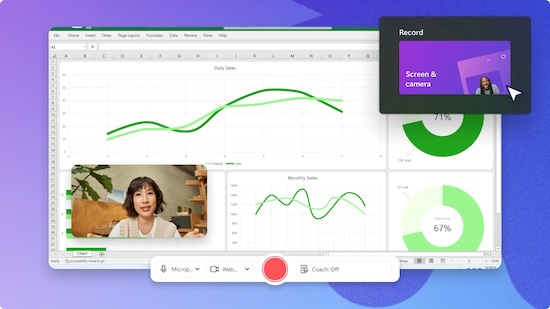
Clipchamp is a modern video editor and screen recorder developed by Microsoft and built directly into Windows 11. It is designed for beginners, students, professionals, and content creators who want an easy way to record and edit videos without using complicated software.
The built-in screen recorder in Clipchamp lets you capture your entire screen, a browser tab, or a specific window. You can also record webcam footage at the same time, making it useful for tutorials, presentations, reaction videos, and online classes. The software supports microphone recording and system audio capture as well.
One of the biggest advantages of Clipchamp is its simple drag-and-drop video editor. You can trim clips, add transitions, insert text, use templates, add background music, and export videos quickly. It also includes AI-powered features like automatic captions, text-to-speech voices, and noise suppression.
Clipchamp works well for social media creators because it supports vertical videos for platforms like YouTube Shorts, Instagram Reels, and TikTok. Since it is cloud-connected, you can also access stock videos, images, and audio directly inside the editor.
The free version offers basic recording and editing features with 1080p exports, while premium plans unlock stock assets, advanced filters, branding tools, and higher-quality features.
8. FlashBack
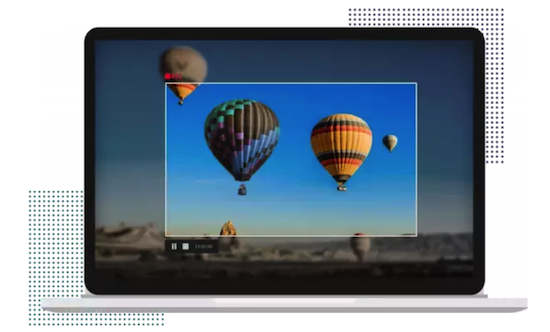
FlashBack is also a good full-motion-based screen recorder that lets you capture the system’s screen, video from webcam, and audio from the mic. There is also a built-in video editor to edit videos before publishing them. This tool can record from multiple monitors and video hours. You can also quickly exploit video in different video formats. It supports quick upload to videos. The tool also lets you schedule recooking and add voiceovers. In the video editor, you can trim, cut, copy, paste, zoom in, zoom out, blur part of video, add transitions and add music.
This is a paid screen recording software and comes with 30 days free trial. It costs $49 for 1 PC.
9. ScreenPal
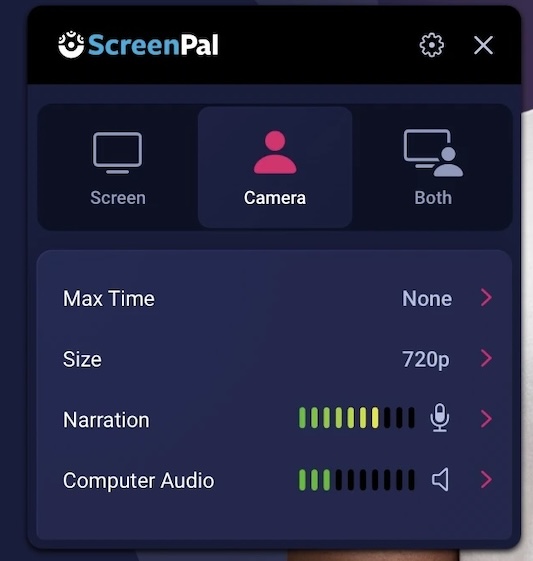
ScreenPal is an easy-to-use screen recording software for Windows that is suitable for beginners, teachers, students, and content creators. It lets you record your full screen, a selected area, webcam feed, or both screen and webcam together. The software is available for Windows, macOS, Android, iPhone, and Chromebook.
The tool also supports audio recording using your system sound or microphone. One of the best features of ScreenPal is its built-in video editor that lets you trim clips, add text, captions, transitions, animations, music, and overlays without needing separate editing software. It also offers AI-powered features like automatic captions and script-based editing in newer versions.
ScreenPal is useful for creating tutorials, online classes, business presentations, product demos, and YouTube videos. After recording, you can quickly upload videos to platforms like YouTube, Google Drive, or cloud storage services.
The free version comes with some limitations, including watermark restrictions and limited editing features. Paid plans unlock higher-quality exports, advanced editing tools, stock media access, and cloud hosting features.
10. Xbox Game Bar
Windows 11 comes with a built-in screen recording tool called Xbox Game Bar. It is mainly designed for gamers, but you can also use it to record apps, tutorials, presentations, and other on-screen activities. Since it is built into Windows 11, you do not need to install any additional software.
Xbox Game Bar supports screen recording with audio and also lets you capture gameplay clips in high quality. You can record a specific app window or game easily. Just press Windows + Alt + R to start or stop recording instantly. You can also open the Xbox Game Bar overlay by pressing Windows + G.
The tool supports microphone recording, system audio capture, and customizable recording settings. It is lightweight and works well for quick recordings without affecting system performance too much.
One important limitation is that Xbox Game Bar cannot record the Windows desktop or File Explorer. It only works with active apps and games.
How to Choose the Best Screen Recorder for Windows
Choosing the right screen recorder depends on what kind of videos you want to create. If you mainly record gameplay, you should look for software that supports high FPS recording, GPU acceleration, and low CPU usage. Tools like OBS Studio and Bandicam are popular among gamers because they offer smooth performance and high-quality recording.
If you create tutorials, presentations, or online classes, you may need features like webcam overlay, microphone recording, annotations, captions, and built-in video editing. In that case, tools like Camtasia or ScreenPal can be more useful.
You should also check recording quality, export formats, watermark restrictions, and editing features before choosing a tool. Some free software offers excellent recording quality but lacks advanced editing tools. Paid software usually provides better editing options, cloud storage, AI features, and easier workflows for content creators.
If you only need quick recordings without installing extra software, the built-in Xbox Game Bar in Windows 11 can also handle basic recording tasks.
Verdict
There are plenty of good screen recording software available for Windows in 2026, and the best option depends on your needs and budget. If you want a completely free and powerful tool, OBS Studio remains one of the best choices for both recording and live streaming. For professional tutorials and video editing, Camtasia is still among the top premium options.
Gamers looking for smooth gameplay recording can choose Bandicam or NVIDIA ShadowPlay, while professionals and remote teams may prefer Loom for quick sharing and collaboration.
No matter what type of videos you create, there is a screen recorder available for every use case, from basic screen capture to advanced 4K content creation.