
Recording the screen is a simple way to teach someone something. When someone is facing any problem, and you know the solution, then you can show them the step-by-step process by just recording the screen. Now that video content is booming, making informative video content is important. If you are also thinking of starting a YouTube channel where you want to post videos of screen recordings, you need good screen recording content. For this, the first and foremost thing is to find the best Screencasting apps. If you are a Mac user, then here are the best Screencasting apps for Mac.
In this article, I am listing the best screencasting, Screen recording, or screen capture software for Mac. These software lets you record your Mac’s screen the way you want.
Also see: Best Antivirus Software for Mac in 2025
Best Recorder Apps For Mac
1. Camtasia
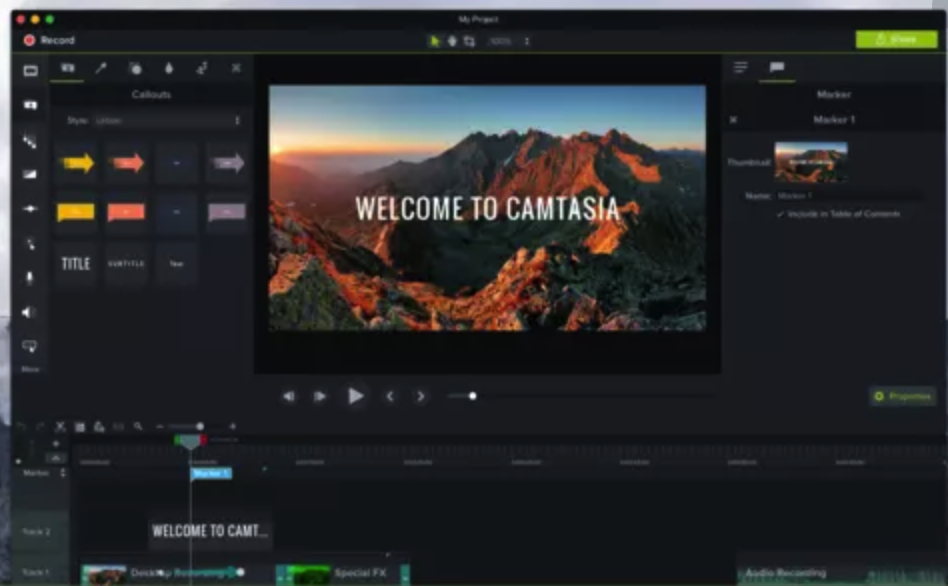
Camtasia is one of the best and feature-rich screencasting tools that also includes a powerful video editor. So, you can record the screen and edit the video as per your needs. This screen recorder for macOS offers standard recording options like recording the entire screen or a portion of the screen. It can also record system audio or microphone audio, depending on your choice. While recording the screen, this tool also offers the option to phase and resume.
The video editor brings capabilities like trimming, splitting, and merging two videos. This tool also lets you speed up a clip, remove background noise, and add more effects.
Camtasia is a paid tool and a single-user license costs $249. There’s also a free trial version.
2. ScreenFlow
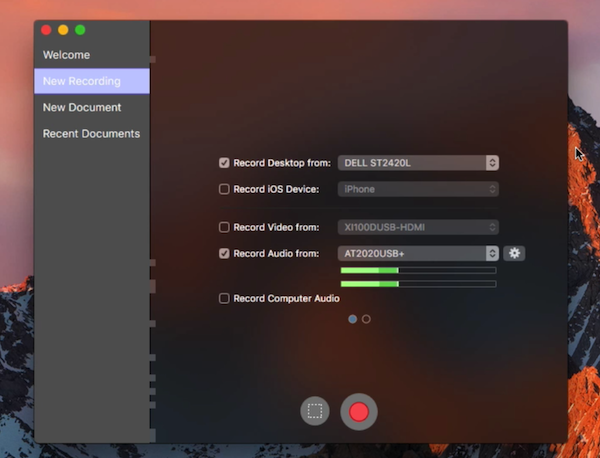
ScreenFlow is also an excellent screen recording and video editing software for professionals. This tool is similar to Camtasia and brings similar experiences. This tool can be used to record the screen or Mac or a connected iOS device. You can also import video and audio from external webcams and microphones.
This tool also has a video editing option along with a built-in stock media library offering a ton of royalty-free tracks to use in screen recordings. The video editor brings a multi-track timeline, effects, transitions, and motion backgrounds.
The basic version of ScreenFlow costs $129.
3. OBS Studio
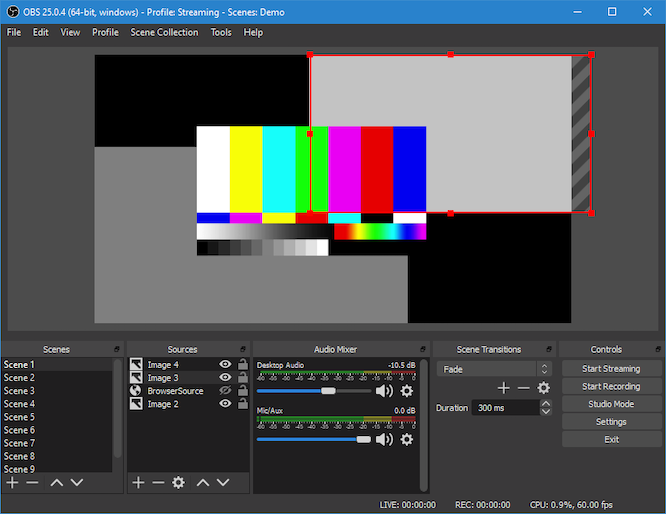
OBS Studio is basically used by streamers who broadcast their gaming sessions. This tool can record the screen and broadcast the screen as per your choice. This tool is really powerful and offers pro-level recording with all sources available for both audio and video. It can also record the screen and your face in a single video if you want. This is an advanced screen recording tool with several configuration options available for video and audio streams. You can have multiple video and audio sources in a single recording.
This powerful screen recording software is free to download and use with all the features available. OBS is free and open-source software. If you want a pro screen recorder without paying a penny, download OBS. I personally use this tool for screen recording and game streaming.
4. Movavi Screen Recorder
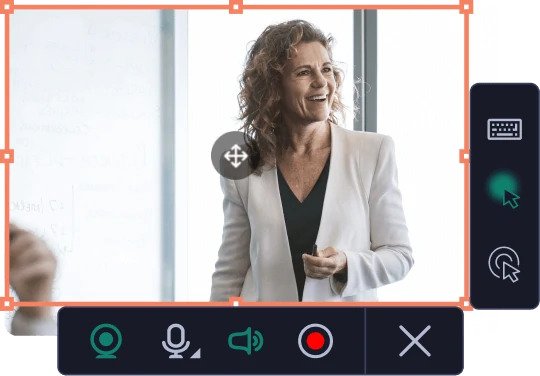
Movavi is a popular software maker that also offers a reliable and affordable screen recorder tool for macOS. This app lets you select the capture area, set sound settings, video resolution, and more before you start recording. Once you have recorded the screen, you can also edit the video by using the available editing tools. The tool also lets you schedule a recording and add mouse effects. It costs $59.95. If you are looking for a reliable screen recorder at an affordable price point, Movavi screen recording is a good option for macOS users. There is also a free version of this screen recorder, but it adds a watermark. If you do not want that watermark, you will have to get the premium version.
5. CleanShot X
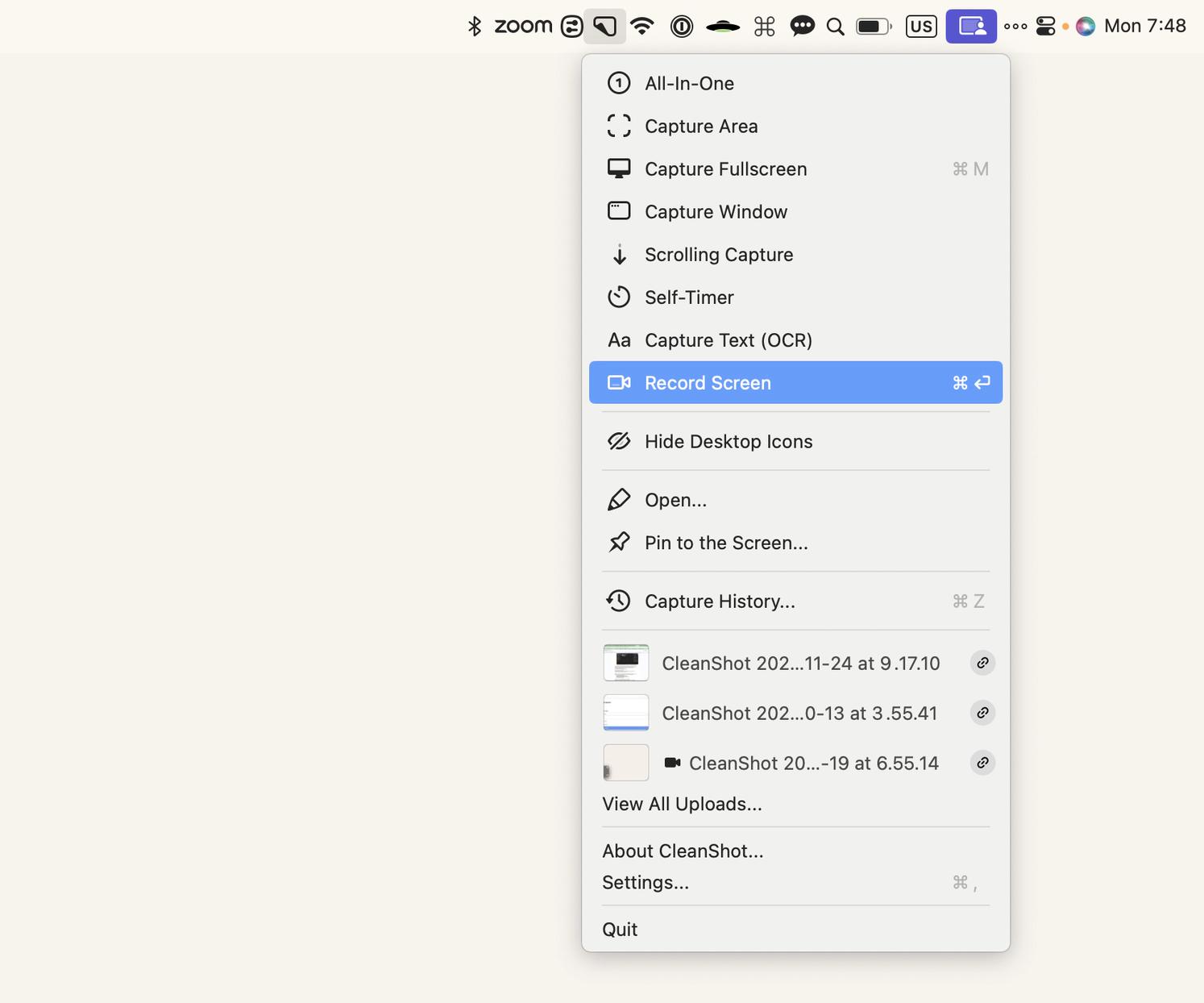
CleanShot X is a popular screen recording and screenshot tool for macOS. Ir offer a clean and simple way to capture their screen without extra clutter. The app lets you record the full screen, a selected area, or a specific window. You can also record system audio and microphone audio, which makes it useful for tutorials, demos, and walkthrough videos. The recording quality is sharp, and the performance is smooth even on older Macs.
CleanShot X also includes powerful screenshot tools. You can take scrolling screenshots, capture menus, and annotate images with text, arrows, and highlights. After recording or capturing, the built-in editor allows quick trimming and small edits without needing another app.
Another useful feature is its cloud option. You can upload recordings and screenshots instantly and share them with a link. This saves time when you need to send files quickly.
You can either Pau $29 one-time license or get Setapp subscription and get CleanShot X along with 250+ other apps.
6. RecordIt
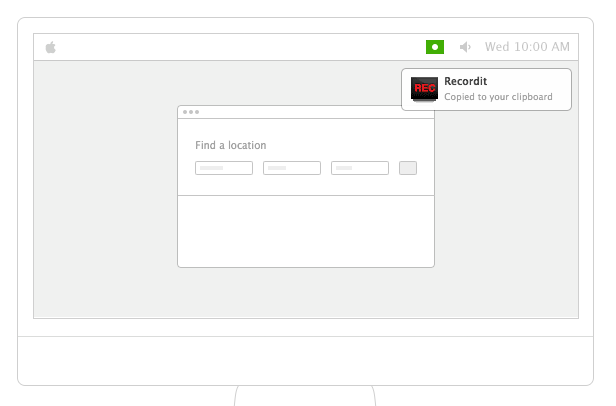
RecordIt allows you to create GIFs apart from just recording your Mac Screen. This is said to be the tiny app among the best Screencasting apps for Mac. It resides on the status bar of your Mac after installing it. Click on the app to launch it and start recording the screen. You can set the way you want to record the screen through settings. It is available at $29 and it is worth buying this Screencasting app.
7. Screencast-o-Matic

Unlike other tools in this list, Screencast-o-Matic is an online screen recorder. So, you do not need to install any dedicated software. The free version of Screencast-o-Matic lets you record up to 15 minutes of screen recording in 720p resolution. If you subscribe to the pro version that costs $1.5 per month, it removes all limitations and also offers other features like real-time editing, recording system audio, editing videos post-shooting, and more.
Bonus Tip
macOS comes with QuickTime Player. This is basically a video player that also features a built-in screenshot and screen recording tool. If you do not want to download any third-party screen recording software, you can use QuickTime player to record the screen on macOS.
To record macOS screen video using QuickTime Player, run QuickTime Player on your macOS. Now click File in the menu bar and click ‘New Screen Recording.’

It will open the Screen recording option. You can either select an area, select a Window, or select the entire screen. Then you can choose to record or capture screenshots.
If you use the VLC media player on your system, it also comes with a screen capture option. This hidden feature can be accessed through the File menu and Open Capture Device. Here select Screen in the source. VLC also lets you have some basic adjustments for screen recording.
Wrap up
These are the best Screencasting apps for Mac. You can purchase the one depending on your usage. If you do not want to know, go with OBS. It works really well. If you are a YouTuber who wants to record the screen for making tutorial videos on macOS, I recommend OBS Studio for screen recording on Mac. I use it to record and stream my gameplay. If you just need a basic macOS screen recorder, start using the QuickTime player to record screen videos. QuickTime player comes free of cost.
Have you used them before and do you have anything to add to the list? Please, do share with us through comments.