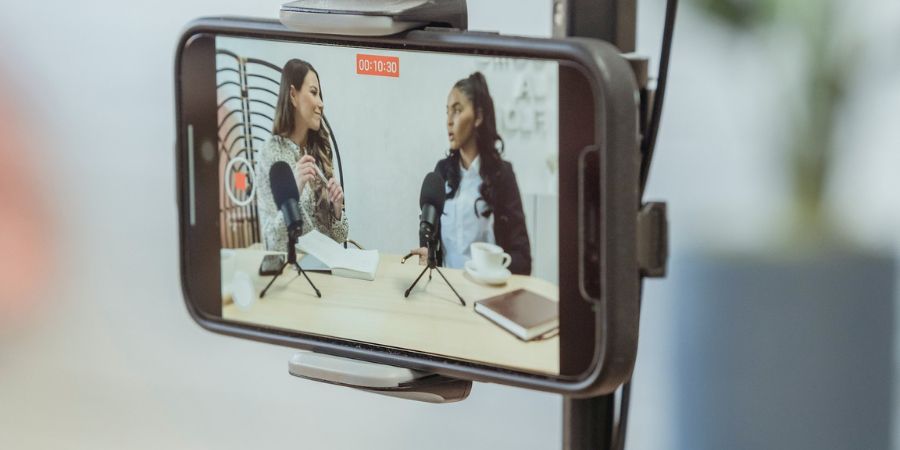

Although, most laptops come with an inbuilt webcam. But not all laptops offer a good quality webcam. There may also be a few circumstances when your laptop’s webcam is not working. You may also have a desktop but you do not have a webcam. In all these cases, when you need a good quality webcam but do not have one, you can use your Android phone as a webcam. Using your Android smartphone camera as a webcam is not hard. Android devices now come with a good camera, so using Android as a webcam will surely offer you a better calling experience. You only need to download and install a simple Android app on your Android device.
Read: How to Take Screenshots on Android Devices
In this detailed post, we will see how to use an Android smartphone camera as a Webcam on a desktop or laptop with the DroidCam android application.
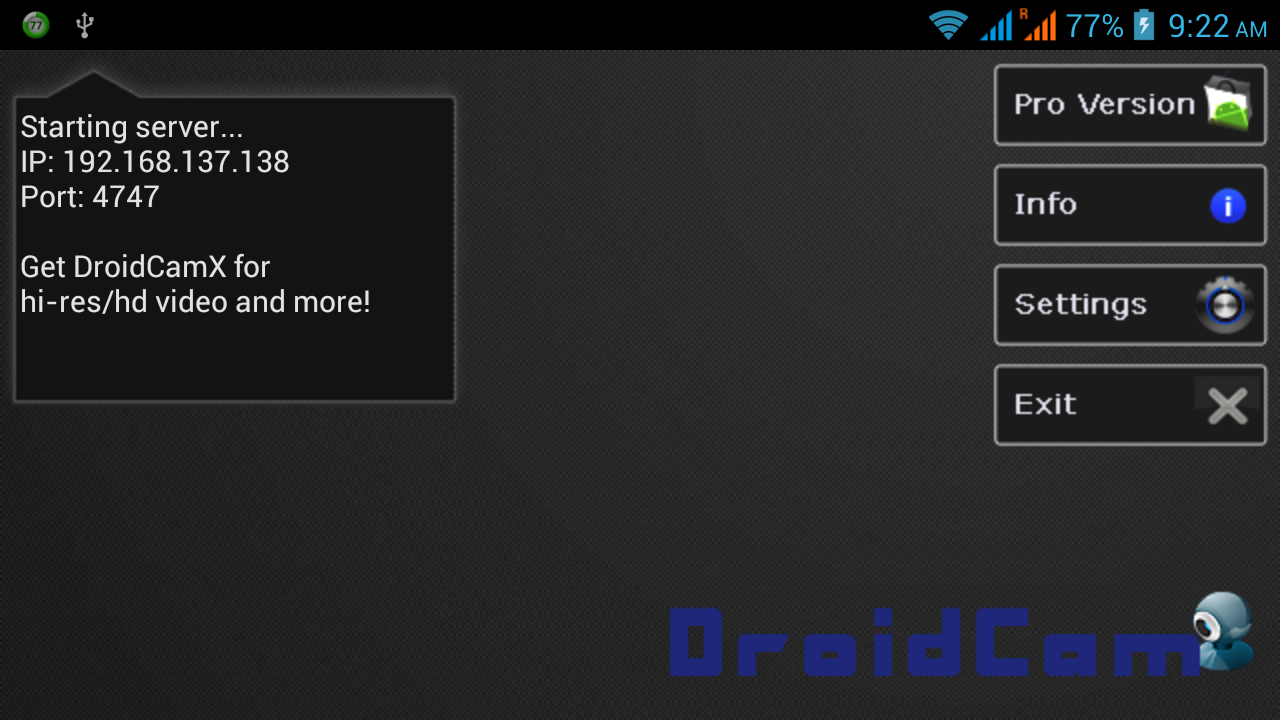
Download and install DroidCam Android application on your Android device from Google Play Store. The app is available for free of cost and supports most of the Android devices available. There is also a premium version of the app with better features. But free version of the app is enough for you.
Now you need to download a desktop client. Download the DroicCam desktop client from Dev47apps. The desktop client is available for Windows and Linux computers. The desktop client is small in size and will be downloaded in a few seconds. Download the desktop client and install it in your system. After the installation, run the DroidCam client.
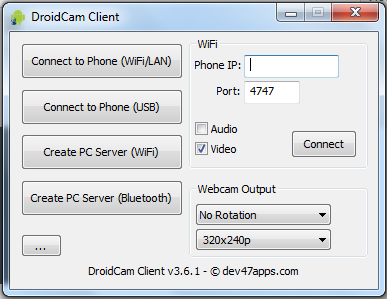
DroidCam desktop client allows users to make the connection between two devices either via USB or Wifi. Select appropriate option in the desktop client to connect your Android device to PC. You can use any option and then click connect button to share the connection.
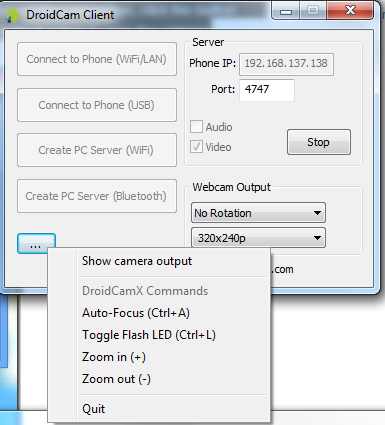
After establishing the connection, click the button with three dots in the DroidCam client. Select the Show camera output option to view the camera. You can easily connect this camera to Google+, Skype or Facebook video calls to use it as a webcam.
In the free version, you can only use the webcam in landscape mode and zooming is also limited. In the paid version of the app, there are lots of features.
Read: Turn Android Camera Flash in Torch With These Apps
There are many other similar kinds of apps available that allow users to use the camera of their Android device as a webcam. Here is the list of similar apps that let you use your Android phone as a webcam on your Windows PC.
Final Words
I only wrote about the DroidCam but also mentioned three other similar apps to try. Even if you do not have a need right now, you should try once to see how you can use an Android phone as a webcam. In case you need it in the future, you can easily do it. If you have anything to ask or suggest, do not forget to leave a comment below.