
WhatsApp has now added a document scanner. So, users can quickly scan a printed document and share it as a PDF with any WhatsApp contact. So, users don’t need any third-party app to scan a paper. In this detailed guide, I will explain how to use a document scanner in WhatsApp to scan any printed document.
WhatsApp’s document scanner feature is only available for iOS. If you are using an Android, this feature won’t work for you. Android users can use third-party apps to scan documents.
You can watch the video to learn how to scan documents on WhatsApp.
Steps to scan documents in WhatsApp
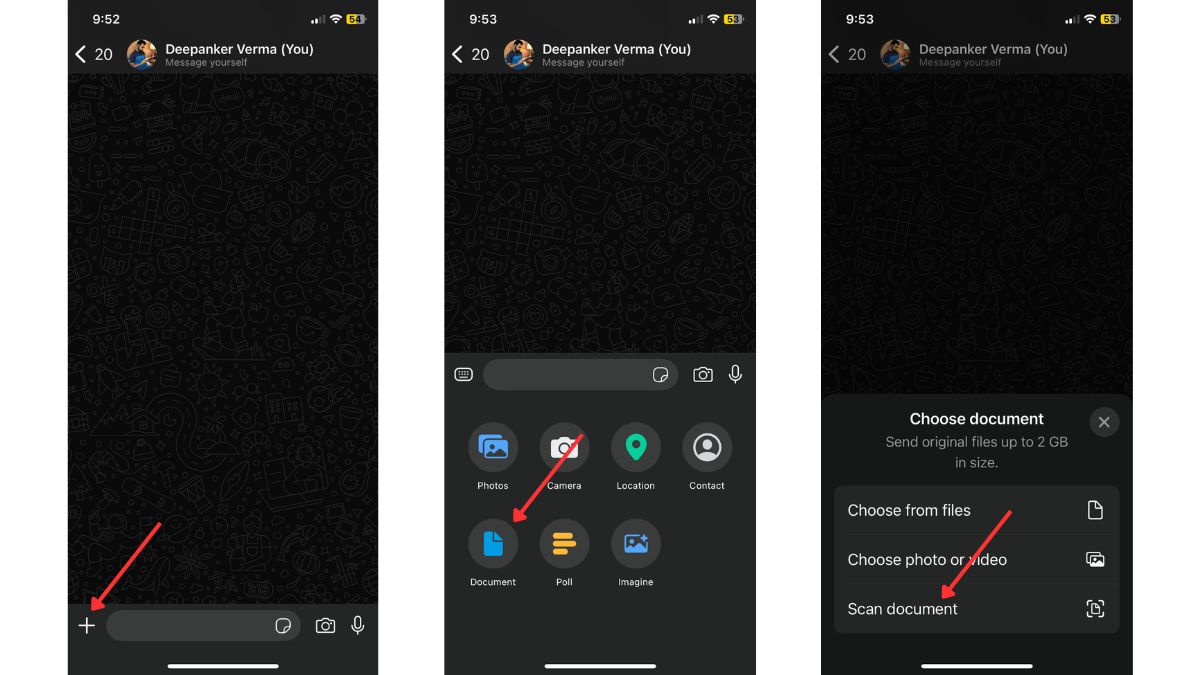
Open WhatsApp on your iPhone and open the chat where you want to share the scanned document. Click on the plus icon, tap on Documents, and then tap on Scan Document. Now point the camera to the printed paper. WhatsApp automatically detects and captures the documents. It also properly aligns the scanned copy to make it look like exactly the scanned copy. There’s also an option to edit it if you want. You can crop, rotate, or adjust the color.
If there are multiple pages, you can keep scanning and add pages to the same PDF. Once you finish scanning, tap Save to share the document with the contact.
Currently, there is no option to change the name of scanned PDF. You can also scan up to 24 pages in a single PDF. It is also important to note that WhatsApp doesn’t save the document locally on your device. You will have to save it manually after sharing it with a contact.
Now you know how to use WhatsApp’s document scanner to scan and share a printed document. This feature works exactly the same as the iPhone’s document scanner feature. It seems WhatsApp has integrated the iPhone’s document scanner. This could be the reason why the feature is not available for Android.