Chrome is known for offering features and performance. It also provides browsing history, so you know what web pages you accessed in the past. Accidentally closing a tab while browsing can be frustrating, especially if you are working on something important. Fortunately, Google Chrome offers several easy ways to reopen recently closed tabs. Whether you are using Chrome on a desktop, Android, or iOS, Google added ways to reopen recently closed tabs quickly. In this article, I will explain different methods to reopen recently closed tabs.
Open Recently Closed Tabs in Chrome for Desktop
1. Using Keyboard Shortcuts
Keyboard shortcut is the easiest and fastest way to reopen a recently closed tab on Chrome for desktop.
If you are on a Windows or Linux PC, Press Ctrl + Shift + T. This keyboard combination will reopen the last closed tab. Pressing it multiple times will reopen tabs in the order they were closed. For Mac, the keyboard shortcut is different. Press Cmd + Shift + T to reopen the recently closed tab on Mac.
2. From the Chrome Menu
You can also reopen a recently closed tab from the Chrome menu. For this, follow these steps.
- Click on the three vertical dots (⋮) in the upper-right corner of the Chrome window.
- Hover over History in the drop-down menu. A list of recently closed tabs will appear.
- Click on the tab you want to restore.
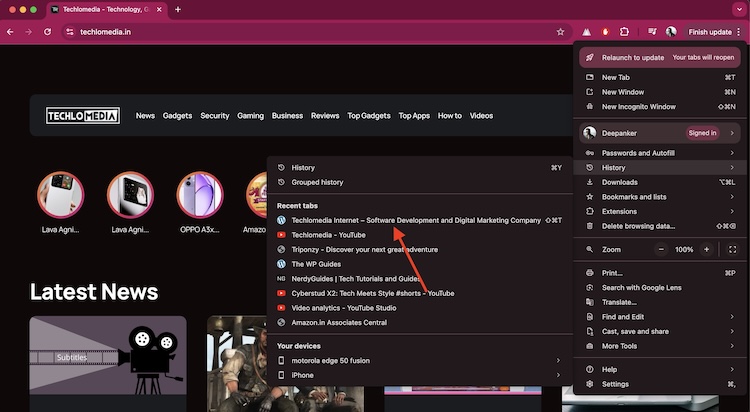
Alternatively, you can also open the full browsing history by using the keyboard shortcut Ctrl + H (or Cmd + Y on macOS). Browse through your history or use the search bar to find the tab you closed. Click on the entry to reopen it.
Tip:
If you closed an entire Chrome window with multiple tabs, look for entries labeled “X Tabs” (e.g., “4 Tabs”) to restore the entire session at once.
3. Using Right-Click on the Tab Bar
You can also restore a recently closed tab from the Tab bar. Right-click on the empty space on the tab bar and select Reopen Closed Tab from the menu.

This method works the same way as the keyboard shortcut. If you do these steps multiple times, it will reopen multiple closed tabs, one by one.
4. Reopening a Chrome Session After a Crash or Restart
If Chrome crashes or your computer restarts unexpectedly, you can still recover your previous browsing session including all tabs. When you relaunch Chrome, a notification may appear asking if you want to Restore the previous session. Click Restore to recover all tabs from the last session.
If this option doesn’t appear, open the Chrome menu (three dots), hover over History, and look for a section that says “Recently closed” with the option to restore the last window or multiple tabs.
Automatic Tab Restoration:
If you want Chrome to always reopen tabs after a restart. Open Chrome’s menu (three dots) and go to Settings. Scroll down and click On startup. Select Continue where you left off.

Now, Chrome will always reload tabs from your previous session when it starts.
Reopening Recently Closed Tabs on Android or iOS
If you are using Chrome on an Android device or iPhone, there are a few simple ways to restore closed tabs. The steps are the same on both Android and iOS. I am including screenshots of Android phones, but you will also find them relevant for iOS.
Method 1: Using the Recent Tabs Menu
Open Chrome on your Android device. Tap the three vertical dots (⋮) in the upper-right corner of the browser window to open the menu Tap Recent Tabs and you will see a list of recently closed tabs from your current device and any other synced devices. Tap the tab you want to reopen.

Method 2: Using History
Open Chrome and tap the three dots (⋮) in the upper-right corner. Tap History. Now, Browse through your history or use the search bar to find the tab you want to reopen. Tap on the link to open it in a new tab.

Method 3: Using Undo Pop-up
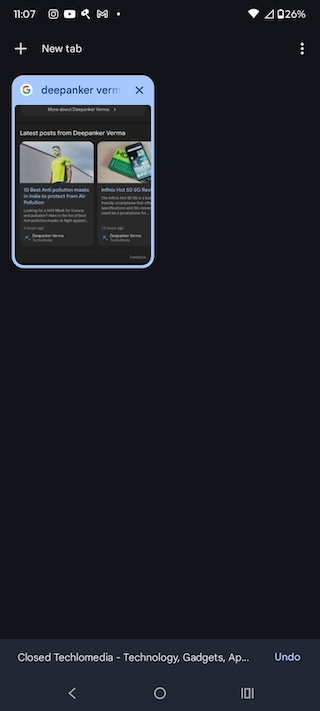
Sometimes when you close a tab on Android, Chrome shows an Undo pop-up at the bottom of the screen. Tap Undo to reopen the tab you just closed.
Conclusion
Whether you are using Chrome on a desktop, Android, or iOS, it provides multiple ways to reopen recently closed tabs. From keyboard shortcuts and history menus to mobile-specific options like the Undo pop-up and Recent Tabs, you can always reopen tabs you have accidentally closed. By following these ways, you will never have to worry about losing your important tabs.
You should also check these articles.
- How to Enable Parallel Downloading in Chrome
- How to Limit Memory Usage in Chrome
- How to switch tabs in Google Chrome
- Download Google Chrome Offline Installer
- Google Chrome keyboard shortcuts