
Pikashow is a popular third-party streaming app that provides access to a vast library of movies, TV shows, live sports, and more. It is widely known for offering free content, including Bollywood, Hollywood, and regional films. Pikashow also streams live sports events like cricket, football, and other major tournaments, making it a go-to app for entertainment lovers.
Originally designed for Android devices, Pikashow is not officially available for Windows PCs. However, many users want to run it on Windows 11 to enjoy content on a bigger screen.
Why Do People Want Pikashow for Windows 11?
There are several reasons why users look for Pikashow on Windows 11. Pikashow brings the latest movies soon after their release. But not all are comfortable watching movies on a smaller screen. Watching movies or sports on a laptop or PC offers a better viewing experience compared to a mobile screen. So Pikashow on Windows PC could provide a better experience. Windows PCs generally have more storage than smartphones. It makes it easier to store and stream content. Performance could be another reason. A PC’s hardware can handle streaming better than a mobile device to ensure smooth playback without lag. Multitasking is another reason. Users can watch content while working on other tasks on their PC..
Since Pikashow is not officially available for Windows, the best way to install it is by using an Android emulator like Bluestacks or LDPlayer.
How to Install Pikashow on Windows 11
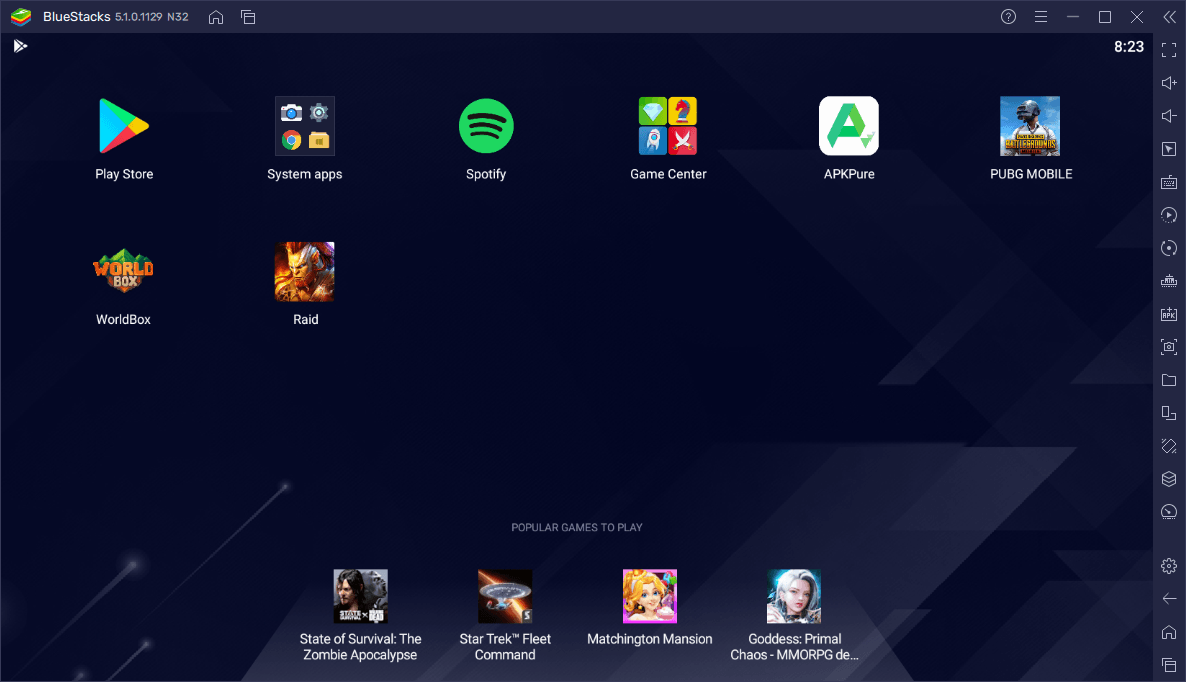
Since Pikashow is an Android app, you need to use an Android emulator to run it on Windows 11. There are several Android emulators for Windows. You can try any of the emulators to install Pikashow on Windows 11. Bluestacks is one of the most popular Android emulators that allows users to run Android apps on Windows. Follow these steps to install Pikashow:
Step 1: Download and Install Bluestacks
Go to the Bluestacks website (https://www.bluestacks.com) and download the latest version. Once the download is complete, run the installer and follow the on-screen instructions to install Bluestacks on your PC. Launch Bluestacks after installation and set it up using your Google account.
Step 2: Download the Pikashow APK
Search for “Pikashow APK” on Google and download the latest version from a trusted website. (Note: Be cautious about downloading from unknown sources to avoid malware). Save the APK file in a folder where you can easily find it. I have already made a list of the best APK download websites. You can get safe APKs from these websites.
Step 3: Install Pikashow on Bluestacks
Open Bluestacks and look for the APK Installer option. Click Install APK and navigate to the Pikashow APK file you downloaded. Select the Pikashow APK file and install it. Once installed, you will find Pikashow in the Bluestacks app drawer.
Step 4: Run Pikashow on Windows 11
Open Bluestacks and click on the Pikashow app. Grant the necessary permissions for the app to work. Start browsing movies, TV shows, or live sports and enjoy streaming on your Windows 11 PC.
How to Use Pikashow on Windows 11
After successfully installing Pikashow, you can now enjoy watching movies in Pikashow. The app interface is divided into different categories like Movies, TV Shows, Live TV, and Sports. You can use the search bar to find specific content. Click on any movie or TV show you want to watch. Select the video quality (e.g., 480p, 720p, 1080p) and click Play. The content will start streaming.
If you want to watch Live Sports, go to the Live TV section and select a sports channel (e.g., cricket, football, or other live broadcasts). Click Play to watch the match.
Pikashow also allows you to download content for offline viewing. Simply click on the Download button next to a movie or TV show.
Alternative Emulators to Run Pikashow on Windows 11
If Bluestacks doesn’t work well on your PC, here are some alternative emulators:
- LDPlayer (https://www.ldplayer.net) – A lightweight emulator for running Pikashow smoothly.
- NoxPlayer (https://www.bignox.com) – Great for gaming and streaming apps.
- MEmu Play (https://www.memuplay.com) – Optimized for performance.
Is Pikashow Safe to Use on Windows 11?
Pikashow is a third-party streaming app that provides free access to movies, TV shows, and live sports. Since it is not available on the official Google Play Store or Microsoft Store, there are some concerns about its safety and legality. Downloading its APK from an untrusted source could expose your PC to malware or viruses. Some versions may be modified to include malicious code. The app doesn’t have a transparent privacy policy. It may collect and share user data without permission. Since different websites host Pikashow APKs, there is no guarantee that you are downloading a genuine, safe version.
Pikashow streams copyrighted content for free, which may violate copyright laws in many countries. Using such apps may put you at risk of legal action if authorities detect unauthorized streaming.
If you decide to use Pikashow despite the risks, consider these safety precautions:
- Download from a Trusted Source – Avoid unofficial APK sites that may inject malware.
- Use a VPN – A Virtual Private Network (VPN) can hide your IP address and protect your privacy.
- Install Antivirus Software – Keep your system secure by scanning downloaded files.
- Use a Secondary Account – Do not link your primary Google or Microsoft account to an untrusted app.
Safe and Legal Alternatives to Pikashow
If you are looking for safe, legal streaming services, consider the following streaming platforms:
- Netflix (Paid, with a vast library of movies and TV shows)
- Amazon Prime Video (Affordable subscription with exclusive content)
- Disney+ Hotstar (Popular for movies, TV shows, and sports)
- SonyLIV, ZEE5, JioCinema (Affordable Indian streaming platforms)
- YouTube (Free content, including movies and live sports)
Check this list of Free Movie Streaming Sites for watching content online. If you are interested in downloading movies, you can check this list of Movies Download Websites.
Final Thoughts
Even though Pikashow is not officially available for Windows 11, you can still enjoy it using an Android emulator like Bluestacks or LDPlayer. Follow the steps in this guide to install and use it on your PC. However, be mindful of legal and security concerns when using third-party streaming apps. If you want a legal alternative, consider platforms like Netflix, Disney+, or Amazon Prime Video for a safe and hassle-free experience.
Would you like recommendations for legal streaming apps on Windows 11? Let me know.