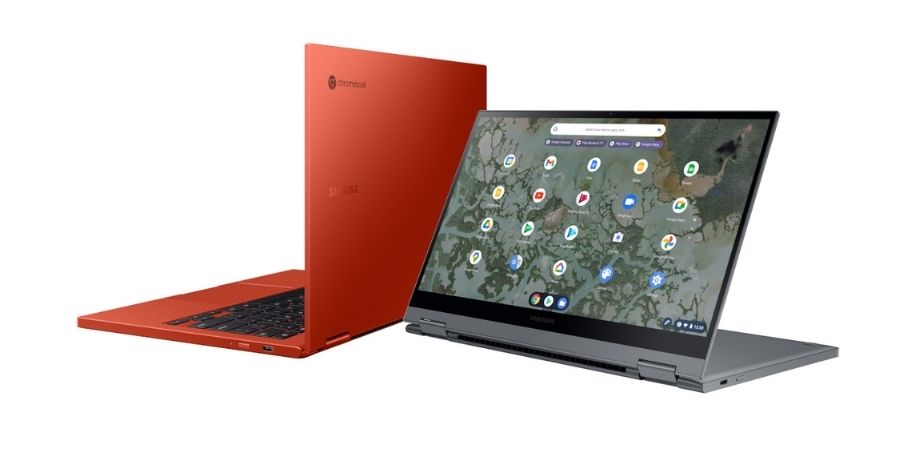

Google’s Chromebook is now getting popular. As per the recent report, Google shipped more Chromebooks than Apple’s MacBook in 2020. If you have also recently switched to Chromebook, there could be several things you might find hard to do. Capturing screenshots is now a regular thing most people do. I also capture several screenshots daily to add to my articles. In Windows, there is a Snipping Tool and macOS also has keyboard shortcuts. In a similar way, Chromebook also has a keyboard shortcut to capture screenshots. Keep reading to know how to capture screenshots in Chromebook.
Also see: How to Capture Screenshot on Mac
Capture Screenshot on Chromebook
To capture a screenshot of the current window, press the Ctrl + Show windows key combination.
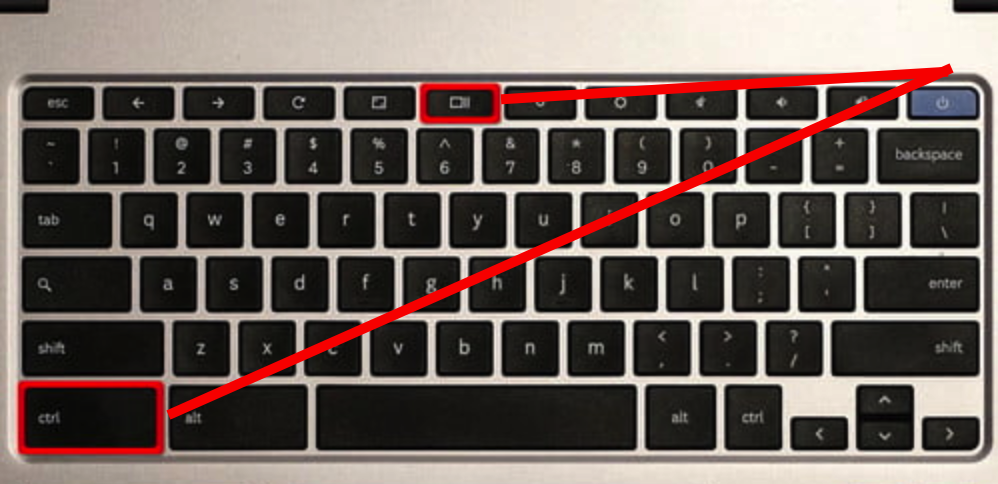
Once to press the keyboard combination, a pop-out window will appear notifying you about the screenshot. Click on this pop-out window to open the location where the screenshot is saved. Screenshots are saved in the Downloads folder. This pop-out window also gives you the option to copy the screenshot to your clipboard or annotating the image.
To capture the screenshot of a portion of the screen, press the Shift + Ctrl + Show windows keys. It will then ask you to select the area using click and drag.
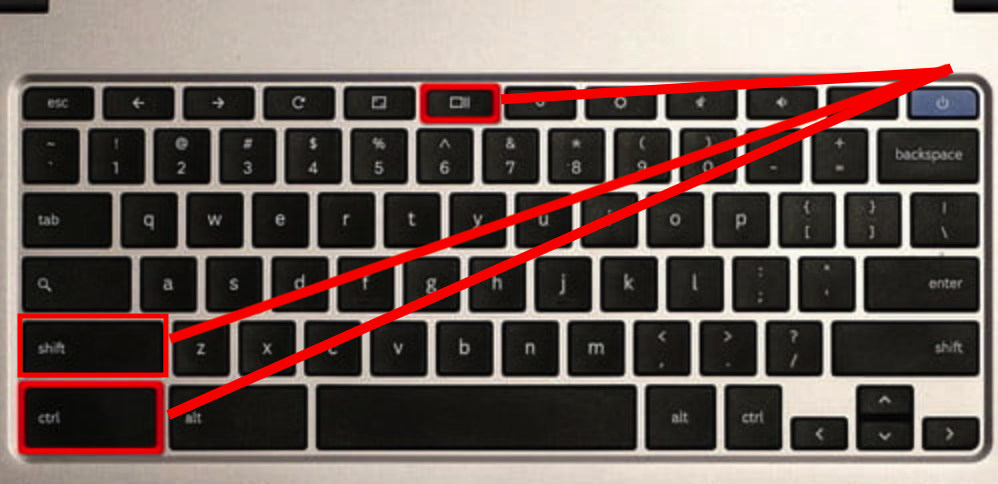
If you are using an external keyboard, you need to use the F5 key in place of the Show windows key. That means Ctrl + F5 for capturing a screenshot of the current Window and Ctrl + Shift + F5 for taking a screenshot of a selected area of the screen.
This was a simple tutorial explaining how to capture screenshots in Chromebook. If you have Chromebook, now you know how to capture screenshots.