How to save a webpage as PDF with Chrome

Deepanker Verma January 27, 2012
How to save a webpage as PDF with Chrome

Add Techlomedia as a preferred source on Google. Follow on Google News

Have you ever wished to save a web page as a PDF? Saving a webpage in PDF form is better than saving it as HTML. You can later read it using any PDF reader or web browser. There are many tools available for converting HTML to PDF but you can also save a web page as a PDF with Google Chrome. Chrome has a built-in option to save any HTML page into a PDF. In this article, I will tell you how you can save a web page as a PDF in Google Chrome.

Follow these steps

Go to the webpage you want to save as PDF.

Now click on the Three vertical dot icon to open Menu and then select Print. Alternatively, you can also press CTRL+P on Windows and COMMAND+P on macOS.
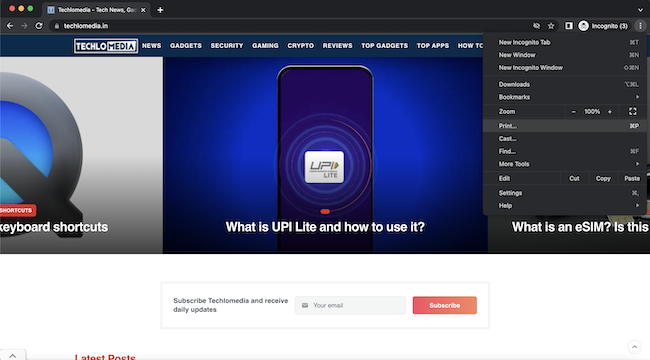
save a webpage as PDF with Chrome

Now you will be redirected to the print page. Here select Destination as “Print to PDF”
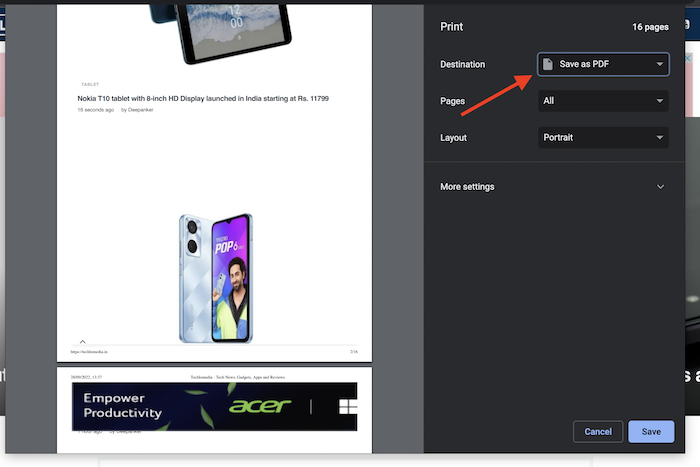
save a webpage as PDF with Chrome

Now click on the Save button. It will ask you to select the destination where you want to save the page.

This is a simple way to save a web page in PDF form with the Google Chrome web browser.

Now you know how to quickly save a webpage to PDF quickly using Chrome.

Follow Techlomedia on Google News to stay updated. Preffered Source

Affiliate Disclosure:

This article may contain affiliate links. We may earn a commission on purchases made through these links at no extra cost to you.

Deepanker Verma

About the Author: Deepanker Verma

Deepanker Verma is the Founder and Editor-in-Chief of TechloMedia. He holds Engineering degree in Computer Science and has over 15 years of experience in the technology sector. Deepanker bridges the gap between complex engineering and consumer electronics. He is also a a known Security Researcher acknowledged by global giants including Apple, Microsoft, and eBay. He uses his technical background to rigorously test gadgets, focusing on performance, security, and long-term value.

Related Posts

Stay Updated with Techlomedia

Join our newsletter to receive the latest tech news, reviews, and guides directly in your inbox.