
Google Lens is a powerful Google tool that can search information, translate text scan bar codes, and scan QR codes. If you have a smartphone, you already know how to use it in the Google app. The feature is available in both Android and iOS apps of Google Assistant. It has also been integrated with Google Camera and Google Photos app. But there is no way to use Google Lens on the desktop. If you open Google Lens website, it only tells you what Google Lens does and what apps provide access to Google Lens. There is no official app of Google Lens for PC. Then how can one use Google Lens on the PC?
There are a few ways to use Google Lens on PC. In this article, I will explain how to get Google Lens for PC.
Also see: Less Known Google Apps You Should Not Miss
Google Image Search
Although there is no Google Lens app for PC, you can still access Google Lens on the desktop using Chrome and Google Images.
If you have an image that you want to scan using Google Lens, open images.google.com and upload the image.

It will then provide a visual search by showing similar images, source of image, and other data powered by Google Lens..

This method was to use Google Lens on an image saved to your PC.
Even on regular Google Image search, if you click on any image result, it will show you the Google Lens icon. Click the lens icon to get visual matches

Now you know two different ways to use Google Lens on the PC using Google Images.
Google Chrome
Google has also deeply integrated Google Lens into Google Chrome. On any website, just right-click on any image and click Search image with Google.
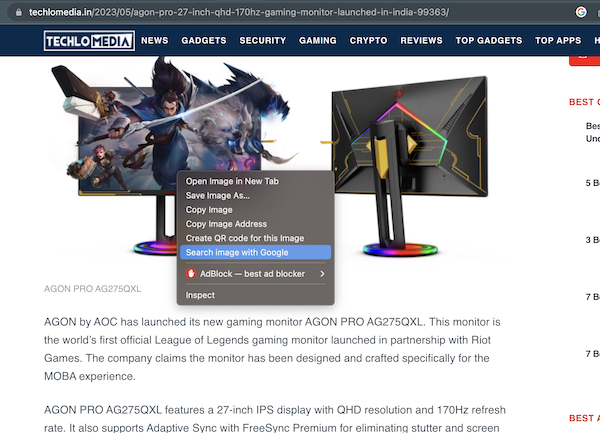
It will provide visual search results in the side bar. See the screenshot below.

Google Lens on PC can help you get visually matching results, copy text from images, or translate text. It can also provide shopping results in Google images. But you cannot use it to solve homework or complex match problems.
Now you know how to use Google Lens on PC using Google Image search or Chrome. I hope this article was useful and you found the information you were looking for. If you still have any questions, you need to comment below and I will surely help you.