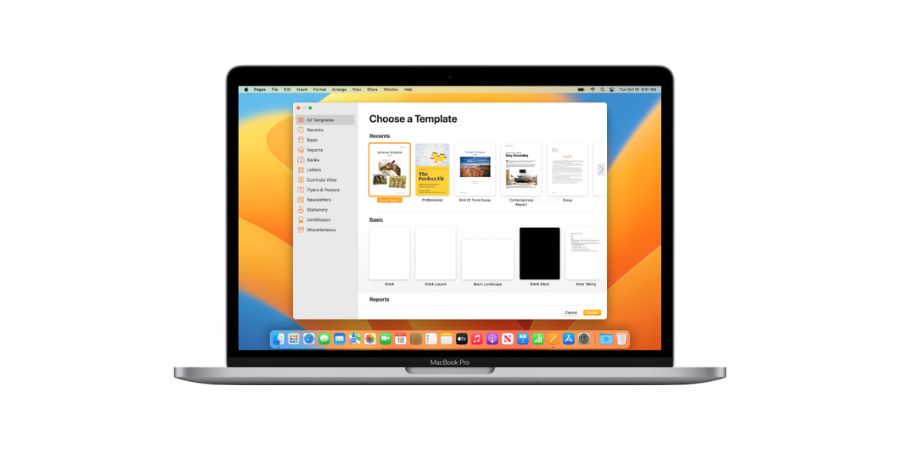

Pages is Apple’s word processor software for macOS. This software works as an alternative to MS Word. It offers similar features and even some better features. You can use it for making documents, adding formatting, and even collaborating in real time with other users. Apple has also added several keyboard shortcuts in pages for doing several things faster for improved productivity. If you use Pages, you need to learn some keyboard shortcuts for being a power user and save time. In this detailed guide, I am adding Pages keyboard shortcuts.
Also see:
Pages Keyboard Shortcuts
Content Editing
| Move to the beginning of the line or paragraph. | Control + A |
| Move to the end of the line or paragraph. | Control + E |
| Centralize cursor on the page or visible area. | Control + L |
| Insert new line after insertion point. | Control + O |
| Swap character behind (right) insertion point with character in front (left) of insertion point. | Control + T |
| Left indent current line. | Command + { |
| Right indent current line. | Command + } |
| Center align line. | Command + Shift + | |
| Delete word on the left of the insertion point. | Option + Delete |
| Delete text between insertion point to the end of the line. | Control + K |
| Copy content with format settings. | Command + Option + C |
| Paste content with format settings. | Command + Option + V |
| Paste content matching style of surrounding content. | Command + Option + Shift + V |
| Increase size of highlighted item. | Command + Shift + + |
| Decrease size of highlighted item. | Command + Shift + – |
Controlling Insertion Point
| Move insertion point to the beginning of document. | Command + ↑ |
| Move insertion point to the end of document. | Command + ↓ |
| Move insertion point to the beginning of current line. | Command + ← |
| Move insertion point to the end of current line. | Command + → |
| Move insertion point to beginning of previous word. | Option + ← |
| Move insertion point to end of next word. | Option + → |
Text selecting / highlighting
| Highlight text between insertion point to the beginning of document. | Command + Shift + ↑ |
| Highlight text between insertion point to the end of document. | Command + Shift + ↓ |
| Highlight text between insertion point to beginning of current line. | Command + Shift + ← |
| Highlight text between insertion point to end of current line. | Command + Shift + → |
| Highlight text selection to the nearest character on the line above. | Shift + ↑ |
| Highlight text selection to the nearest character on the line below. | Shift + ↓ |
| Highlight one character to the left. | Shift + ← |
| Highlight one character to the right. | Shift + → |
| Highlight text to the beginning of current paragraph. | Shift + Option + ↑ |
| Highlight text to the end of current paragraph. | Shift + Option + ↓ |
| Highlight text to the beginning of current word. | Shift + Option + ← |
| Highlight text to the end of current word. | Shift + Option + → |
Document Navigation
| Scroll up one page. | Fn + ↑ |
| Scroll down one page. | Fn + ↓ |
| Scroll to the beginning of document. | Fn + ← |
| Scroll to the end of document. | Fn + → |
Miscellaneous
| Add web link to highlighted text. | Command + K |
| Open Fonts Windows. | Command + T |
| Go to search field. | Command + Option + F |
| Toggle toolbar on/off. | Command + Option + T |
| Toggle inspector window on/off. | Command + Option + I |
| See current document settings. | Command + Shift + P |
| Duplicate current document. | Command + Shift + S |
| Open Help menu. | Command + Shift + ? |
| Open Spelling and Grammar window. | Command + : |
| Find misspelled words. | Command + ; |