
You may have heard about Microsoft’s phone link app that lets you connect your Android smartphone or iPhone with your Windows PC for file transfer, notifications, and calls. Intel has also developed a similar solution called Intel Unison. The app comes pre-installed in newer laptops with Intel Evo CPUs. But you can also use it on other PCs for connecting your phone to a PC. In this guide, I will explain Intel Unison, how it works, and what are the benefits of Intel Unison.
What is Intel Unison
Intel Unison is a cross-device application that offers seamless integration between smartphones and PCs. With Intel Unison, users can connect their smartphones to their PCs and share files and other data between devices. It also provides smartphone notifications on your PC.
This app is useful for people who constantly switch between your phone and PC. It helps in multitasking allowing users to stay updated about phone notifications, calls, and messages directly on their PC. So, they need to keep checking the phone again and again.
Intel says that the app needs Intel CPU Gen 12 and above, Core i5 and above. It also requires 8GB RAM and above, Bluetooth 5.2 or later, and Wi-Fi 6 or later.
How to download and use Intel Unison?
Intel Unison is available on the Microsoft store. Download it using this link and install it on your Windows PC.

After installing it on your Windows PC, download the companion app on your Android phone or iPhone. The app is available on the Play Store and App Store.
Once you download the app on your phone, you need to scan the QR code shown on the Windows app from the mobile app. It will automatically connect your PC to your phone.
How does Intel Unison work?
Intel Union uses WiFi and Bluetooth to make a secure and reliable wireless connection between smartphone and PC.
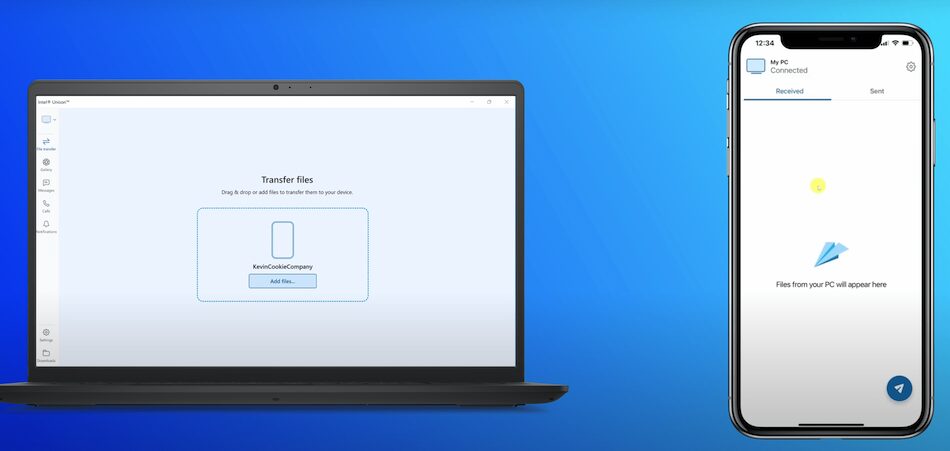
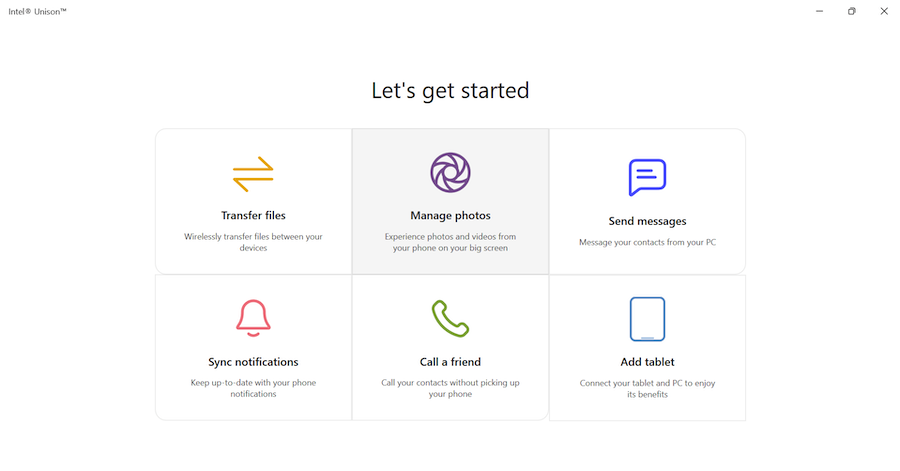
Once your phone is connected to your PC, you get the following features:
- Notifications: Get your phone notifications on your PC.
- Calls: Make and receive phone calls using directly from your PC
- Messages: Send and receive text messages from your PC.
- File Transfer: Share photos, videos, and documents between your phone and PC.
- Phone Gallery: View, manage, and download photos from your phone’s gallery on your PC.
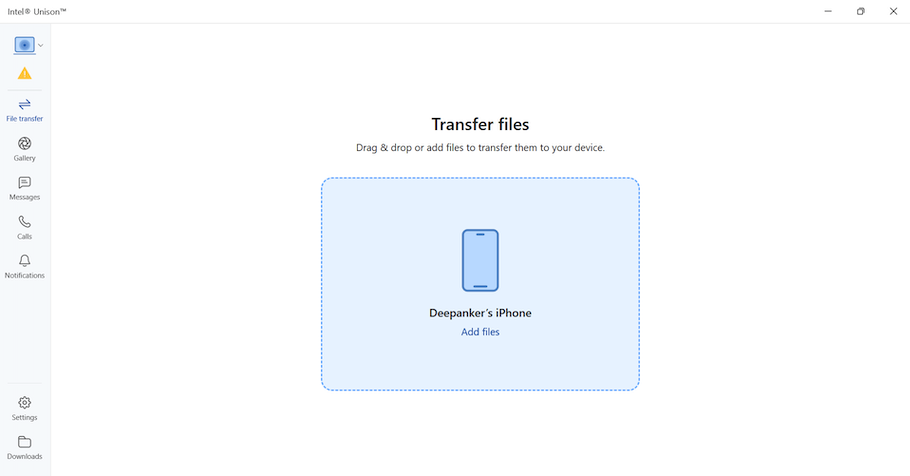
The desktop app has a clean interface. It has a sidebar with options for File Transfer, Gallery, Messages, Calls, and Notifications. Use relevant options depending on your needs. For sending a file from phone to PC, you the Intel Unison app on your phone. If you want to send a file from a PC to a phone, go to File Transfer, select the file, and send it to the phone. I use it with my Windows laptop and iPhone. The connection works flawlessly.
In the calls segment, you get all your contacts for making calls. When you get a phone call, it shows a notification on the laptop for receiving the call. The messages tab shows recent messages on your phone. You can also send a new message. All your phone notifications are shown in the Notifications section.
Wrap Up
Intel Unison is the perfect solution for people who want to be more productive. It doesn’t matter if you have an Android phone or an iPhone, it pairs with your Windows laptop and provides seamless data transfer, notifications, and calls. Something similar to what Apple Ecosystem provides to Mac and iPhone users. So, Windows users can also now use the Windows Ecosystem with their Android phone or iPhone. I use my Windows Laptop and iPhone with intel Unison and the integration works well. It provides quick file transfer and notifications on my laptop.