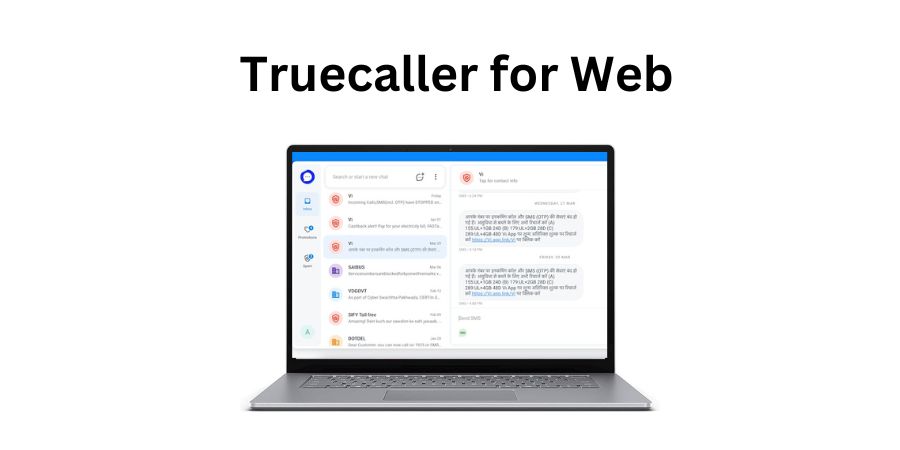

Popular caller ID platform TrueCaller has introduced Truecaller for Web to provide users with SMS data on their computers. You get all the SMS messages on your laptop’s web browser. You can read SMS and reply to them. In this guide, I will explain what is TrueCaller for the Web and how to use it.
What is TrueCaller for Web?
TrueCaller for Web is a web interface for TrueCaller messaging. You get access to all SMS messages on your phone on your laptop or PC. TrueCaller for Web provides an easy-to-use interface to access SMS and reply to them.
TrueCaller confirms that all the communication between web and your Android phone is encrypted. TrueCaller never stores your SMS messages on its server. You only see a mirror of your SMS data on TrueCaller for web. TrueCaller for web also doesn’t support MMS messages. It also doesn’t support Group chats.
For now, TrueCaller for web is only available for Android users in India. They can link their Android phone to the TrueCaller web client on a PC. TrueCaller also limits the number of active web sessions to only one. Users can manually de-link a browser whenever they want. TrueCaller will also automatically sign out users from the web after 30 days of no usage.
It is worth noting that you need to make TrueCaller the default messaging app on your phone to truly utilize the power of TrueCaller for web.
How to use Truecaller for Web?
To use Truecaller for Web, open https://web.truecaller.com on your computer. It will ask you to scan a QR code.

On your Android phone, Open the TrueCaller App and navigate to the Messages tab, Here, the click overflow menu and Messaging for Web. Now tap the Link A Device button and it will open the QR scanner.
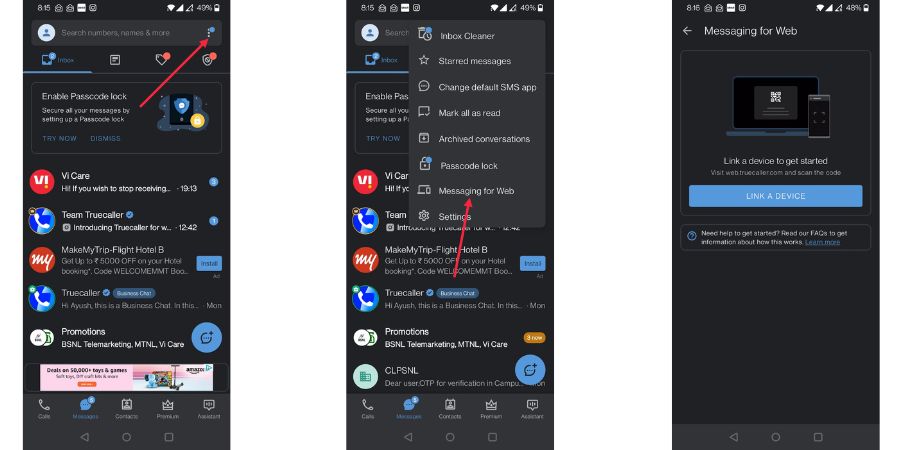
Scan the QR code shown on your computer and it will log in TrueCaller for Web.

Now you have access to all SMS messages on the laptop. If you do not set TrueCaller as the default messaging app, you cannot delete SMS from the TrueCaller for web.
Although I appreciate the efforts made by TrueCaller in launching TrueCaller for web, I don’t see it as very useful. Most people don’t even use SMS. If I check my SMS, I only find OTPs or SPAM. Although Google is trying to revive SMS with RCS messaging, not many phone manufacturers and Carriers seem interested. So, Android users who want to access OTPs on their laptops may find it useful, but they already have Intel Unison and Windows PhoneLink-like platforms to get access to phone notifications directly on laptops. So TrueCaller for web doesn’t give much value as long as our life is dependent on SMS for daily communication.