
Spotify is a popular music streaming platform that is available for iOS, Android, Windows, macOS, and Linux. However, people who do not want to install a dedicated Spotify app can use Spotify web player for listening to music. I also use Spotify web player on my laptop for listening to my Spotify playlists. In this detailed guide, I will explain how to use Spotify web player for listening to music without installing the Spotify app on your system.
Spotify web player is the online version of Spotify that you can access using any web browser. It provides access to Spotify music library. Free users can also use Spotify web player for listening to music.
How to access Spotify Web Player
To access Spotify Web Player, you need to open a web browser and enter https://open.spotify.com/ URL. It will open the Spotify web player. Spotify web player supports all major browsers including Chrome, Safari, Edge, Opera, and Firefox.
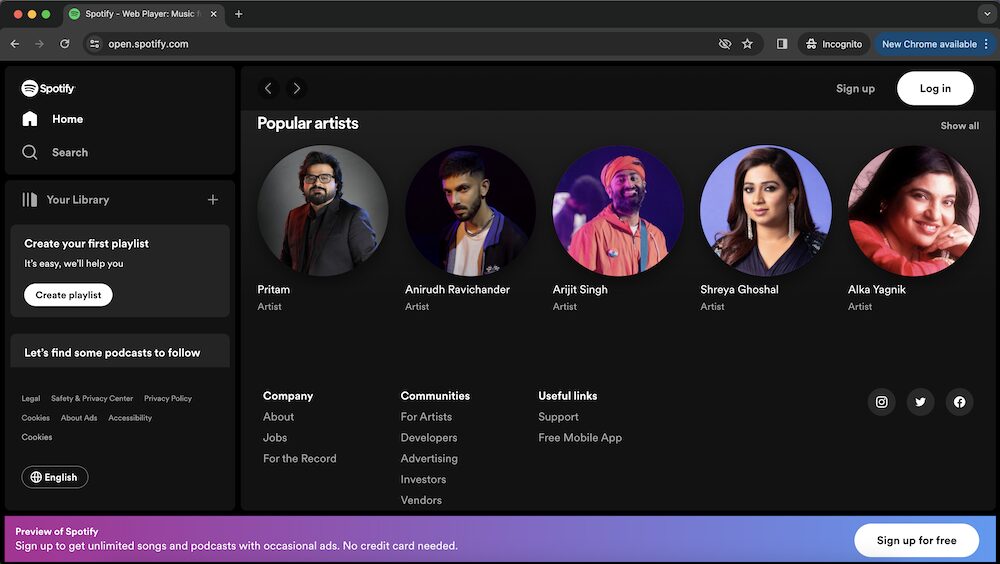
It asks to log in or create an account. If you already have a Spotify account, log in to your account. If you don’t have an account sign up for a free account.
Once you are logged in, you see a simple layout with a left pane offering options such as Search, Home, Your Library, and Recently Played. Use Search to search the song you want to listen to. The home page also provides popular artists, featured albums, trending songs, and featured Podcasts.
Your Spotify is also available on the Spotify Web Player. So, you can quickly access your organized Playlists and songs. You can also edit playlists or create a new playlist. Spotify web player also lets you save a song to your Library, add it to Queue, and app to a Playlist. There is also a share option for sharing a song to friends on social media or messaging apps.
The search option lets you search for any song, album, or artist you want to listen to. It is a good option to find music. You will also get a music recommendation service that is a good way to discover new music.
Spotify Web Player Keyboard shortcuts
Spotify Web Player also supports keyboard shortcuts. So, you can quickly, perform several tasks using keyboard keys. However, desktop app keyboard shortcuts do not work in Spotify Web Player. If you install the Spotify Hotkeys extension on Chrome or Firefox, you can use certain keyboard shortcuts.
Download for: Chrome | Firefox
Chrome Hotkey
- Pause or Play: Alt+Shift+P
- Play Next Track: Alt+Shift+.
- Play Previous Track: Alt+Shift+,
- Save Track: Alt+Shift+F
Firefox Hotkeys
- Pause or Play: Alt+Shift+P
- Play Next Track: Alt+Shift+.
- Play Previous Track: Alt+Shift+,
- Shuffle: Alt+Shift+F
- Repeat: Alt+Shift+R
- Play Album: Alt+Shift+B
The primary benefit of Spotify web player is that users can listen to music anytime on any device without needn’t to install an app. It provides access to Spotify’s entire catalog just by logging in using the phone number. If you already have a Spotify subscription, it will be available on the Spotify web player. If you do not have a subscription, you will see ads while listening to music.
However, the web payer streams audio files at a lower bit rate. Free subscribers get 128kbps from the web player. But they get 160kbps from the app. Even premium subscribers only get 256kbps music through the Spotify web player and 320kbps through the app. So, the music experience is not as good as in the Spotify app.
Spotify web player is a solid alternative to Spotify if you do not want to install the Spotify app on your device. You get all the features, however, music streaming quality is not as good as in the Spotify app.