Sometimes you receive a voice note, but aren’t at a place where you can listen to it. Maybe you are in a meeting or in a quiet place. In such cases, being able to read the voice message as text can be really helpful. WhatsApp has now introduced a built-in feature that transcribes voice messages. It provides the transcription of a WhatsApp voice note. You can read it to understand Whats’s inside the voice note. This is a native feature, so you don’t need to install anything to use the feature.
Before you use this feature, you ned to enable it and select the default language for transcription. Right now, you only have 4 languages for Transcription. You can see the list of supported languages in the screenshot. More languages may be added in future updates. The accuracy of transcription depends on the clarity of voice note.
To enable Voice Note Transcription, open the WhatsApp Settings screen and tap Chats. Here, tap Voice Messages Transcripts. It will ask you to select the language for message transcription.
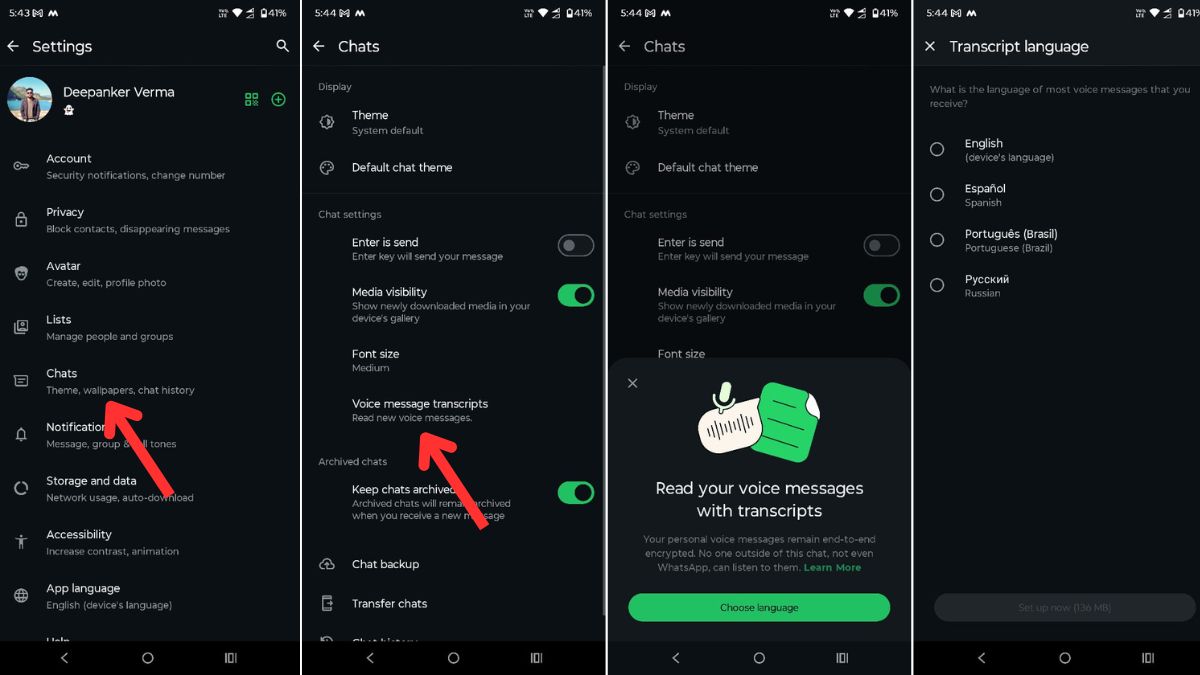
It will take a few seconds to download the language files. Because the feature works offline. It means, your voice messages aren’t send to any server for transcription.
How to Transcribe a Voice Note
Once everything is set up, follow these steps to transcribe a voice note:
Open the chat with the voice message. You will see a “Transcribe” option below the message.
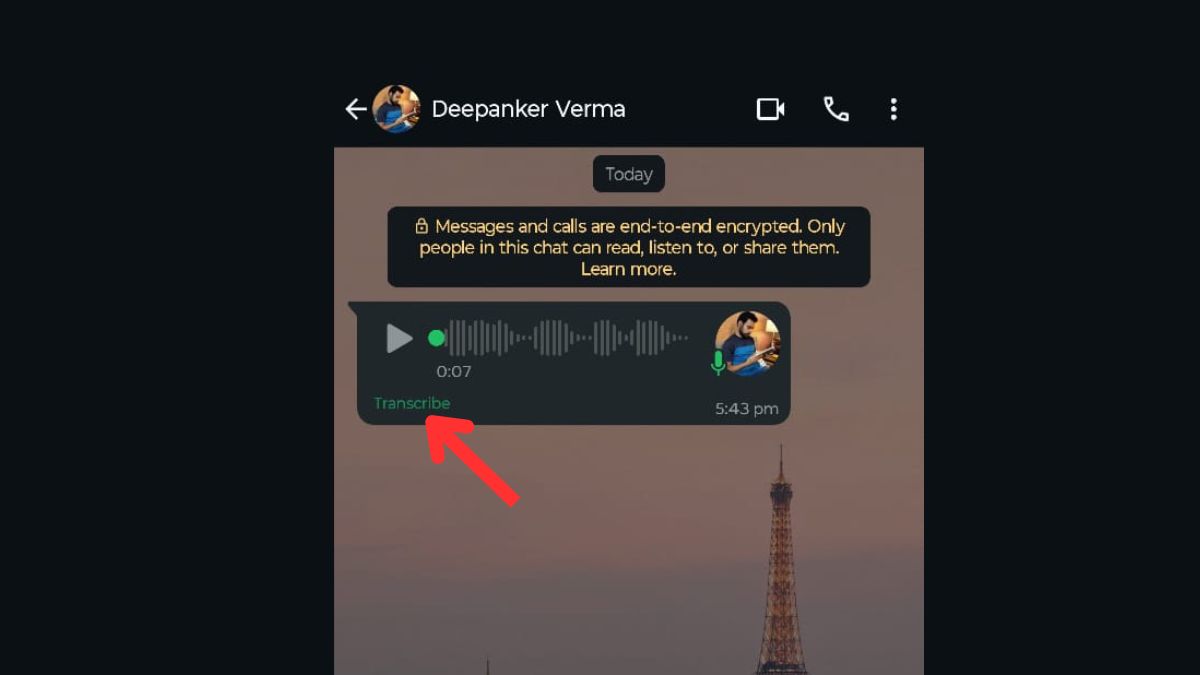
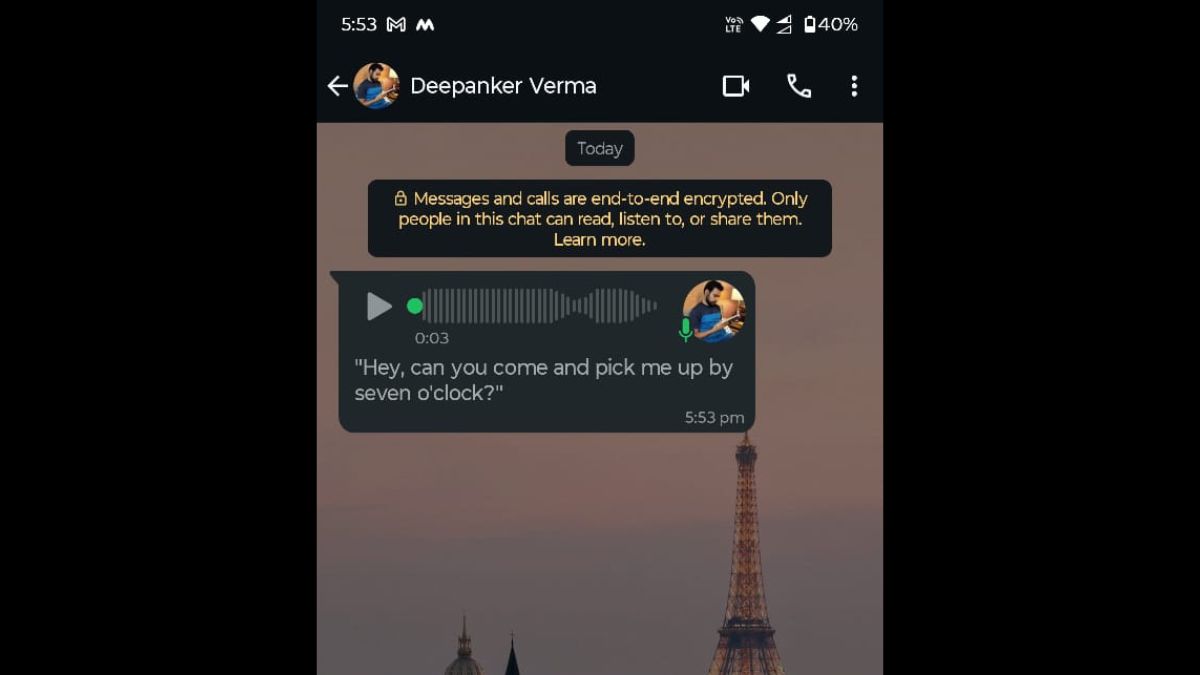
Tap on it, and the audio will be converted into text instantly.
Privacy
WhatsApp uses on-device processing for transcription. This means your voice messages are not uploaded to any server. The transcription happens locally on your phone. It keeps your data safe and private.
Conclusion
The ability to transcribe voice notes directly within WhatsApp is a small but powerful update. It makes voice messages more accessible, especially when you are unable to listen or want to quickly read the message.
If you have not used it yet, try it now. It is fast, private, and does not require any third-party app.