

iMessage is Apple’s popular messaging service offering seamless and secure communication for Apple users within the Apple ecosystem of devices including iPhone, iPad, and Mac. Users can send text messages, photos, videos, documents, and more over the internet. It was primarily designed for iPhone, but it was also integrated into Mac for enhanced messaging experience across multiple devices.
Since iMessage is available on Mac, users can start a conversation on their iPhone and continue to have conversations on their Mac without missing anything. So, they can keep replying to messages while working on the laptop. There is no need to lift the phone again and again. The iMessage on Mac also offers several notable features such as the ability to drag and drop files into conversations, user emojis, and stickers, and participate in group chats.
There are various reasons why someone might want to sign out of iMessage on their Mac. It could be a privacy concern where you do not want others to read your private conversations while accessing your Mac. You may also want to declutter Mac from notifications or minis the interruptions to concentrate better on your tasks. Whatever the reason, the process to sign out of iMessage is simple.
How to Sign Out of iMessage on Mac
Signing out of iMessage on a Mac is simple. Here’s how you can do it:
Open the Message app by clicking on the Message icon in Dock. Now click the Messages in the menu bar at the top of the screen and select Settings from the drop-down menu.

In the Preferences window, click on the iMessage tab and you will see your Apple ID information. Click the Sign Out button located next to your Apple ID.
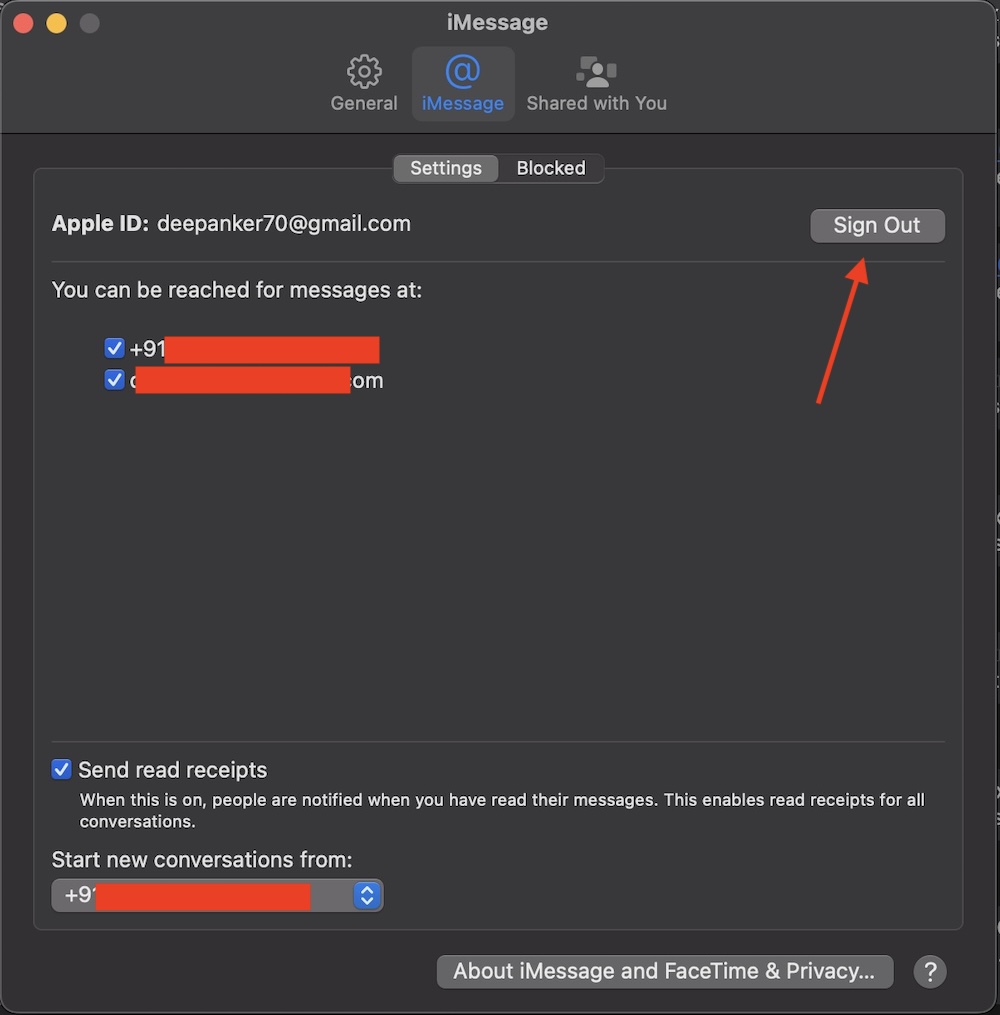
It will ask you to confirm if you want to sign out of iMessage. Click Sign Out again to confirm.
Once you have signed out, you will no longer receive iMessage notifications on your Mac. All the conversations and messages will not be affected and you can astral have access to the data on your iPhone. Since you have signed out of iMessage on Mac, you can no longer access chat and chat history on Mac.