![[Full Guide]How to Restore WhatsApp Backup from Google Drive to iPhone 16](https://techlomedia.in/wp-content/uploads/2024/12/itoolab-watsgo-whatsapp-transfer.jpg)

Restore WhatsApp backup from Google Drive to iPhone 16 may seem impossible initially, as Google Drive is not directly compatible with iOS devices. However, thanks to the latest technology, there are now methods that allow you to achieve this task. In this guide, we’ll answer whether it’s possible to restore WhatsApp from Google Drive to an iPhone without using a computer and mention the methods for transferring WhatsApp from Google Drive to an iPhone.
Can I Restore WhatsApp from Google Drive to iPhone without Using a Computer?
Unfortunately, there is no way to restore WhatsApp from Google Drive to an iPhone without a computer. WhatsApp is one of the best messaging apps available; it uses Google Drive for Android backups and iCloud for iPhone backups. While restoring a WhatsApp backup from Google Drive to an Android device or from iCloud to an iPhone is straightforward, cross-platform restoration is not supported.
Many online tools claim to help users transfer WhatsApp from Google Drive to an iPhone, but not all of them are reliable or effective. iToolab WatsGo, however, is one of the most trusted WhatsApp data transfer tools available.
How to Restore WhatsApp Backup from Google Drive to iPhone 16
If you’re looking to transfer WhatsApp data from Google Drive to an iPhone 16, iToolab WatsGo is the best solution. This all-in-one WhatsApp data transfer tool supports cross-platform transfers and makes it easy to download WhatsApp backups from Google Drive and restore them to any device, including iPhones. One of the standout features of iToolab WatsGo – WhatsApp Transfer, Backup & Restore – is its user-friendly interface, making it ideal for non-tech and beginner users.
Additionally, iToolab WatsGo supports various WhatsApp data types, including messages, images, videos, documents, and more. If you’re experiencing storage issues on your Android or iOS devices, you can use iToolab WatsGo to create a backup file on your PC and restore it whenever needed.
How to Restore WhatsApp Backup From Google Drive to iPhone 16 Using iToolab WatsGo?
iToolab WatsGo is well-known for its intuitive and user-friendly interface. If you want to import a WhatsApp backup from Google Drive to an iPhone 16, simply follow the instructions below:
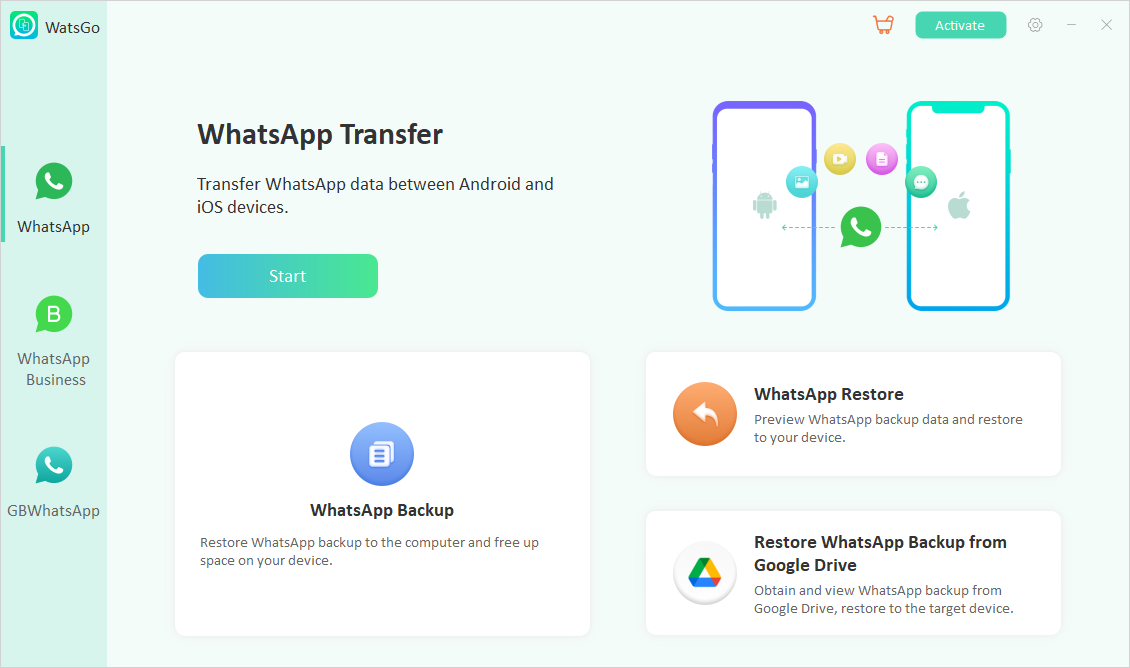
- Download and install iToolab WatsGo on your PC. Once installed, launch it and choose the third option, “Restore WhatsApp backup from Google Drive.” The program will then ask you to log in with your Google account.
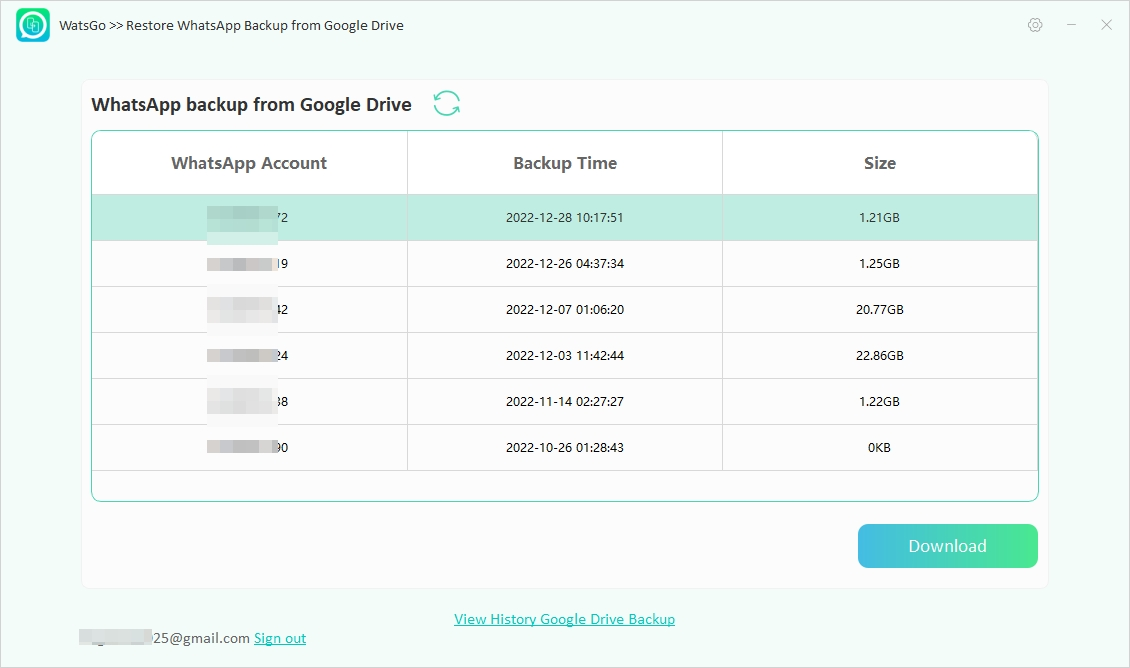
- Log in to the Google account you used to create WhatsApp backup, choose the backup you want to restore, and click the “Download” button. The program will proceed to access WhatsApp backup from Google Drive. Verify it with a 64-bit password.
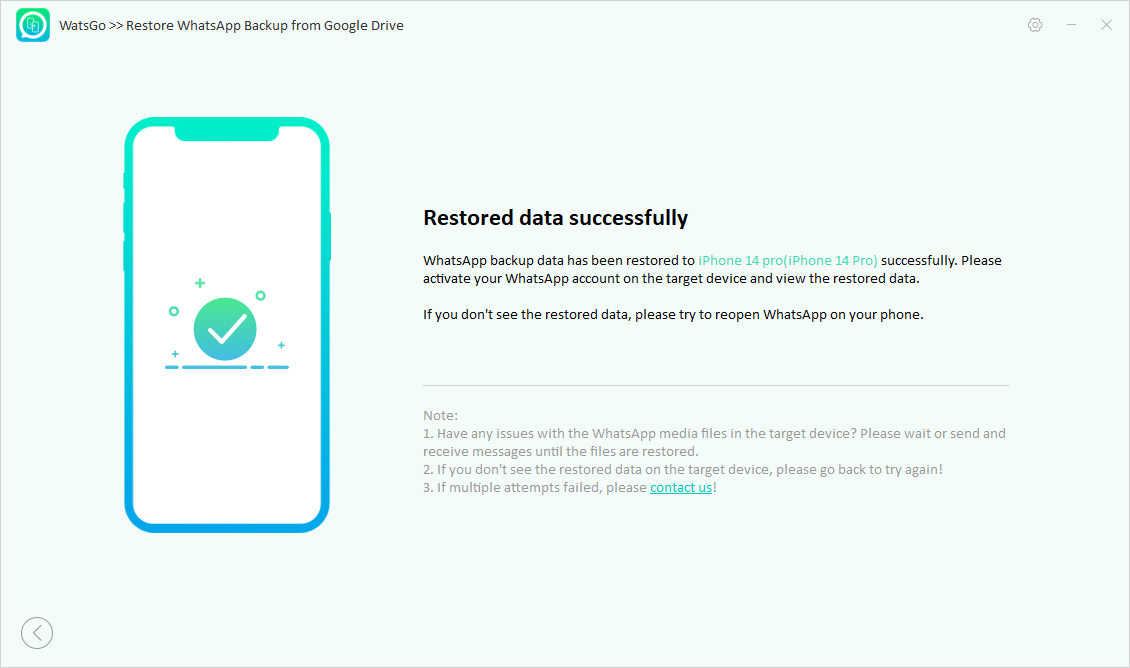
- Once the downloading is complete, click on the “Restore a Device” option. Connect your iPhone 16 with your PC and choose “Restore.” Select the data type you want to restore and click “Continue.”
- Now, the program will begin the restoring process, and within a few seconds, all your WhatsApp data will be successfully restored to the target device.
What Makes iToolab WatsGo a Must-have for WhatsApp Users?
iToolab WatsGo is a must-have tool for WhatsApp transfer, and the reasons are countless. Below, we have mentioned the top features of this program that make it one of the best WhatsApp tools available online.
1. Seamless Data Transfer Between Android and iPhone
iToolab WatsGo allows users to easily transfer WhatsApp data between Android and iPhone devices without any hassle. This feature is best for users who regularly switch between devices. Further it also supports data transfer between Android to Android and iPhone to iPhone.
2. Fast Transfer Without Getting Stuck
The program ensures that your WhatsApp data is transferred quickly and smoothly without interruptions or delays. Whether moving large volumes of data or transferring over a long period, this feature optimizes the process to minimize wait times.
3. Select WhatsApp Data to Transfer
WatsGo gives you full control over WhatsApp data you want to transfer between devices. Instead of transferring everything by default, you can choose specific data types such as messages, images, voice messages, documents, videos, and more.
4. One-Click to Backup and Restore WhatsApp
The “One-Click to Backup and Restore WhatsApp” feature simplifies the backup and restoration process with just a single click. With this feature, users can create WhatsApp backups of any size on their PC and restore them to any device with a single click.
5. Download and Access WhatsApp Backup from Google Drive
This program lets users access and download WhatsApp backups from Google Drive. It scans your Google Drive for all available backup files and allows you to select the WhatsApp backup from any date. Once chosen, you can easily download it to your PC.
6. Transfer GBWhatsApp to WhatsApp/GBWhatsApp without Manually
The program is compatible with all WhatsApp versions, including GBWhatsApp. With its help, users can effortlessly transfer their WhatsApp to GBWhatsApp.
7. Privacy Preserved by Data Encryption
iToolab WatsGo ensures that all your WhatsApp data remains secure and private during the transfer process. All data is encrypted, meaning your WhatsApp data is protected from unauthorized access while being transferred between devices.
Final Thoughts
Restoring WhatsApp backup from Google Drive to iPhone is not straightforward, as the two platforms are incompatible. However, with the right tool, you can do it easily. iToolab WatsGo is one of the best WhatsApp data transfer tools that offer this capability. It allows you to effortlessly transfer your WhatsApp data from Google Drive to an iPhone 16 without any difficulties. The best part of this tool is that it helps you to choose specific data types to transfer from one device to another. You can also transfer WhatsApp data from Android to iPhone 16 directly without Google Drive.