
LinkedIn is for career growth and professional networking. But on your birthday, it suddenly turns into Facebook. You get tons of birthday wishes from people you barely talk to. It is sweet, but also distracting. People expect something more meaningful like a job offer, freelance gig, or client message on LinkedIn. So, if you tired of those birthday notifications and want to keep things professional, here is how you can hide your birthday on LinkedIn.
Steps to Hide Your Birthday on LinkedIn
On Linkedin.com
If you are on a laptop or desktop, follow these steps:
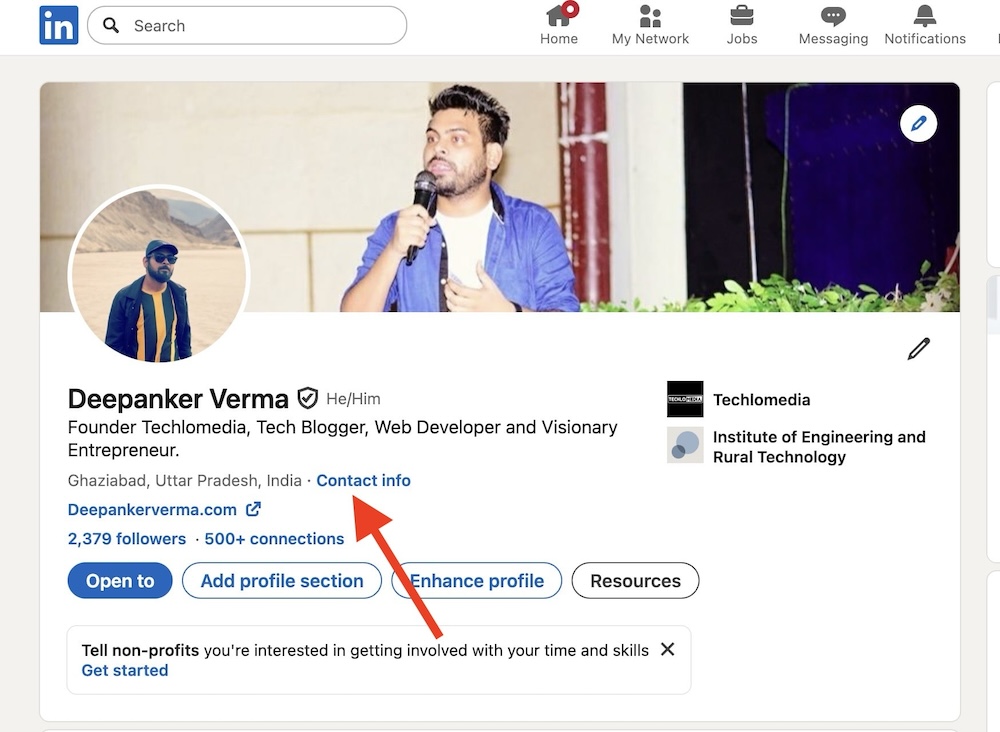
Log in to your LinkedIn account. Now, go to your Profile by clicking your name or profile photo. Here, click on “Contact info.”
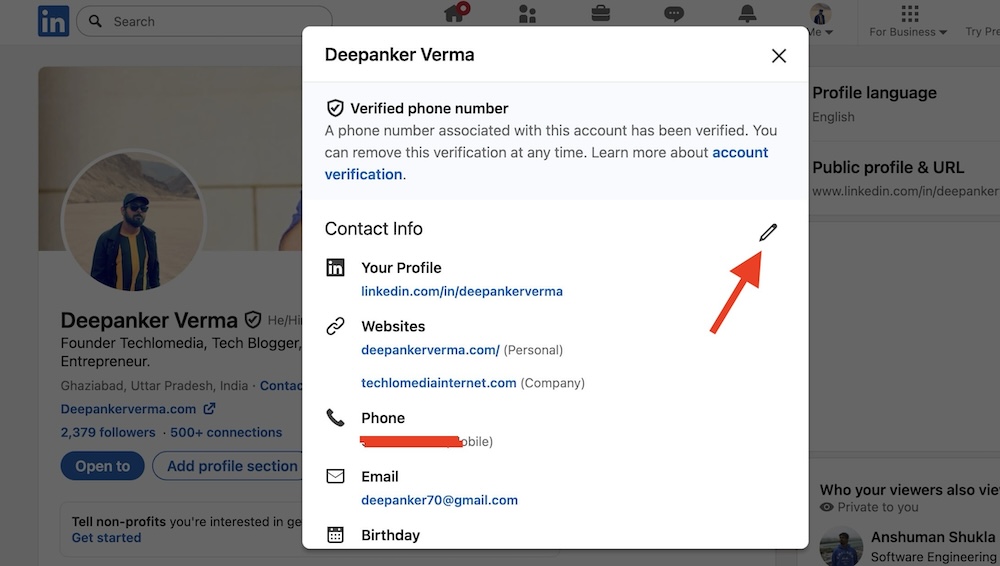
A popup will open. Click the pencil icon in the top-right corner.
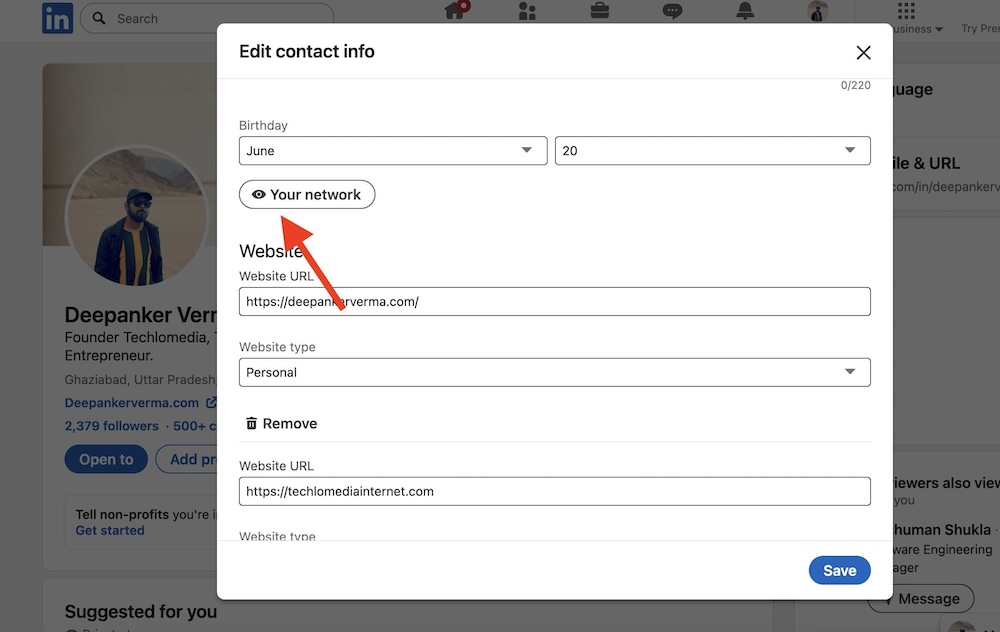
Scroll down to find your Birthday. Just below the Birthday text fields, there would be a label saying “Your Network” with an eye icon. Click on it
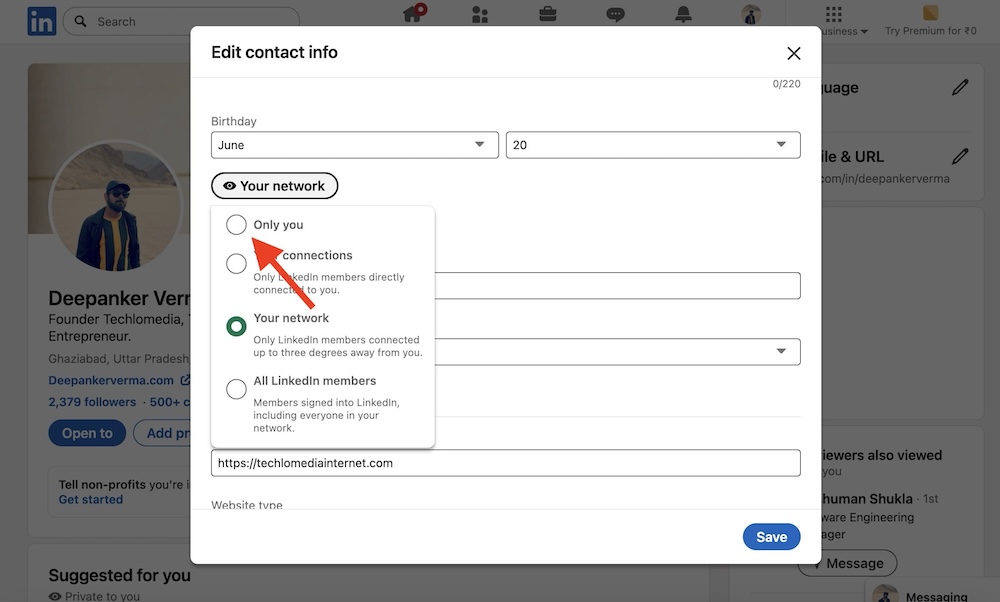
Now you will see different options to select. Select “Only you.”
Hit Save.
Now your birthday will not be shown to other LinkedIn members.
On the LinkedIn Mobile App
If you prefer the LinkedIn app, you can also hide your birthday using the app.
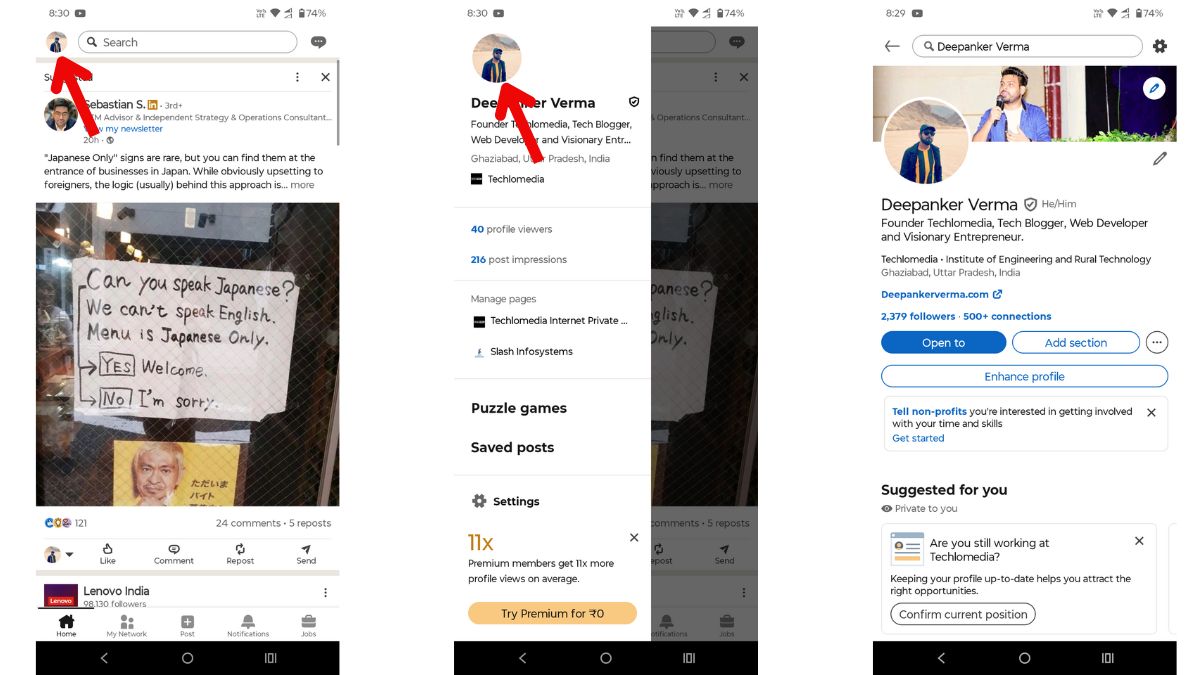
Open the LinkedIn app and tap your profile picture in the top-left corner. Then again, click the larger profile photo to view the Profile.
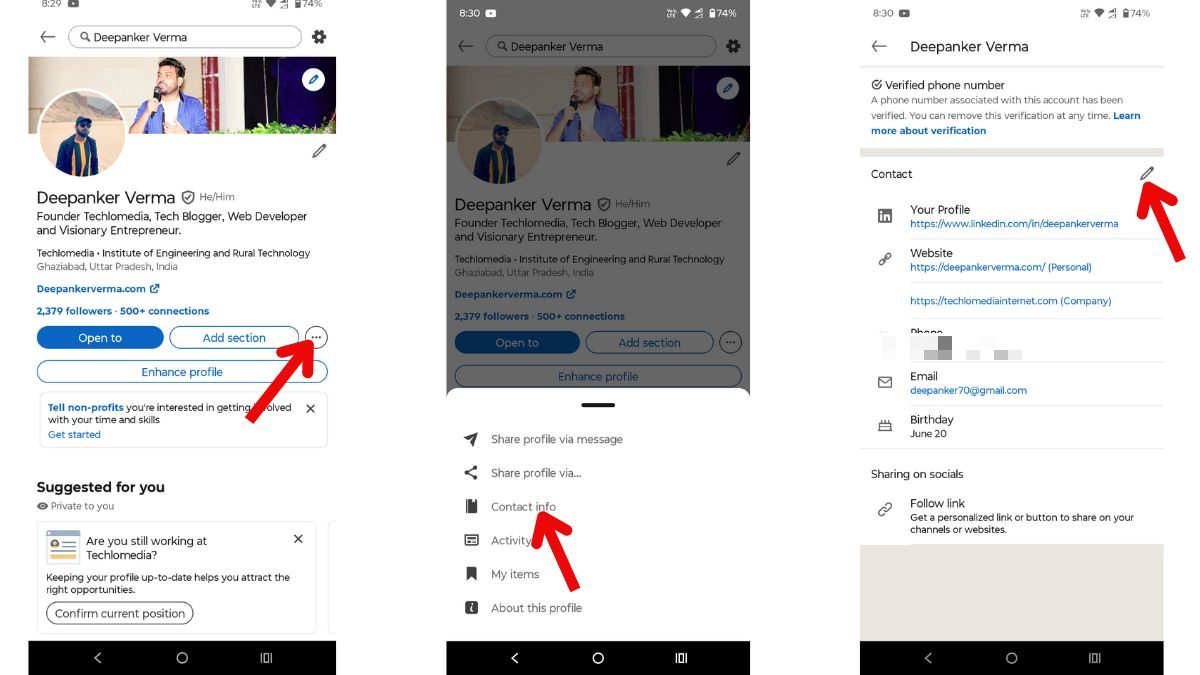
Tap the three horizontal dots icon next to Add Sections and then tap on Contact info. Now, Tap the pencil icon to edit
. Find your Birthday and change the visibility to “Only you.”
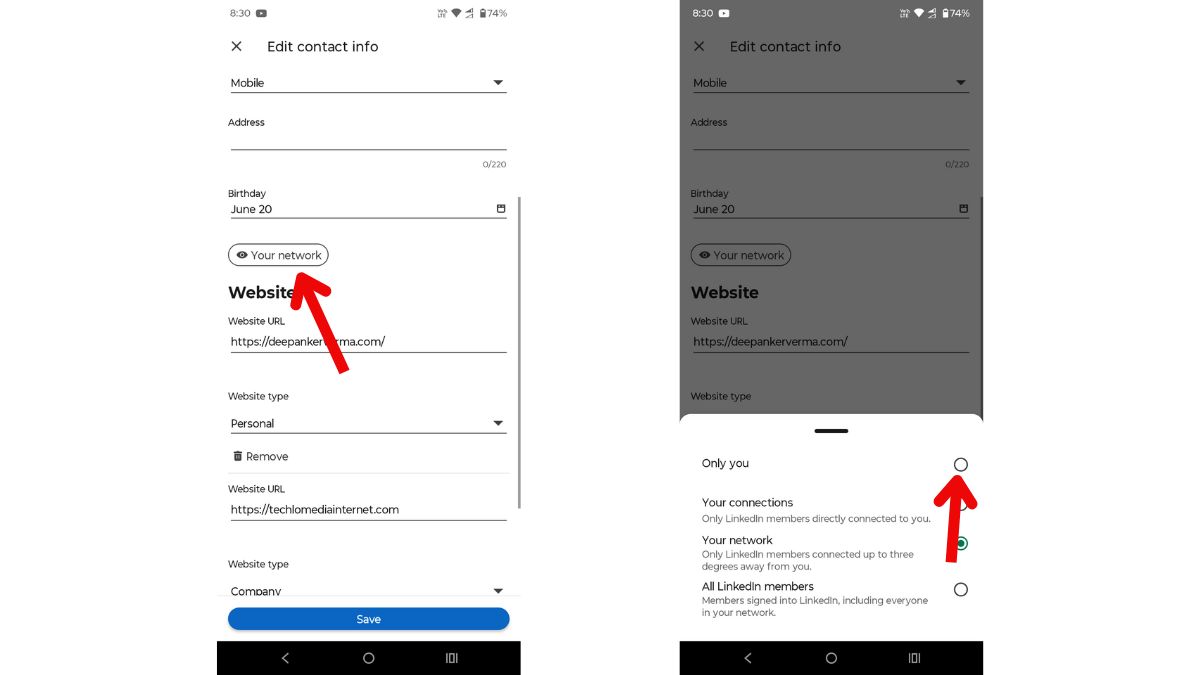
Tap Save.
That is it.
Wrap Up
LinkedIn is for your career. Not for birthday wishes. If you want to stop getting random “Happy Birthday!” messages and keep your inbox clean, this small setting change can help a lot.
I hope this guide was useful. If you have any other questions, let me know.