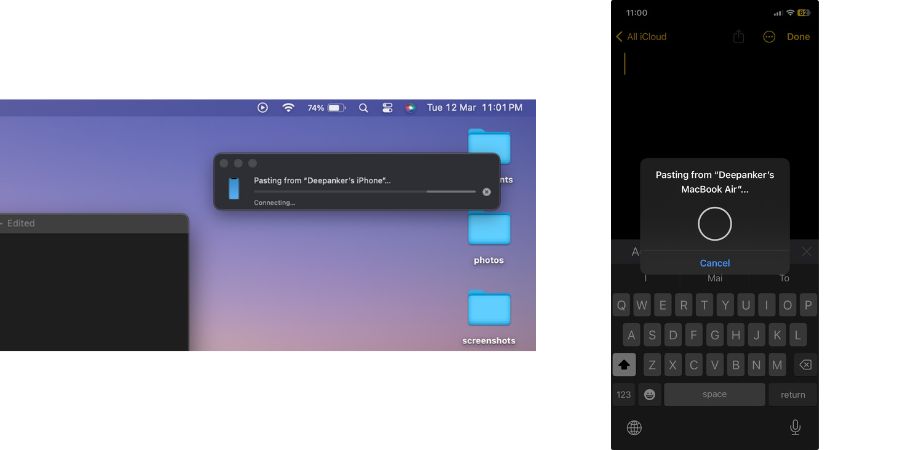
Apple’s Ecosystem has an impressive feature called Universal Clipboard. This feature lets users copy the text on any of their Apple devices and paste it on others. For example, copy something on an iPhone and paste it onto a Mac and vice versa. This feature works well and is fast. But, there may be some situations when you try to copy something from one Apple device, but it isn’t pasting on other devices.
See the screenshots below to understand how it works.
Universal Clipboard Requirements
Before I explain fixes, you need to understand the features on iPhones or iPads running iOS10 or newer along with Macs or MacBooks running macOS Sierra 10.2 or newer. All the devices must use the same Apple ID. These devices must be connected to the same WiFi network and the Handoff feature should be turned on. Both devices should also be within Bluetooth range.
Now that you know when Universal Clipboard works, let’s learn how to fix it if Universal Clipboard isn’t working between Mac, iPhone, and iPad
Method 1: Turn off and on Bluetooth and WiFi
Universal Clipboard uses Bluetooth and WiFi connections. If the Universal Clipboard isn’t working, turn off Bluetooth and Wifi. Then again turn them on. I don’t think I need to explain how to turn on or off Bluetooth or WiFi on iPhone, iPad, or Mac.
Method 2: Restart your devices
This is the easiest fix. In most cases, restarting devices fixes the problem associated with the Universal clipboard. I don’t think I need to tell you how to restart iPhone, iPad, or Mac.
Method 3: Disable Handoff and Enable it again
You can also disable the handoff and then enable it again. If you are using an iPhone or iPad, Open the Settings app, go to General, then AirPlay & handoff. Now Disable Handoff and then enable it again.

On Mac, click the Apple logo at the top left corner and click System Preferences. Now go to the General Tab and Click AirPlay & handoff. Here, disable ‘Allow handoff between this Mac and your iCloud devices’ and enable it again.

Method 4: Make sure your devices are on the same WiFi
Now most people use dual-band routers where customers get two networks: 2.4 GHz and 5 GHz. Make sure your devices are connected to the same networks. Both devices should be either on a 2.4GHz network or a 5GHz network.
Method 5: Reset Network Settings on iPhone or iPad
If you have already tried other methods and Universal Clipboard is still not working, you can reset the network settings on your iPhone. It resets, Wi-Fi networks, Bluetooth devices, data plans, etc. For this, Open the Settings app on your iPhone and go to general. Find the option ‘Transfer or Reset iPhone’ and tap on it. Now tap Reset and then Reset Network Settings.
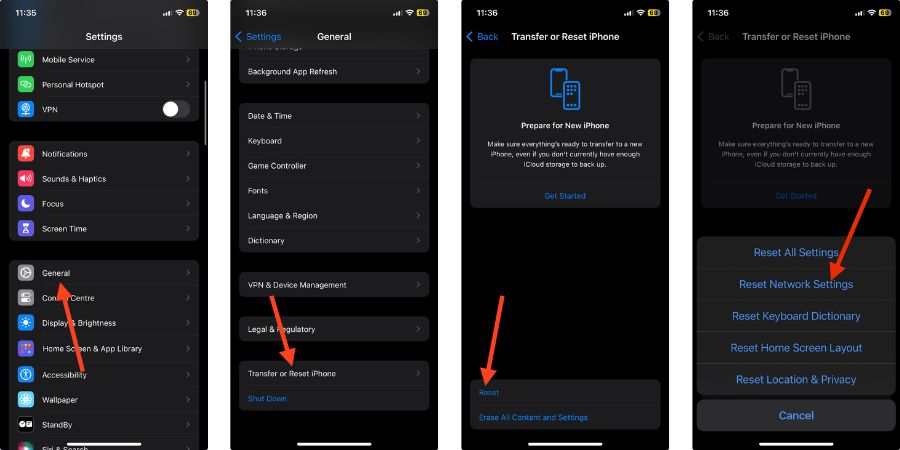
After resetting network settings, reconnect to the Wi-Fi network again.