
If you ever connected to a WiFi network, your phone automatically connects to the WiFi network when your phone is in the range. However, there are times when we need to retrieve the WiFi password on our Android devices for various reasons. Maybe your friend wants to connect to your WiFi network. What if you have forgotten the password you used to connect to the WiFi network and now want to know the password? You can easily see the WiFi password on the WiFi network saved on your phone. In this detailed guide, I will explain the steps to read WiFi password on Android.
See WiFi password on Android
Unlock your Android device and open the Settings app. Go to Wi-Fi & Network. Now go to Wi-Fi. Here you will see a list of available Wi-Fi networks. Scroll down and find Saved networks. Tap it to see all Saved networks.
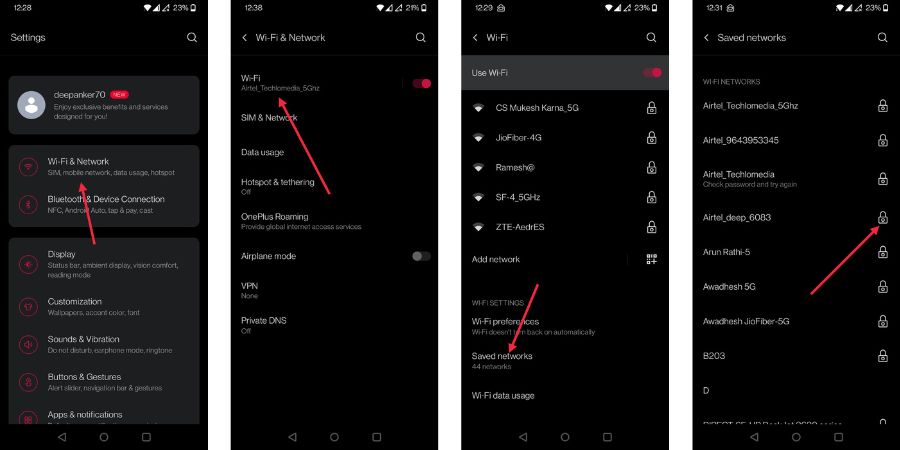
Now look for the network whose password you want to see. Click the lock icon in front of it. Click the QR code icon or the Share button. You will see your Wi-Fi password under the QR code.
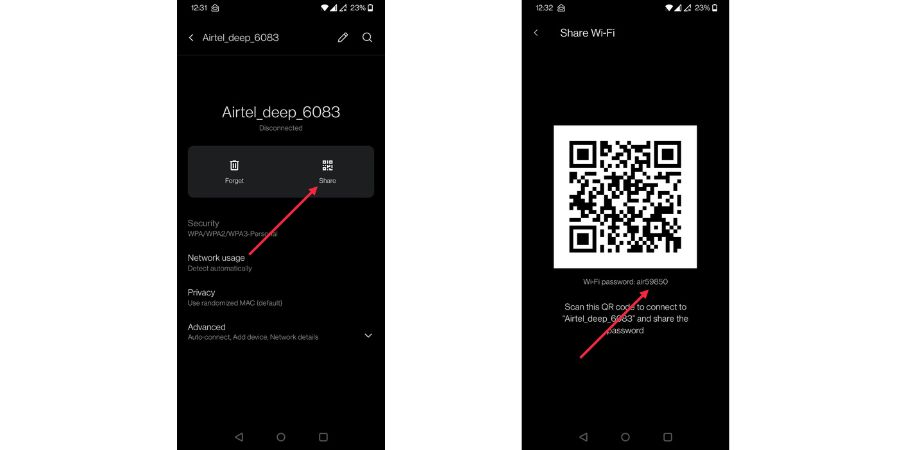
In some Android phones, it doesn’t show passwords in plain text. So, you need a QR reader app to read this QR code and find the password. You can use Google Lens to read the password in the QR code. Alternatively, there are also several good QR reader apps.
Here’s a list of a few good QR reader apps:
It is worth noting that seeing passwords in plain text was made possible after Android 10. If your phone is running on an older version of Android, you cannot do that. Different Android manufacturers use their custom skin, so options may be different. But the core process will be the same.
Now you know how to find a WiFi password on Android. You can only see the WiFi password of the network you connected to in the past. Other people can either scan the QR code to directly connect to the network or enter the password manually in their phone.