While the Google Photos app on mobile devices has supported dark mode for years, the web version had lagged behind—until now. Finally, Google has officially rolled out dark mode for Google Photos on the web. If you access Google Photos from a desktop browser, you can now switch between light and dark themes or set it to match your system’s default mode.
Dark mode reduces eye strain, especially in low-light environments, and can even save battery life on OLED screens. Many users prefer it simply because it looks sleek and modern. If you are also the one who likes Dark Mode, you can now use it in Google Photos for the web. In this detailed article, I will explain how to enable Dark Mode in Google Photos on the web.
How to Enable Dark Mode on Google Photos Web
Open Google Photos on your desktop.
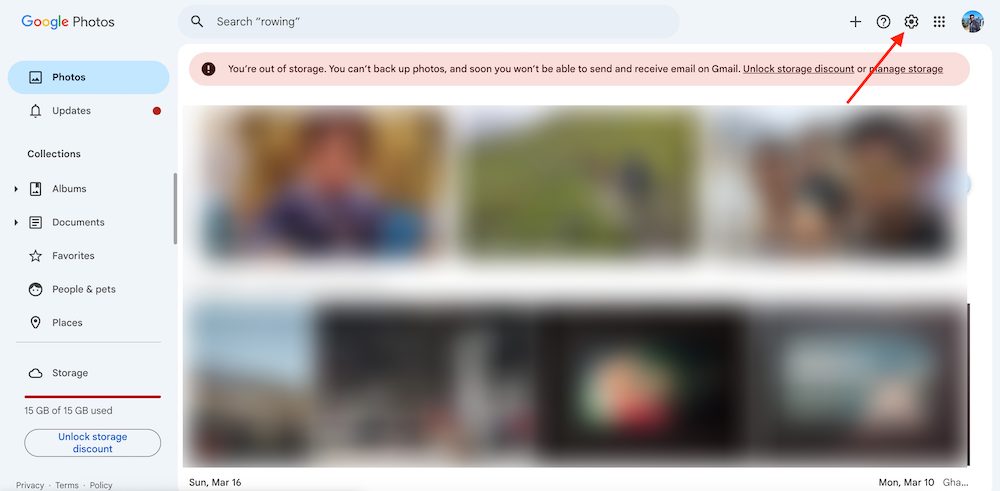
Click on the settings (gear) icon in the top-right corner.
Look for the “Appearance” option and select Dark. If you already use system-wide dark theme, You can also select Use device default.
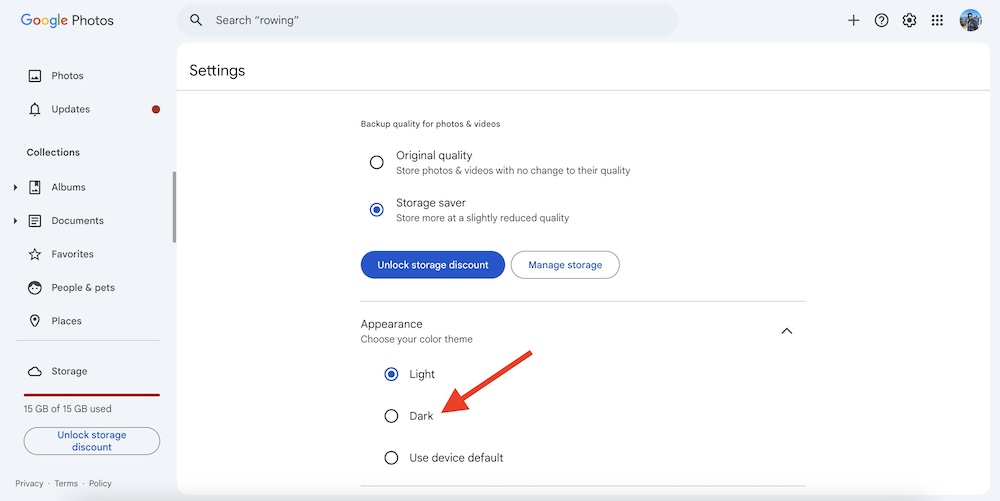
Once you select Dark Mode, the Google Photos interface will switch to a darker theme instantly. You will notice the background turning black or dark gray while text and icons adjust for better visibility.
If you don’t see the dark mode option in Google Photos:
Try a different browser – Some browsers may cache old settings. Clear cache or use Chrome for the best experience.
Update your browser – Ensure you are using the latest version of your web browser.
Check Google Photos updates – The feature is rolling out gradually, so try again later if it’s not visible.
Dark mode in Google Photos on the web is a long-awaited feature that makes managing your photo library more comfortable. Now you know how to enable Dark Theme on Google Photos. It’s a great way to enhance your browsing experience.