If you are planning a clean installation of Windows 10 on your PC or laptop, you will first need a bootable USB drive or DVD. For that, you need the official Windows 10 ISO file.
The good thing is that Microsoft lets anyone download the Windows 10 ISO directly from its website. You do not need any third-party tools or risky sources. This makes the process safe and reliable.
There are several reasons why you might want to download the Windows 10 ISO. You may have purchased a new laptop without an operating system. You may want to remove preinstalled apps and bloatware. Or your current system may be slow or corrupted, and a clean installation is the best way to fix it.
If you are not sure how to download Windows 10 ISO or where to get the official file, keep reading. In this guide, I will explain the exact steps to download Windows 10 ISO from Microsoft and use it to create bootable installation media.
Windows 10 ISO Download link
Microsoft offers two ways to download the Windows 10 ISO file. The method you see depends on the device you are using.
Method 1: Using Media Creation Tool (Windows Users)
Microsoft has a dedicated web page to download the Windows 10 Disc Image. Click on this link to open that page.
If you visit this link from a system running on Windows, it will give you an option to update your Windows or create Windows 10 installation media. As we are talking about Windows 10 ISO, go with the second section saying “Create Windows 10 Installation media.” Here, click on the Download tool now.

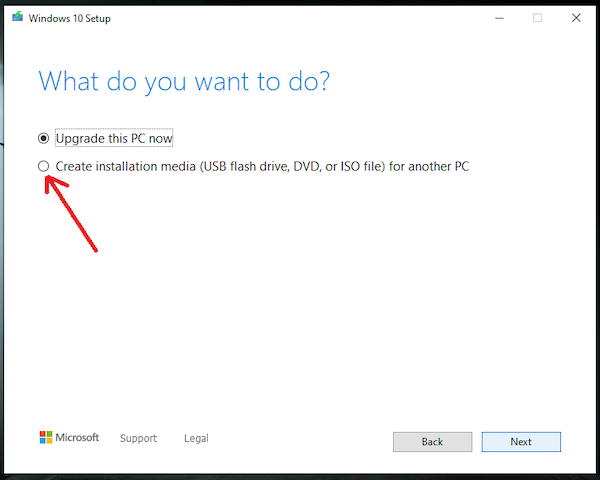
It will download the tool in a few seconds. Once downloaded, click to run it. It will take a few seconds, depending on your Internet speed. First, you will have to agree to the terms. Then it asks, “What do you want to do?” As you are interested in downloading the ISO file, select Create installation media and then click Next.
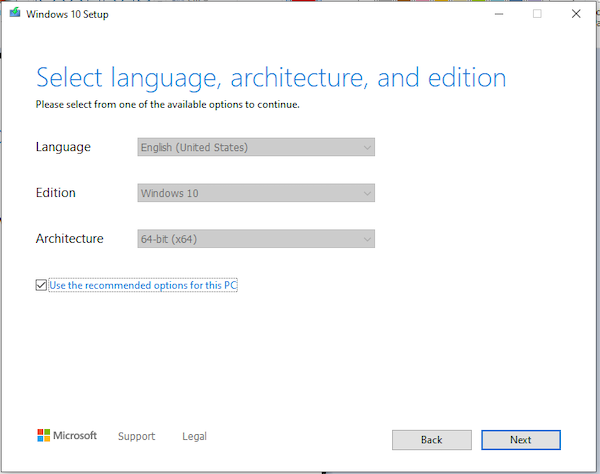
On the next page, it will show you Windows and the version it will download. If you want to change, uncheck the “Use the recommended options for this PC.”
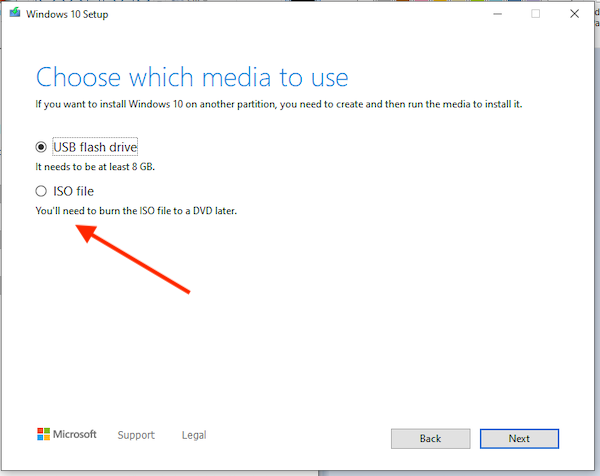
On the next page, select the ISO file option to download the Windows ISO file. If you plan to make a bootable disc using a Windows 10 ISO file, select the first option USB flash drive, and plug in the USB drive to download the ISO directly into a USB drive and make it bootable.
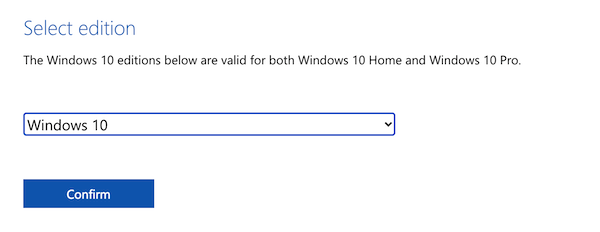
If you visit this page from a system running any other operating system, you will be directed to download the Windows ISO file. For example, I open this page on macOS. It will show a different page. I have to select the Windows 10 Edition and click on the Confirm button.
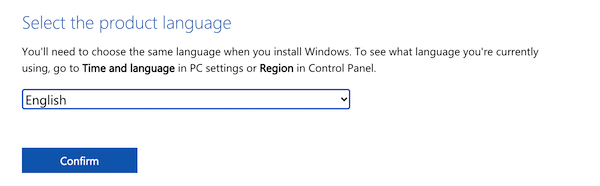
In a few seconds, it will ask you to select the language for Windows 10. Select the language as per your need and click on the Confirm button. I selected the English language while capturing the screenshot.
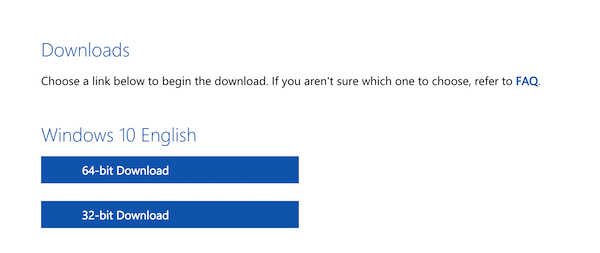
You will get Windows 10 ISO download links for both 32-bit and 64-bit Windows after a few seconds of processing. I recommend 64-bit Windows.
Now you know how to download Windows 10 ISO files from Microsoft’s website.
Once you have downloaded the Windows 10 ISO file, you can use the Windows 10 Media Creation Tool (MCT) to create a bootable USB drive to install Windows 10 on your PC or laptop.
Is Windows 10 Free?
No, Windows 10 isn’t free. You need to purchase the license. If you don’t activate your Windows 10 with a genuine key, it will keep showing the “Activate Windows” message in the bottom right corner of the screen. If you are comfortable with this messaging showing all the time, you can keep using Windows 10 with most of the key features.
Windows 10 System Requirements
If you are planning to install Windows 10 on a system, make sure it has the necessary hardware. Here are the minimum system requirements for Windows 10.
- Processor: 1 GHz or faster processor
- RAM: 1 GB (32-bit) or 2 GB (64-bit)
- Storage: 16 GB (32-bit) or 32 GB (64-bit)
- Graphics: DirectX 9 or later with WDDM 1.0 driver
- Internet: Required for updates and downloads