
Microsoft has deeply integrated artificial intelligence into its products. You can see Copilot across different Microsoft products and services, including Edge. Copilot in Edge is designed to assist users while browsing the web. It can summarize pages, answer questions, generate content, and even help with writing emails or posts directly inside the browser.
While many users find Copilot helpful, not everyone wants an AI assistant built into their browser. Some users prefer a clean interface. Others are concerned about privacy, distractions, or system performance. If you are one of them, this detailed guide will explain how to disable Copilot in Edge and what you should know before doing so.
What Is Copilot in Microsoft Edge?
Microsoft Edge is Microsoft’s Chromium-based web browser. It now includes Copilot as a built-in AI assistant. Microsoft Copilot in Edge appears as a sidebar. You can open it to:
- Summarize web pages
- Ask questions about the current page
- Generate text or rewrite content
- Compare products while shopping
- Draft emails and social media posts
It is powered by Microsoft’s AI models and connected services, which allow it to respond in real time. Copilot can save time. If you are reading a long article, you can ask it for a quick summary. If you are researching a topic, it can explain key points. It can also help content creators draft outlines, generate ideas, and refine writing.
Why Someone Would Want to Disable Copilot
Even though Copilot offers many features, some users prefer to disable it for several reasons. The first reason could be the desire of having minimal interface. Some users do not like extra buttons or sidebars in their browser. The second reason could be privacy. Copilot processes prompts and interacts with Microsoft’s servers. Users who prefer limited data sharing may choose to turn it off.
Performance can also be a reason for a few. On older systems, additional features may consume extra memory. For some users, workplace restriction is also a reason. Some companies prefer employees not to use AI tools during work hours. This is the reason many people ask for a way to turn off Copilot.
If you relate to any of these, you can turn off Copilot from the edge.
How to Disable Copilot in Edge Using Browser Settings
Follow these steps carefully:
- Open Microsoft Edge.
- Click on the three dots in the top right corner.
- Select Settings.
- From the left sidebar, click on Sidebar.
- Look for Copilot.
- Toggle off the option that shows Copilot in the toolbar or sidebar.
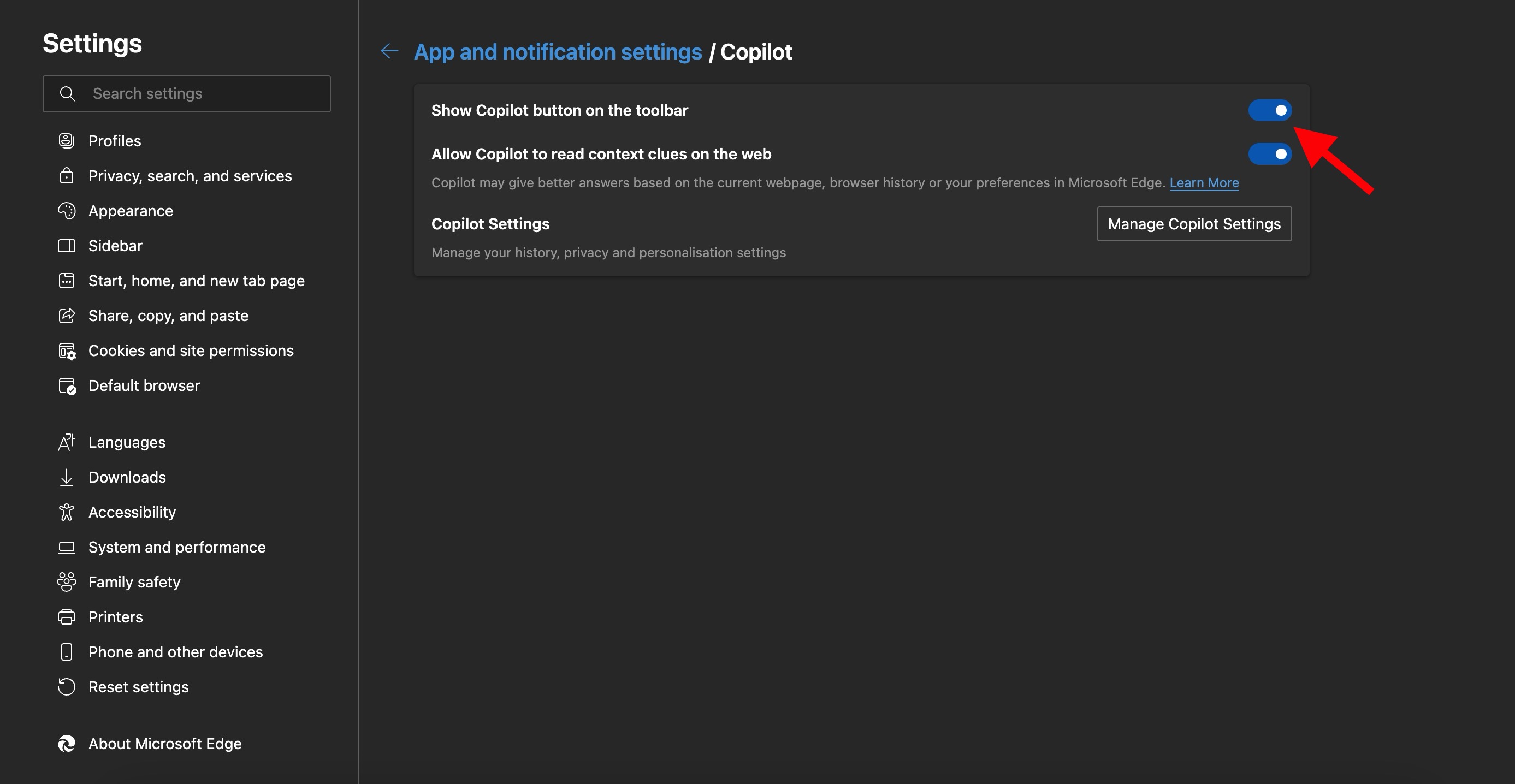
Once disabled, the Copilot icon will disappear from the Edge interface.
Disable Copilot Using Registry Editor (Advanced Method)
This method is only for advanced users.
- Press Windows + R.
- Type regedit and press Enter.
- Navigate to:
HKEY_LOCAL_MACHINE\SOFTWARE\Policies\Microsoft\Edge - Create a new DWORD value if required.
- Set the value to disable Copilot or sidebar features.
- Restart your system.
Be careful while editing the registry. Incorrect changes can affect system stability.
Things You Should Know Before Disabling Copilot
Disabling Copilot does not uninstall copilot from the browser or system. It only hides or restricts access to it. Microsoft may re-enable certain features after major updates. After updating Edge, you should check the settings again.
If you use a Microsoft account, some AI features may still appear in other services like Microsoft 365 or Windows Copilot.
Also, if you disable it through policy or registry, regular users on that system may not be able to enable it again without admin access.
Does Disabling Copilot Improve Performance?
In most modern systems, the performance difference is minimal. Copilot runs mostly when active. However, disabling it can slightly reduce background services and memory usage.