
Many Motorola users get locked out of their phones and feel helpless. You might forget your PIN or see a Google lock after a factory reset. These two issues are different and need their own specific ways to be fixed. Moreover, many people take the wrong steps and make the lockout problem even worse.
Therefore, understanding which type of lock you’re facing saves time and frustration. Thus, this guide helps you identify your lock type and find the right path back. For guided help, Dr.Fone Screen Unlock offers clear steps for supported Motorola cases.
Part 1. Understanding Motorola Screen Lock vs FRP Lock: Key Differences You Must Know
The screen lock is a security layer you set up on your phone. It usually involves a personal PIN, a complex pattern, or your unique fingerprint. This local lock stops strangers from seeing your private photos and your messages. If you lose this code, you may wonder how to unlock an Android phone.
Meanwhile, FRP is a security feature linked to your Google account. This lock appears only after you perform a full reset on the device. It asks for your Google password to confirm that you own the phone. So, mixing these two locks up will lead to many failed attempts. Thus, use the comparison table below to see which lock is currently stopping you:
| Feature | Screen Lock (Local) | FRP Lock (Google) |
| When It Appears | Every time you wake up the device | Only after a factory reset is done |
| Requirement | PIN, Pattern, Password, or Biometrics | Google account email and password |
| Typical Appearance | Locks the phone’s home screen | Appears during device setup after a forceful reset |
| Main Purpose | Protect daily privacy from local intruders. | Prevents theft and unknown device resale |
Part 2. Stuck on Google Verification After Reset? This Usually Means Motorola FRP Is Active
After a forceful factory reset, Motorola users get stuck at Google verification. Now, the setup screen asks for a previously synced Google account. This is the Factory Reset Protection system working on your mobile device. If you cannot remember your old email, you must bypass FRP Motorola. This lock is a clear sign that the device is fully protected.
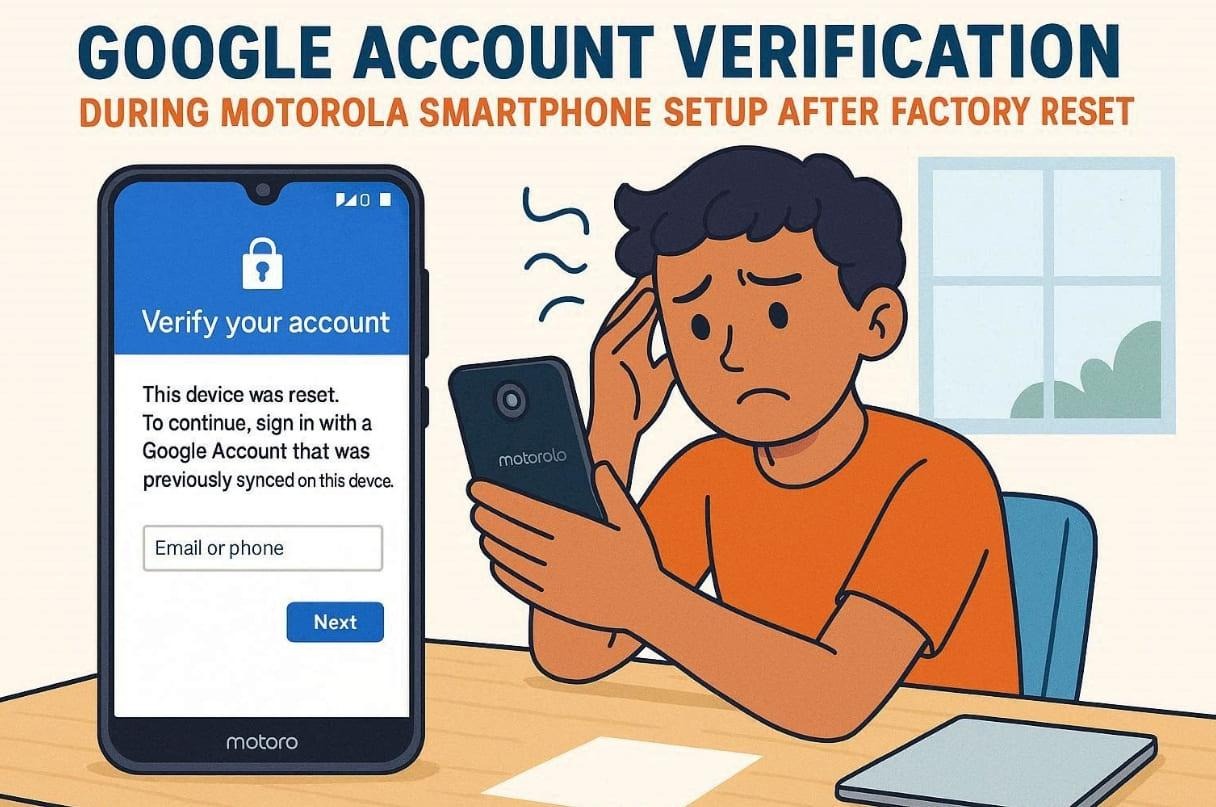
You will not reach the home screen without the correct login details. Many users think a simple restart will remove this security screen now. However, the system requires the original owner to verify their personal ID. This feature stops thieves from using your phone after stealing it. Thus, you are facing an FRP lock if the setup process stops here.
Part 3. 5 Essential Preparations Before You Unlock Your Motorola Device
Before you try unlocking your Motorola device, preparation is important for safety. Small mistakes, like a weak battery, can interrupt the unlocking process midway. Moreover, reliable tools like Dr.Fone Screen Unlock work best when your device is ready. So, let’s go through the essential things you must prepare before unlocking:
- Battery Level: Your Motorola battery must have at least 70% charge right now. This avoids a sudden power shutdown while the system is unlocking.
- Stable Internet: Connect your computer to a very fast and reliable Wi-Fi network. A steady connection prevents any download errors during the lock removal process.
- Correct Model: Identify your exact Motorola model number to find the right software version. Using the wrong software might damage the internal system of your phone.
- Original Cable: Use a high-quality USB cable to connect your phone and computer. A cheap cable might disconnect and cause the entire process to fail.
- Limit Attempts: Stop entering the wrong PIN codes to avoid a permanent device lockout. Too many failed attempts can make the recovery process much harder.
Part 4. Proven Motorola FRP Bypass Strategies for Modern Moto Devices
Unlocking your Motorola phone requires a very clear and strategic plan. Using a reliable FRP bypass tool makes the entire recovery process much safer. Plus, modern security features on Moto devices demand a very specific and updated approach. Thus, these 5 steps will guide you through the roadmap of unlocking your device:
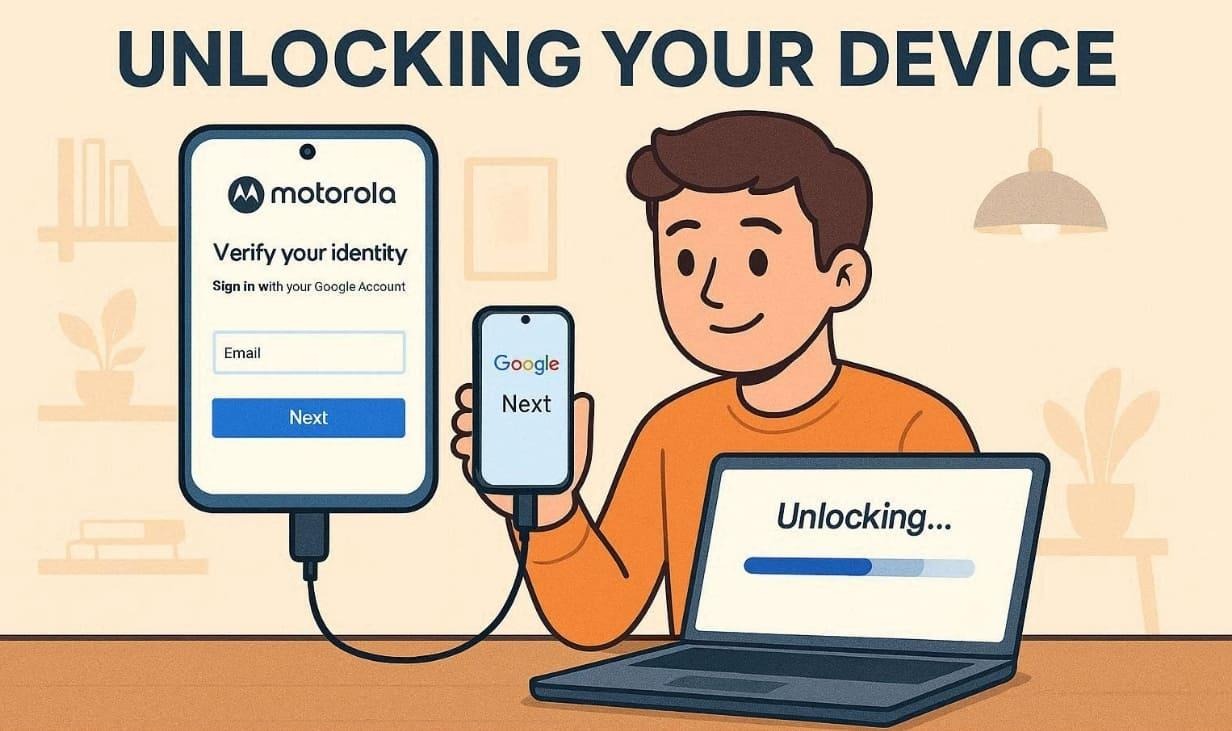
- Confirm Lock: Check if your Motorola device is currently stuck on the Google verification screen. This ensures you are using the right method for your specific lock type.
- Start Tool: Run the unlocking software like Dr.Fone on your PC to begin automated bypass. The tool will handle complex technical tasks to save you a lot of time.
- Select Model: Choose your specific Motorola phone model from the list within the software menu. Picking the correct device name ensures the tool uses the right exploit version.
- Enter Mode: Put your mobile device into the correct recovery or Fastboot mode very carefully. This allows the computer to communicate with the internal phone system files.
- Verify Progress: Watch the screen for any specific instructions that may appear during unlocking. Moreover, stay close to the computer to ensure the USB cable remains connected.
Part 5. Unlock Motorola Screen or FRP Lock Easily with Dr.Fone’s Guided Method
Many users struggle with complex buttons or scary system menus on their own. At this point, you need a reliable solution like Dr.Fone – Screen Unlock (Android) to help. This powerful tool is designed to fix both local and Google lock issues. It helps you bypass FRP Motorola devices with a 100% success rate. Dr.Fone even bypasses FRP on Motorola without needing your Google account.
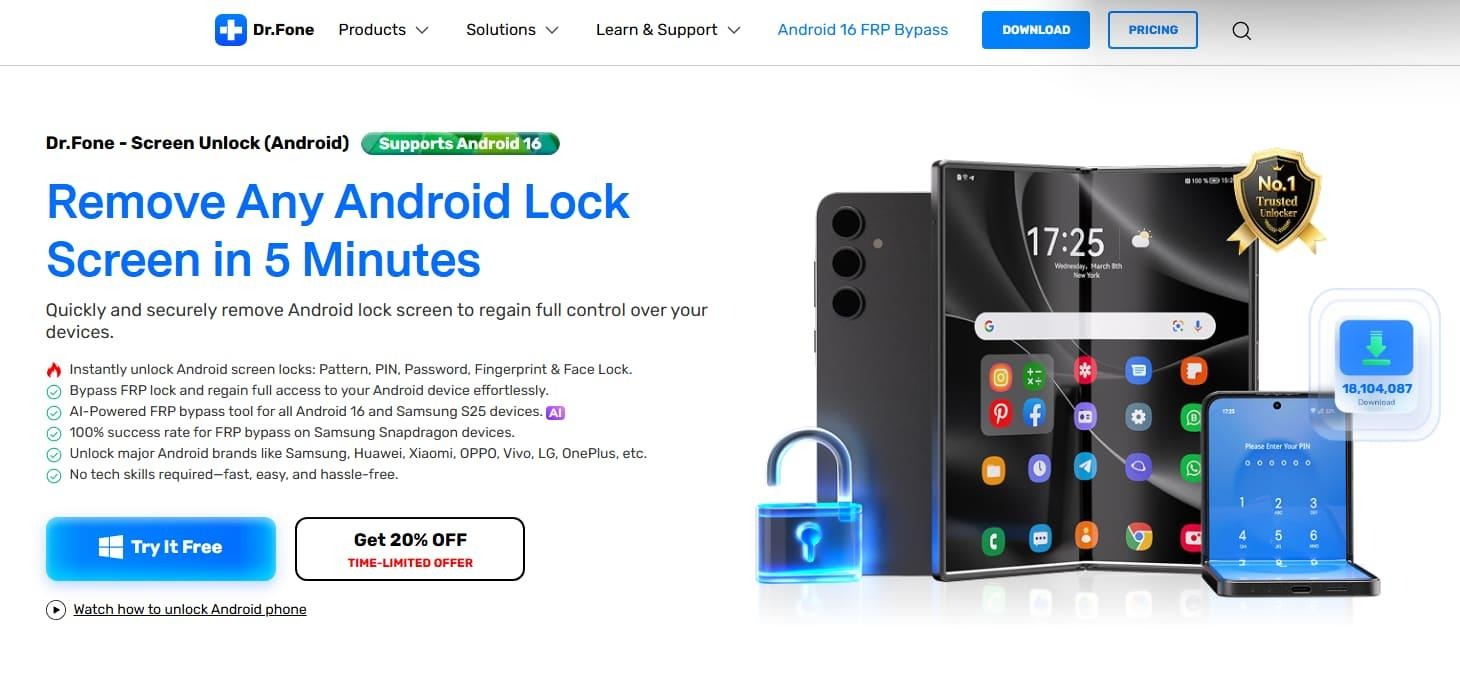
This software supports the latest Android 16 and many older versions of systems. Furthermore, you do not need any advanced technical skills to use this simple tool. It works for patterns, PIN codes, fingerprints, and even modern face lock security. During unlocking, users select the Motorola device name and model to match the correct instructions. This software even guides devices into download or recovery mode automatically when required.
Key Features
- Wide Compatibility: Supports 30+ Android brands, including Motorola devices, for unlocking.
- Error Reduction: Minimizes failed attempts by matching device-specific unlocking procedures.
- AI-Powered: Use advanced artificial intelligence to handle the latest security locks and patches.
Comprehensive Guide to Unlock Motorola Screen via Dr.Fone
Dr.Fone makes unlocking Motorola screen locks much simpler than manual methods. You can learn how to unlock an Android phone by following this guide:
Step 1. Run the Unlock Android Screen Feature
Upon heading to the “Toolbox” tab, access the “Screen Unlock” feature and click “Android.” After that, attach your Motorola to the PC and then opt for “Unlock Android Screen.”

Step 2. Put Your Motorola Into Unlocking Mode
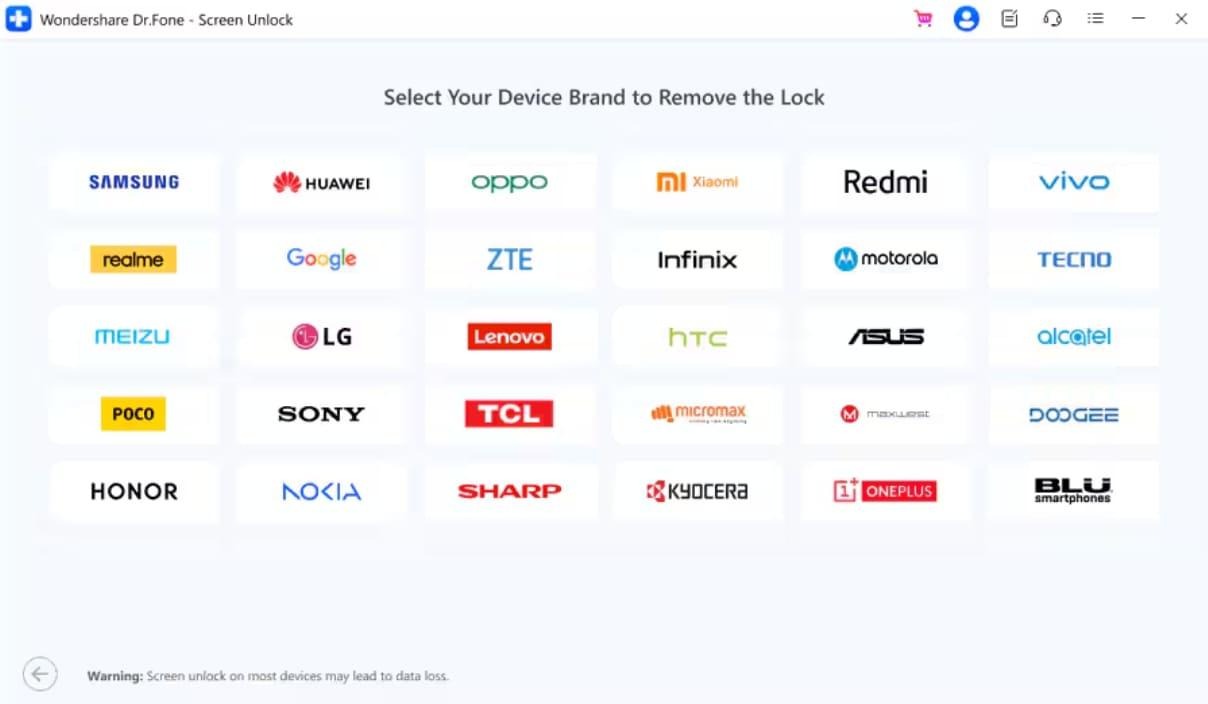
Next, choose “Motorola” as your phone brand on the following display. You need to enter your Motorola into a specific mode by adhering to the displayed prompts.
Step 3. Unlock Your Motorola Device’s Screen
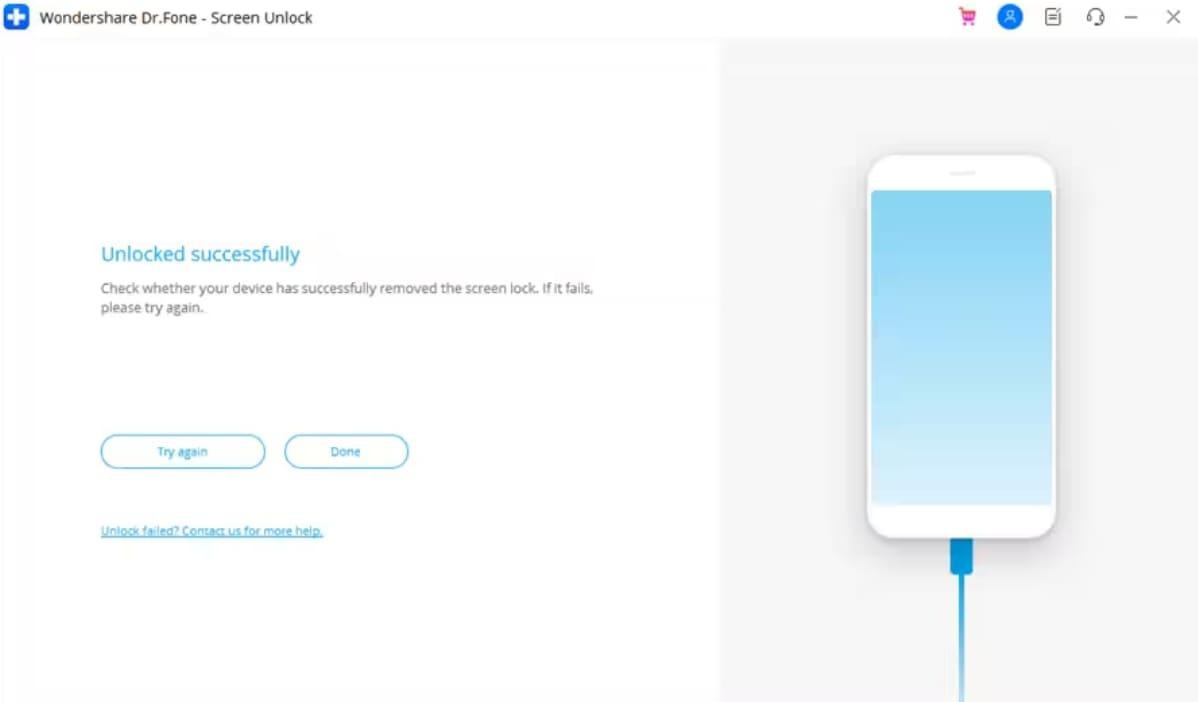
You will see a confirmation display on your program’s screen as the unlocking completes.
Detailed Steps to Bypass Motorola FRP Using Dr.Fone
Bypassing Motorola FRP requires clear guidance to avoid repeated errors and delays. Using a trusted FRP bypass tool like Dr.Fone simplifies verification removal without manual procedures. So, follow these specific steps to unlock your Motorola device safely:
Step 1. Choose Dr.Fone’s Remove FRP Lock
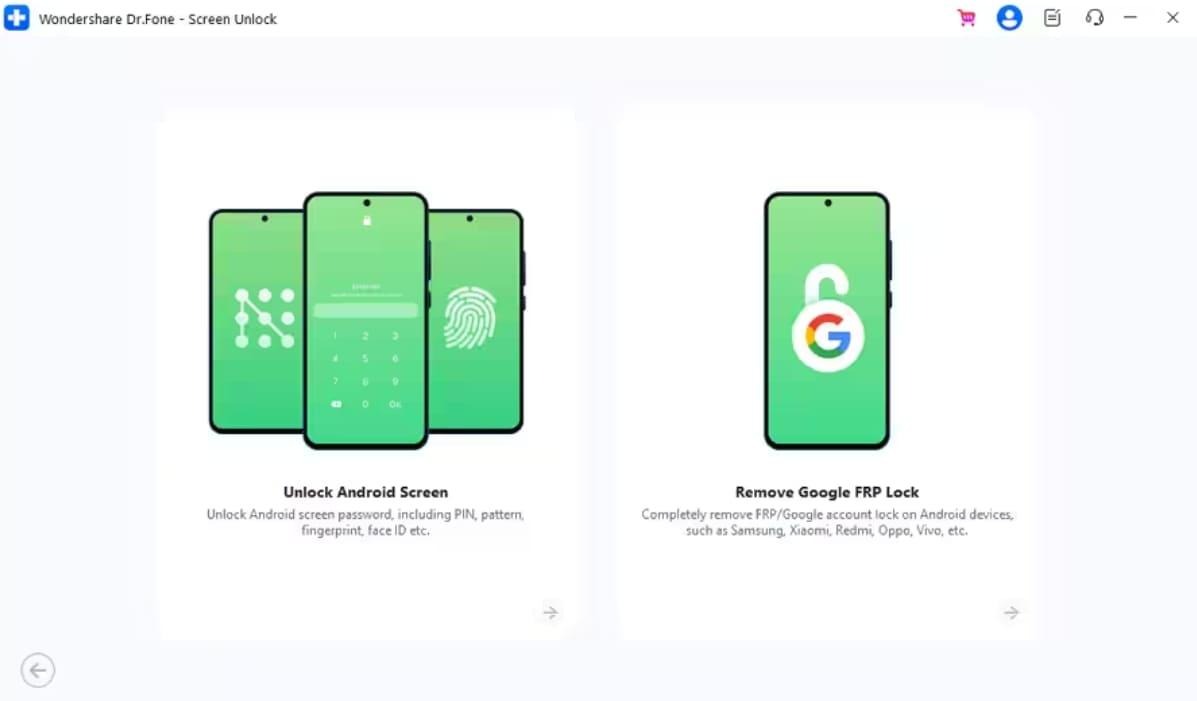
From the program’s “Screen Unlock” feature, select “Android” as your device. Then, click “Remove Google FRP Lock” and link your Motorola to the computer.
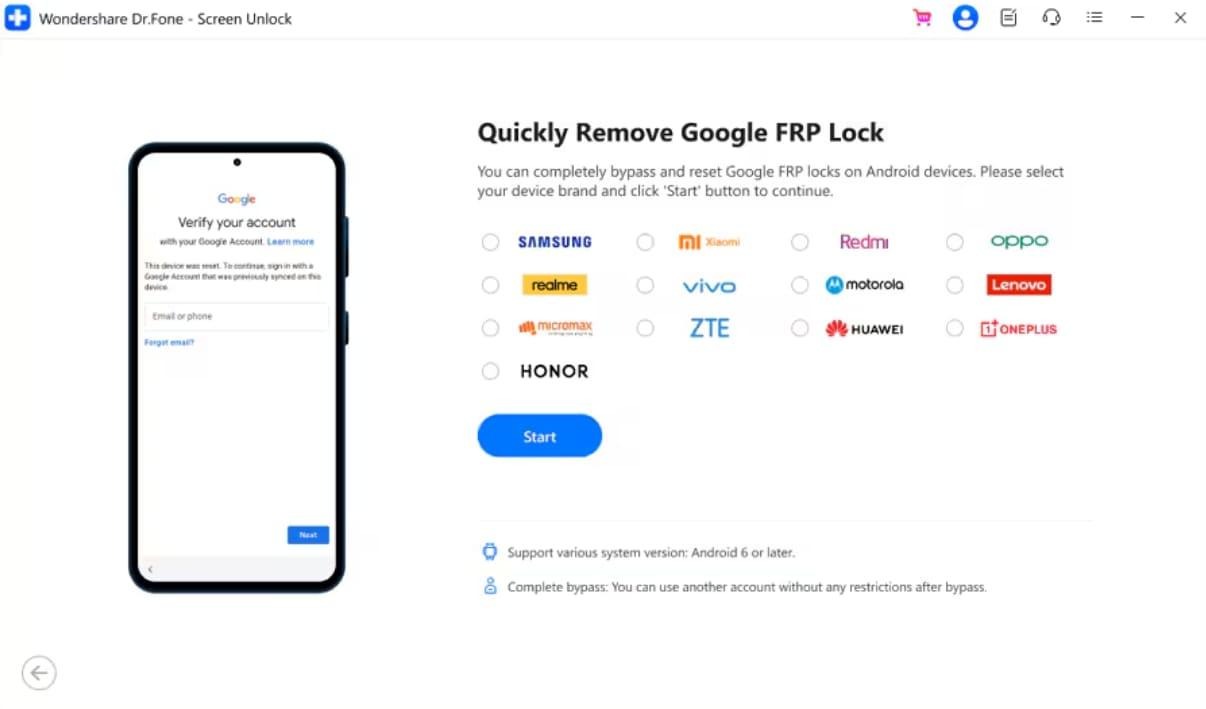
Step 2. Select Motorola to Bypass FRP
Select the “Motorola” brand on the upcoming screen and click the “Start” button. After that, follow the visual guide to access the FRP lock screen on your Motorola.
Step 3. Bypass Google FRP on Your Motorola
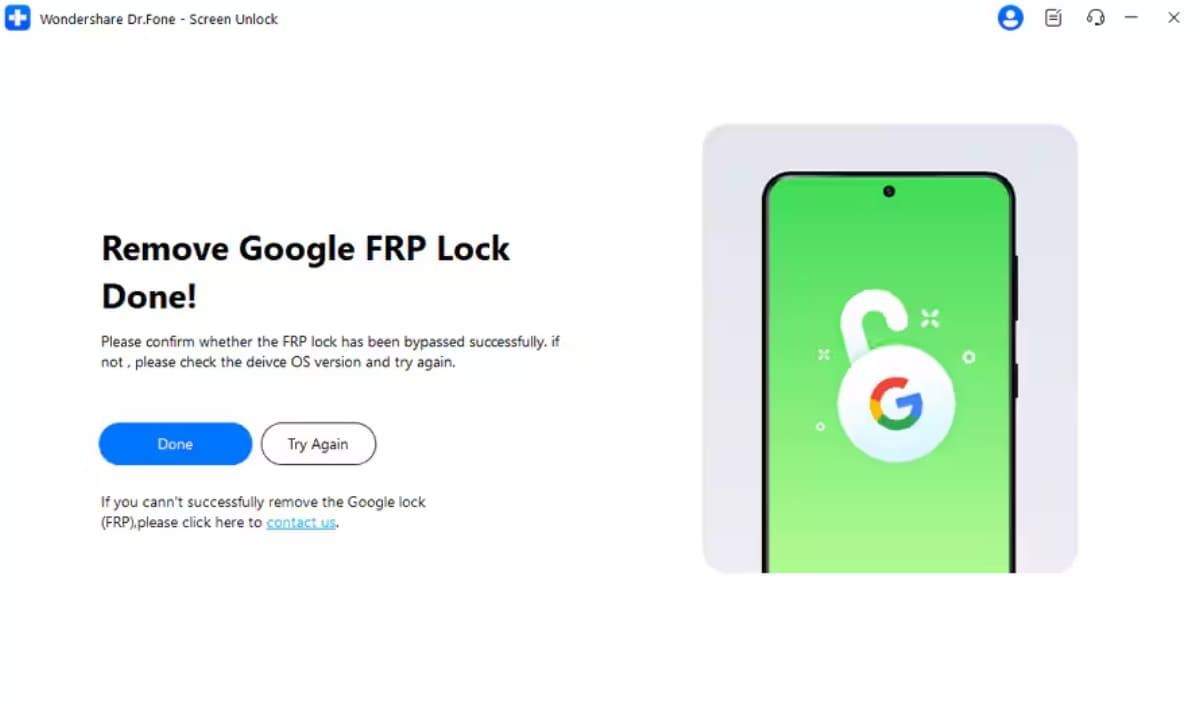
Finally, adhere to the steps displayed inside the Dr.Fone interface to bypass FRP. Upon bypassing this specific lock, press “Done” to complete the task.
Conclusion
To conclude, Motorola lockouts happen because users mix screen lock with FRP protection. So, identifying your exact lock type first saves hours of wasted troubleshooting time. Also, proper preparation and verified methods ensure safe access without data loss risks. Yet, manual bypass tricks often fail due to frequent Android security updates. So, Dr.Fone Screen Unlock becomes essential when Google account details or the screen’s password are unavailable.