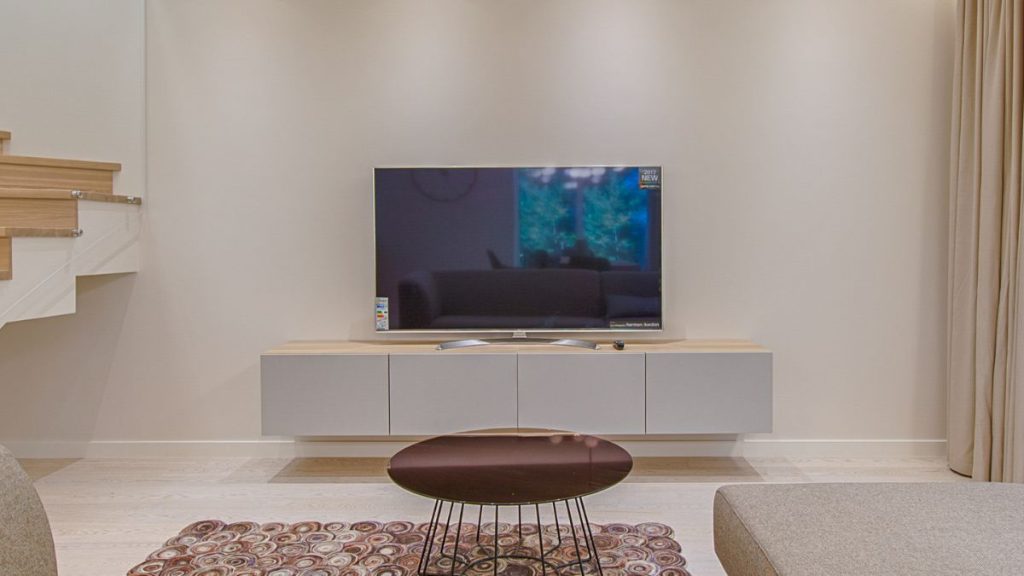
I remember the excitement of unboxing my brand-new 4K Smart TV. The crisp display, and the vibrant colors—it felt like a huge upgrade from my old LED TV. But the moment I hit play on a movie, something felt off. The visuals were too smooth. The movements felt unnaturally fast, and the action scenes lacked that dramatic cinematic feel.
At first, I thought maybe I just needed time to adjust. But I wasn’t alone. Some of my friends also pointed out the same issue they feel with new smart TVs. We discussed how movies don’t feel the same as what we expect. The sound felt normal, but the video had a weird, artificial smoothness that made everything feel fake and unnatural.
After some digging, I found the culprit: motion smoothing, a default setting on most new Smart TVs that tries to improve motion clarity but ends up ruining movies instead. If you have been wondering why your movies look strange, don’t worry. There is an easy fix, and I will show you exactly how to get back that true cinematic experience in just a few steps.
Why Do Movies Look So Different on Your New Smart TV?
Most movies are filmed at 24 frames per second (fps) because it gives them a natural, cinematic look. This is the same frame rate you see in theaters. However, modern Smart TVs don’t like 24fps content. They are designed to display videos at 60Hz (or even 120Hz), which means they try to increase the frame rate of everything you watch. To do this, your TV artificially adds extra frames between the original ones. This process is called motion smoothing, motion interpolation, or MEMC (Motion Estimation, Motion Compensation). The goal is to make fast movements appear smoother, which can be useful for sports and video games. But for movies and TV shows, this effect removes the natural motion blur that our eyes expect, making everything look too clean and too fast. This is why you feel like you are watching a reality show or home video instead of a film.
Common Signs of Motion Smoothing Issues
If motion smoothing is enabled on your TV, you may notice:
- Movies look like they are playing in fast-forward. Even though the audio is normal, movements feel unnatural.
- The “soap opera effect.” Films feel too smooth, almost as if they were shot on a cheap camcorder.
- Action scenes look weird. Explosions, car chases, and fight scenes seem too sharp and lack natural motion blur.
- Panning shots feel jittery. When the camera moves from left to right, the scene looks shaky instead of smooth.
How to Fix It
Luckily, you get the option to fix the problem. You can fix this issue in less than a minute by turning off motion smoothing in your TV settings. Here’s how to do it based on your TV brand:
For Samsung TVs
- Go to Settings > Picture > Expert Settings.
- Select Auto Motion Plus Settings and turn it Off.
- If needed, set Blur Reduction and Judder Reduction to 0.
For Sony TVs
- Go to Settings > Display & Sound > Picture.
- Select MotionFlow and turn it Off.
- Adjust Smoothness and Clearness to your preference.
For LG TVs
- Go to Settings > Picture > Picture Mode Settings.
- Select TruMotion and turn it Off.
- If available, enable Filmmaker Mode.
For Xiaomi TVs (PatchWall UI)
- Go to Settings > Device Preferences > Picture.
- Select Motion Smoothing (MEMC) and turn it Off.
- If available, disable Judder Reduction and Blur Reduction.
For TCL, Hisense, and Other TVs
- Go to Settings > Picture > Advanced Settings.
- Find MEMC (Motion Estimation, Motion Compensation, Motion Clarity) and turn it Off.
- Lower or disable Judder Reduction and Blur Reduction if available.
- Enable Nature Cinema if available.
For Philips TVs (Ambilight Models)
- Go to Settings > Picture > Advanced > Perfect Natural Motion.
- Turn it Off or set it to Minimum.
- Adjust Motion Style settings if needed.
For Sharp TVs
- Go to Settings > Picture > Advanced Settings.
- Select Motion Enhancement and turn it Off.
- If available, adjust Judder Reduction and Blur Reduction to Low or Off.
For Vu TVs
- Go to Settings > Picture > Advanced Settings.
- Find MEMC or Motion Smoothness and turn it Off.
- Set Judder Reduction and Blur Reduction to Low or Off.
- If available, enable Cinema Mode or Filmmaker Mode.
For Acer TVs
- Go to Settings > Picture > Advanced Picture Settings.
- Select MEMC (Motion Estimation, Motion Compensation) and turn it Off.
- Disable Smooth Motion Effect or any similar motion enhancement option.
After making these changes, movies should instantly look more natural and cinematic.
Some Smart TVs now include Filmmaker Mode, which automatically turns off motion smoothing and adjusts settings for the best cinematic experience. If your TV has this option, enable it and enjoy movies as the director intended. On my TCL smart TV, this option is called Nature Cinema.
Should You Keep Motion Smoothing On for Anything?
While motion smoothing ruins movies, it can actually be useful in some cases:
- Live Sports: Motion smoothing helps reduce blur, making fast-moving sports like football, basketball, and racing look clearer.
- Gaming: Some high-end gaming TVs use motion smoothing to enhance gameplay at higher frame rates.
- Animated Content: If you watch a lot of animated movies or cartoons, you might prefer slight motion smoothing.
If you watch both movies and sports, you can manually toggle motion smoothing on and off depending on what you are watching.
Final Thoughts
If your new 4K Smart TV makes movies look unnatural, it’s not a defect. It’s just a bad default setting. Motion smoothing is great for sports but terrible for movies. By turning it off, you will instantly restore the cinematic experience you were expecting. Movies will look normal again, with natural motion and the same smooth feel you get in a theater. So, if you have been wondering why your movies feel weird, now you know why. Go to your TV settings, turn off motion smoothing, and enjoy movies the way they were meant to be seen.
Did this guide help you? Let me know if it works for you.
Related Posts