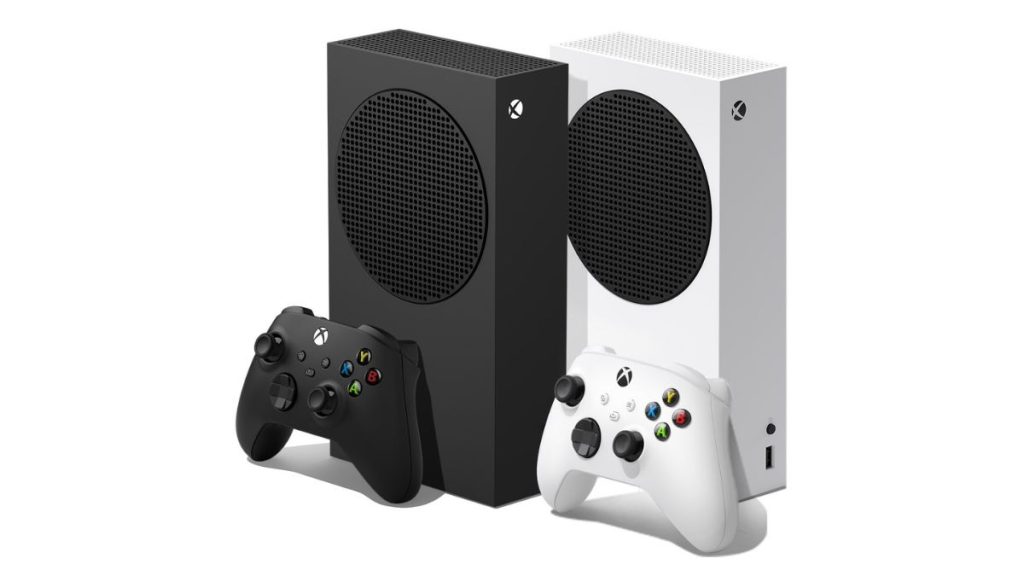
Capturing screenshots of your favorite gaming moment, achievement, or notable visual are important part of going. Most people like to share their gaming achievements or gaming content on social media platforms. Whatever the reason, you need to know how to capture screenshots on Xbox Series X or S. In this detailed guide, I will explain how to capture and manage screenshots on your Xbox Series X or S.
Take a Screenshot on Xbox Series X or S
The easiest way to take screenshots on your Series X or S is by using Xbox Controller. Locate the Share button on your Xbox controller. It is between the D-pad and the right thumbstick. Pressing this button instantly takes a screenshot.

A message also appears on the screen confirming you have captured the screenshot.

The screenshot is automatically saved on your device.
Microsoft also gives you the option to change the quality of screenshots if you want. Press the Guide button Now navigate to Profile & system > Settings > Preferences > Capture & share. Here select the resolution for screenshot resolution and Game clip resolution for video recording resolution.
How to access and manage screenshots
To access all the screenshots you captured on the Xbox Series X or S, press the Xbox button on your controller to open the Guide. Now navigate to ‘Capture & Share’ using the right bumper. Select ‘Recent captures’ to see recent screenshots and screen recordings or ‘See All’ to view all captures.
Wrap Up
Taking screenshots on your Xbox Series X or S is simple. Just press the button on the controller to capture the screenshot of your gameplay. It is also easy to view, edit, and share your screenshots directly from the console.
- How to capture screenshot on Mac
- How to capture screenshot on Windows
- How to capture screenshot on Chromebook
Related Posts