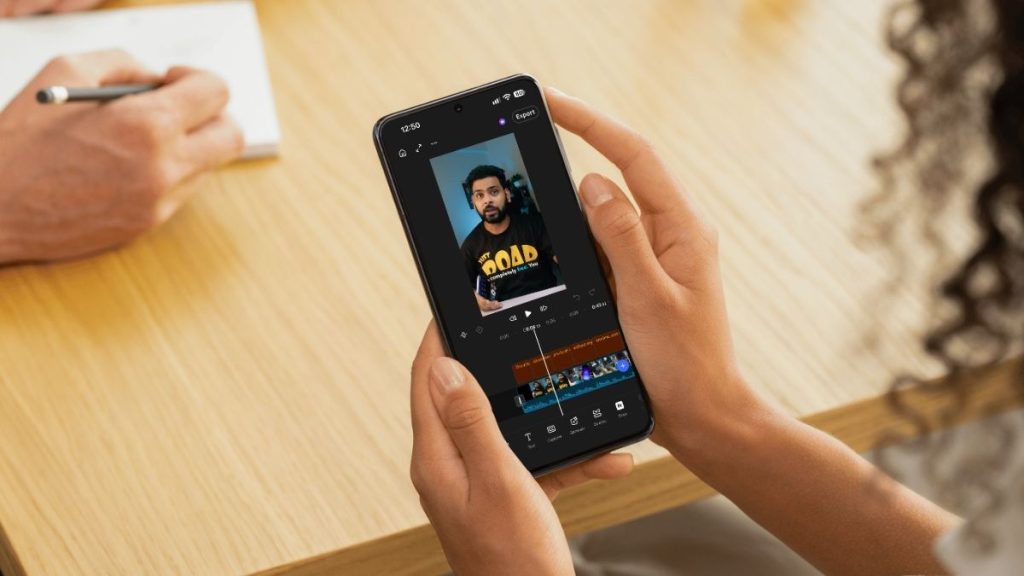
Video editing is no longer limited to computers. Smartphones have become powerful enough to handle serious video editing, and you can now edit 4K videos, add multiple layers, create captions, apply effects, adjust colors, and even use AI tools directly on your phone.
A few years ago, apps like Premiere Rush and FilmoraGo were common recommendations for Android users. The situation has changed now. Adobe has launched Premiere for Android, Meta has its own Edits app, and existing apps such as VN, CapCut and KineMaster have added many new features.
I have tested several video editing apps and selected the ones that are worth considering in 2026. Some are better for Reels and Shorts, while others are better for more advanced timeline editing.
Best Video Editing Apps for Android
These are some of the best video editing apps you can use on Android in 2026. This is not a strict ranking because different apps are useful for different types of editing. Some are better for beginners, while others offer more control over the editing process.
1. Adobe Premiere
Adobe Premiere is one of the biggest new additions to Android video editing. Adobe has finally brought its Premiere mobile app to Android, giving users a more serious editing option from a company that has been making professional video editing software for years.
The app comes with a multi-track timeline where you can layer videos, music, voiceovers, text and effects. You get frame-accurate editing, transitions, effects, speed controls and tools for working with audio.
One of the most useful features is Enhance Audio. It uses AI to reduce background noise and improve the clarity of dialogue and voice recordings. This can be especially useful when recording videos in noisy environments.
Premiere also supports templates, Adobe Stock assets and generative AI features. You can use AI to generate images, videos, and sound effects for your projects.
You can edit and export videos in up to 4K. The app does not force a watermark on exported videos, and the core editing experience is available for free.
Adobe has also confirmed that more features are coming, including keyframes, enhanced captions, cropping, beat detection, Adobe Fonts and continued editing on Premiere desktop.
If you want a traditional video editor with a proper timeline and do not want a watermark on your exported videos, Premiere is an app worth trying.
2. CapCut

CapCut remains one of the most popular choices for people who mainly create short videos for social media. The app has almost everything you need for making Reels, Shorts and other social media videos. You can trim and split clips, change video speed, add transitions, apply effects, add text and captions, use filters, and work with multiple layers.
CapCut is also heavily focused on AI and templates. You can find ready-made templates for different types of short videos and quickly replace the existing clips with your own.
The app also supports automatic captions, background removal, effects, music and other creative tools. Its mobile, desktop and web versions make it useful for people who edit across different devices.
CapCut is for those who you create a lot of short-form content and want to finish an edit quickly instead of building everything from scratch.
The free version is useful, but some advanced tools, templates, assets and AI features are available only with a paid plan.
3. VN Video Editor
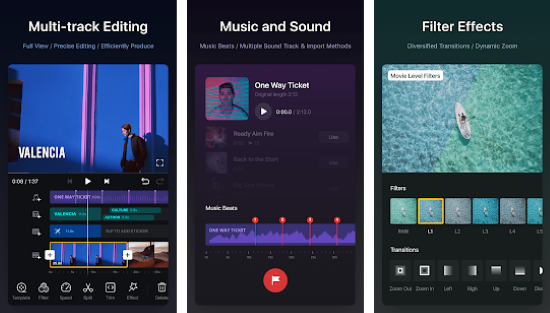
VN Video Editor continues to be one of the strongest options for people looking for a powerful editor without making the editing process unnecessarily complicated.
The app provides a proper multi-track timeline and gives you control over video, audio, text and other layers. You can trim and split clips, change playback speed, add transitions, use filters and adjust different aspects of the video.
VN has also received several useful updates. It now includes features such as speed curves, keyframes, auto captions, video stabilization, AI transitions, beat-synced editing and background removal. You can also import LUTs for color grading and use chroma key for green-screen editing.
Another notable feature is that VN can perform its core editing functions offline. You can import clips, edit the timeline, preview the project and export the video without needing a constant internet connection.
VN is also a good option if you do not want your free video editor to feel like a basic template maker. It gives you much more control over individual clips and layers.
4. Edits
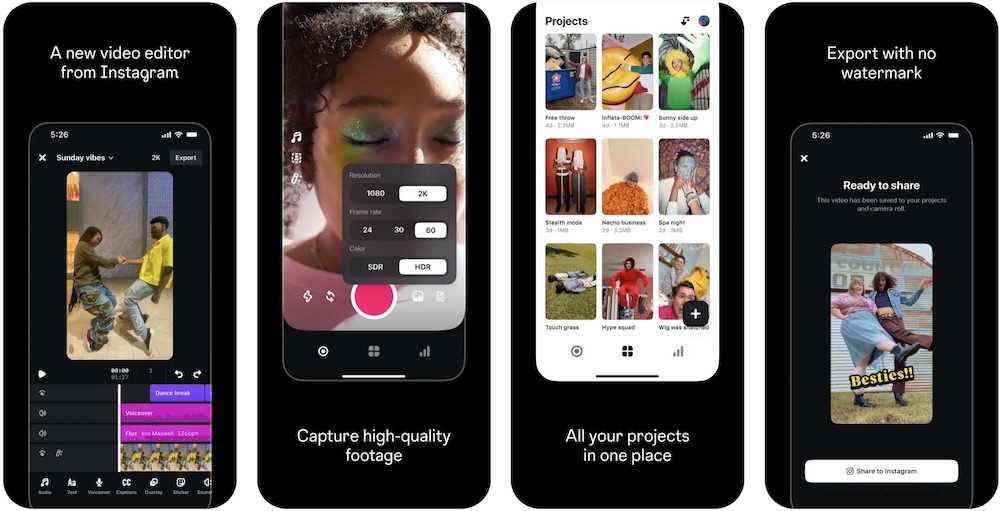
Meta’s Edits is another important video editing app for Android. It was designed specifically for creators who make videos on their phones, mainly short-form content. Edits provides a complete workflow for creating videos. You can record footage, edit clips, add effects, use music, add text and captions, and prepare videos for social media.
One of its notable features is the built-in teleprompter. This is useful if you create talking-head videos and want to read a script while recording.
Edits also provides insights for creators. You can use the app to understand how your content is performing and get ideas for future videos.
Meta has added AI-powered effects and other creative tools to the app. You can apply effects to specific people or objects in a video, blur objects, change the look of footage and experiment with different creative styles.
Meta is also working on features such as bilingual captions, advanced color adjustments and speed curves.
If most of your videos are Reels or other short-form content, Edits is worth having on your phone. It is also a good alternative if you want a simple interface without giving up useful editing controls.
5. KineMaster
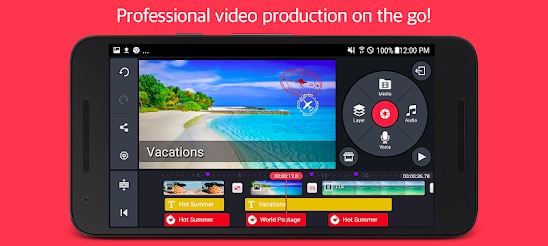
KineMaster has been around for years, but it remains one of the most capable mobile video editors. The app provides multi-layer editing, keyframes, color grading, chroma key, blending modes and detailed speed controls. You can also record voiceovers, mix audio tracks and apply different audio effects.
KineMaster has also added several AI features. These include background removal, automatic captions, noise removal, vocal separation, AI tracking and AI-based upscaling. The app supports video export up to 4K at 60fps on compatible devices.
KineMaster also has a large library of assets, including music, sound effects, transitions, stickers, fonts, overlays and other elements.
The free version is available, but it includes advertising and a watermark. A premium subscription removes these limitations and provides access to additional features and assets.
KineMaster is a good option if you want detailed control over layers and effects but still want to edit entirely on your phone.
6. PowerDirector
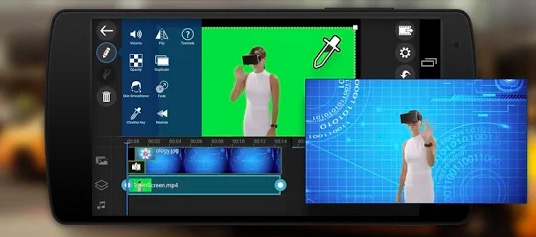
PowerDirector is another full-featured video editing app for Android. It is designed for users who want more than basic trimming and filters.
You can use it to trim and split clips, adjust video speed, add transitions, use effects, create titles, add music and record voiceovers. It also supports green-screen editing and 4K video on supported devices.
PowerDirector has increasingly focused on AI features. Depending on the version and plan, you can find tools for automatic captions, background removal, audio enhancement and AI-assisted video creation.
The app also provides access to stock media and other creative assets with its premium plans.
PowerDirector can feel more complicated than simple social media editors, but that is also its advantage. It gives you more tools when you need to work on a larger project.
7. YouTube Create
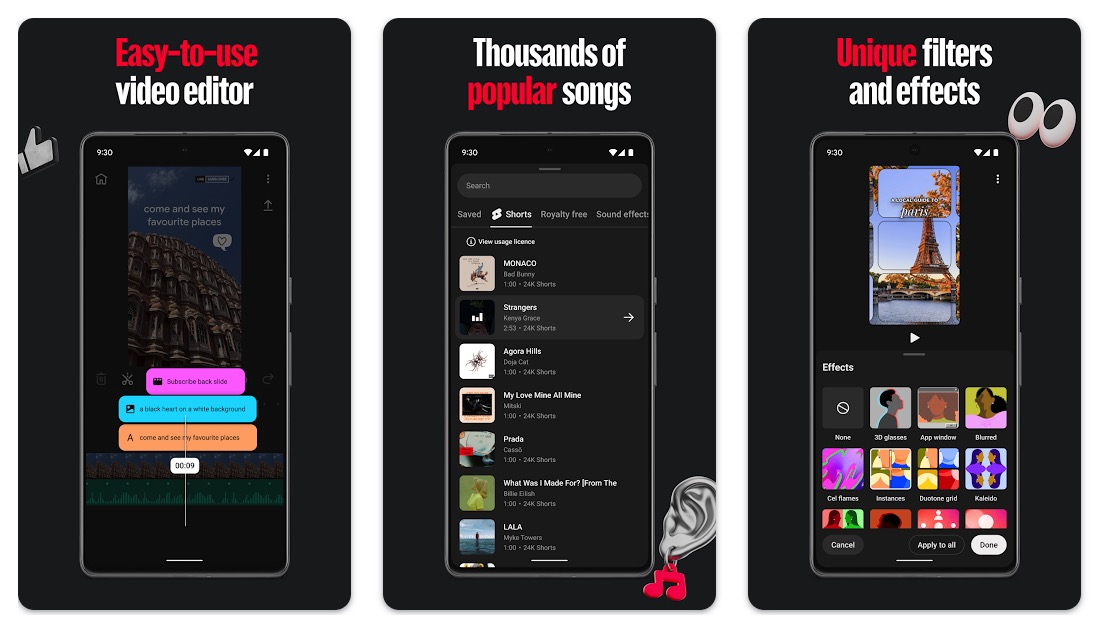
YouTube Create is a free video editing app from YouTube designed for Shorts and regular videos. It offers basic editing tools such as trimming, splitting, transitions, text, stickers, filters, music, and sound effects. You can also automatically generate captions and remove background noise from voice recordings.
The app has a simple timeline interface, making it easy for beginners to edit videos directly on their phones. It also includes royalty-free music and sound effects, and you can upload the finished video directly to YouTube.
YouTube Create is a good choice if you mainly create YouTube Shorts, social media videos, or simple YouTube videos. However, it does not offer the advanced editing controls available in professional apps such as Adobe Premiere.
8. InShot

InShot is still a good option for people who want a simple video editor for everyday use.
The app lets you trim, split and merge videos, change the aspect ratio, adjust speed, add music, add text and apply filters and effects.
It is useful for quick social media videos. You can easily change a video to a vertical format for Instagram Reels or YouTube Shorts and add captions, stickers and music.
InShot does not try to replace a desktop video editor. Instead, it focuses on making common editing tasks simple.
If you are new to video editing and mostly create short videos, InShot can be easier to learn than a more advanced editor.
9. Filmora
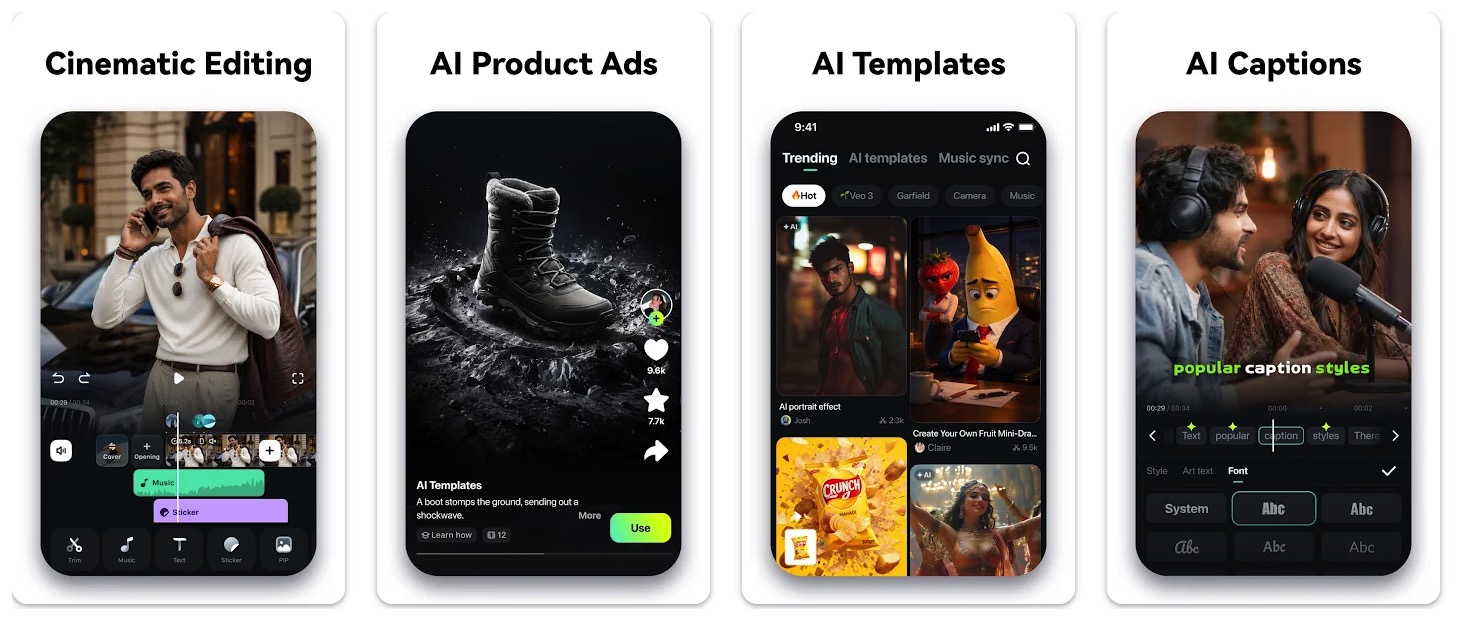
Filmora for mobile, which replaced the older FilmoraGo branding, is another option for Android users who want a mix of traditional editing and AI features.
The app supports timeline editing, speed controls, audio layers, effects, filters, transitions, text and different aspect ratios.
It also includes features such as keyframing, chroma key, AI-powered object removal and automatic editing tools for creating short-form videos.
Filmora is useful if you want a large collection of effects and templates along with the basic editing tools.
The free version has limitations, while some advanced features and assets require a paid plan.
10. GoPro Quik
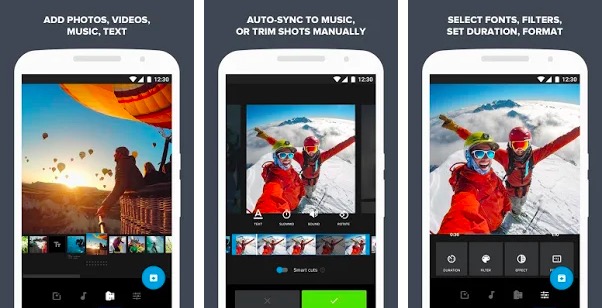
GoPro Quik is different from most of the apps on this list because it focuses heavily on making video editing quick and automatic.
You can use it to trim clips, adjust speed, crop videos, change exposure and apply filters. It also includes automatic editing features and themes that can turn a collection of clips into a finished video.
The app is useful for GoPro users, but you do not need a GoPro camera to use it.
Quik can be useful when you have many photos and videos and simply want to create a good-looking video without spending a lot of time editing every clip manually.
The free version provides basic editing tools, while a subscription unlocks additional editing tools, themes, music and other features.
Which video editing app should you use?
The best app depends on what you want to create.
If you want a free editor with a professional-style timeline, Adobe Premiere is one of the first apps you should try.
If you mainly create Instagram Reels, YouTube Shorts or other social media videos, CapCut and Edits are strong choices.
If you want a free editor with lots of manual control, VN Video Editor is a good option.
If you want advanced layers, keyframes and AI tools, KineMaster and PowerDirector are worth considering.
If you want a more professional editing workflow, LumaFusion is worth a look.
If you want to quickly edit simple videos, InShot is easier to learn.
And if you want automatic video creation, GoPro Quik can save you a lot of time.
Final Words
Android video editing has changed significantly over the years. You no longer need a powerful computer for every editing task. A modern Android phone can handle multi-track editing, 4K video, color adjustments, captions, effects and several AI-powered tools.
The biggest change in 2026 is the number of professional features now available on mobile. Adobe Premiere brings a familiar professional editing workflow to Android, while apps such as VN and KineMaster continue to offer detailed manual controls. CapCut and Edits focus more on the needs of social media creators, while PowerDirector and Filmora combine traditional editing with AI features.
Your phone still matters. Editing 4K footage with several layers and effects can be demanding, and performance will vary depending on the processor, RAM and storage speed of your device.
You also do not need to install every app on this list. Pick one based on the type of videos you make and the amount of control you need. For most people, one good video editing app is enough to create professional-looking videos directly from an Android phone.
Related Posts