Windows 11 is a modern and powerful operating system, but even experienced users can face errors, missing features, or setup issues. Knowing how to get help in Windows 11 ensures you can fix problems quickly and keep your PC running smoothly. This guide covers built-in tools, online support, community tips, and advanced troubleshooting methods.
Why Knowing How to Get Help in Windows 11 Matters
Even with Windows 11’s improved interface and stability, issues like audio problems, printer errors, slow performance, or software glitches can happen. Learning how to use Windows 11 help tools saves time, reduces frustration, and prevents unnecessary technical mistakes. It also allows new users to explore features confidently.
Also see: How to Download Windows 11 ISO
Get Help in Windows 11
1. Use the Search Box for Quick Solutions
The Search Box on the taskbar is the fastest way to find solutions. It instantly locates settings, apps, and support articles.
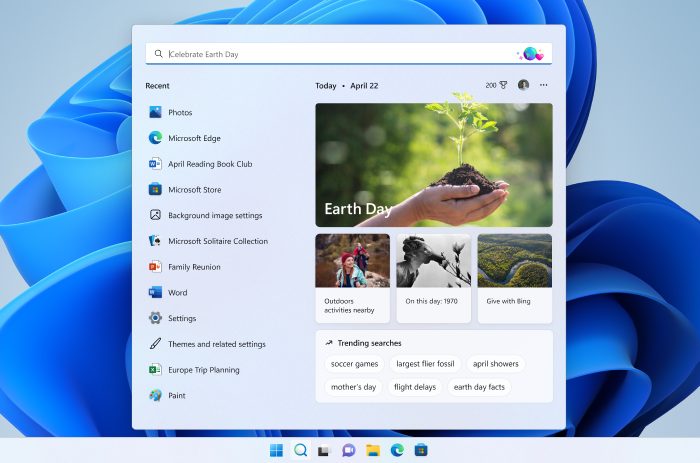
How to Use:
- Click the search icon on the taskbar or press Win + S.
- Type your issue, for example, “Bluetooth not connecting” or “Windows update error.”
- Windows shows relevant results, including links to settings, apps, and online support pages.
Why It Works:
The Search Box is perfect for simple issues and quickly accessing Windows settings without navigating multiple menus.
2. Open the Get Help App for Live Support
For more complex issues, the Get Help app connects you directly with Microsoft support agents.
How to Access:
- Press Win, type Get Help, and press Enter.
- Enter your problem in the search box under “We’re here to help.”
- Browse FAQs or click Contact Support to:
- Chat live with a support agent in your browser
- Request a call-back from Microsoft support staff
Best For:
Complex technical problems, account issues, or any situation where you need real-time assistance.
3. Try the Get Started App for Feature Guidance
The Get Started app helps new users navigate Windows 11 and learn key features.
How to Use:
- Press Win, type Get Started, and press Enter.
- Click Get Started and enable “Get tips and suggestions when I use Windows.“
- Go to Settings > System > Notifications > Additional settings to ensure prompts are on.
Benefits:
- Guided tips and tutorials
- Quick links to important features
- Helps new users get comfortable with Windows 11
4. Use Quick Assist for Remote Help
Quick Assist allows someone you trust to access your PC remotely for troubleshooting or support.
How to Launch:
- Press Win, type Quick Assist, and press Enter.
- Generate a code and share it with your helper.
- They can join your session and help fix issues directly.
When to Use:
Remote troubleshooting when a friend, family member, or technician needs hands-on access.
5. Use Built-in Troubleshooters
Windows 11 includes troubleshooters for hardware and system issues. These tools automatically identify and fix common problems.
How to Access:
- Go to Settings > System > Troubleshoot > Other troubleshooters
- Select the relevant troubleshooter, such as audio, network, printer, or display issues
- Follow the on-screen instructions
Advanced Tools:
- DISM and SFC commands in Command Prompt for repairing system files
- Advanced Startup Options for system restore, reset, or safe mode
6. Search Microsoft’s Online Support
Microsoft’s online support site is an extensive resource. It includes:
- Step-by-step tutorials
- Official FAQs
- Downloadable drivers and software updates
- Category-specific guidance for security, updates, and hardware
Tip: Bookmark the Microsoft Support site for easy access to official resources.
7. Participate in Forums and Communities
Communities such as Microsoft Answers, Tech Community, and Reddit provide peer-to-peer support. Users share practical solutions, tips, and shortcuts.
Example:
If the F1 key keeps opening help unexpectedly, community tips suggest testing the key or disabling it using tools like SharpKeys.
Forums are excellent for real-world solutions not always covered in official documentation.
8. Last Resort: Reset or Repair Windows 11
If other methods fail, you can reset or repair your PC.
Options:
- Reset This PC: Go to Settings > System > Recovery or Advanced Startup. You can choose to keep personal files while reinstalling Windows.
- In-place Upgrade: Download the Windows 11 ISO, mount it, and run setup.exe to repair the system without losing data.
When to Use:
Only when troubleshooting and support tools do not resolve the problem, as these methods can significantly alter your system.
Quick Summary of Windows 11 Help Options
| Method | Best For | How to Access |
|---|---|---|
| Search Box | Quick solutions | Win + S, type issue |
| Get Help | Complex issues, live support | Win + Get Help, chat or call |
| Get Started | Feature guidance, new users | Win + Get Started, enable tips |
| Quick Assist | Remote troubleshooting | Win + Quick Assist, share code |
| Troubleshooters | Hardware & system diagnostics | Settings > System > Troubleshoot |
| Online Support | Tutorials, downloads, official guidance | Microsoft Support site |
| Communities | Peer advice & tips | Microsoft Answers, Reddit, Tech Community |
| Reset / Repair | Major system problems | Settings > Recovery or ISO upgrade |
Additional Tips for Getting Help in Windows 11
- Keep your system updated: Many issues are fixed through Windows updates. So, keep your system updated.
- Use descriptive queries: Be specific when searching in the Search Box or online support.
- Combine tools: Use troubleshooters first, then Get Help or Quick Assist for complex issues.
- Document errors: Note error codes or messages before contacting support—they speed up the solution.
- Stay safe online: Only follow advice from trusted sources like Microsoft or well-known tech communities.
Conclusion
Windows 11 offers a variety of built-in and online tools to help you troubleshoot and resolve almost any problem. From the quick Search Box and troubleshooters to Get Help, Quick Assist, and community forums, there are options for every type of user.
By mastering these help tools, you can quickly fix errors, learn new features, and maintain a smooth and productive Windows 11 experience. Whether you are a new user or an advanced professional, knowing how to get help efficiently ensures your PC stays reliable and secure.
Related Posts