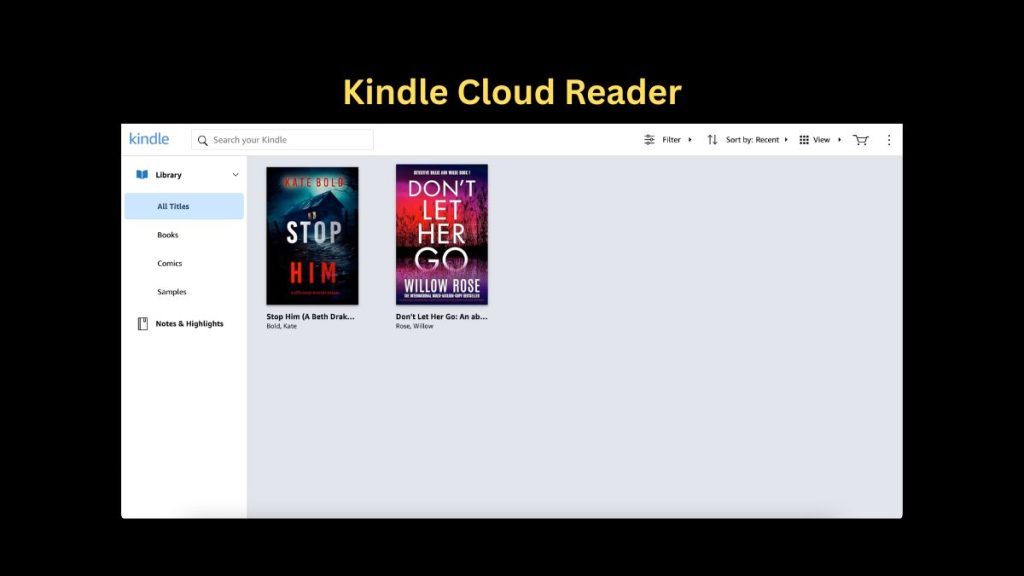
Amazon’s Kindle Cloud Reader lets you read Kindle books directly in a web browser. You do not need a Kindle device or the Kindle mobile app. Ig you have a laptop or desktop, you can start reading right away with just the browser. It also works on tablets and mobile devices, but you already have kindle app for a better experience. If you do not want to install the app, you can use Kindle Cloud Reader there using a mobile browser. Kindle Cloud Reader is useful for people who prefer reading on bigger screens or do not want to install another app.
Setting Up Kindle Cloud Reader
Kindle Cloud Reader works with your existing Amazon account. If you already shop on Amazon, you do not need a new account. You can use the same login details. If you do not have an Amazon account, you can create one from Amazon’s website. On the desktop, go to the Account and Lists section and choose the option to create a new account. On mobile, open the menu and select Create Account. Amazon will ask for basic details and send a verification message to complete the process.
How to Access Kindle Cloud Reader
Once your account is ready, you are set to use Kindle Cloud Reader.
Open any modern web browser and go to read.amazon.com. Sign in using your Amazon account details.
Kindle Cloud Reader works on popular browsers like Chrome, Firefox, Edge, and Safari. If the page does not load correctly, switching or updating your browser usually fixes the issue.
After signing in, your Kindle library appears automatically. If you have already bought Kindle books before, they will show up here. If this is your first time, the library may be empty. Amazon may also ask if you want to enable offline reading, which is useful when you do not have internet access.
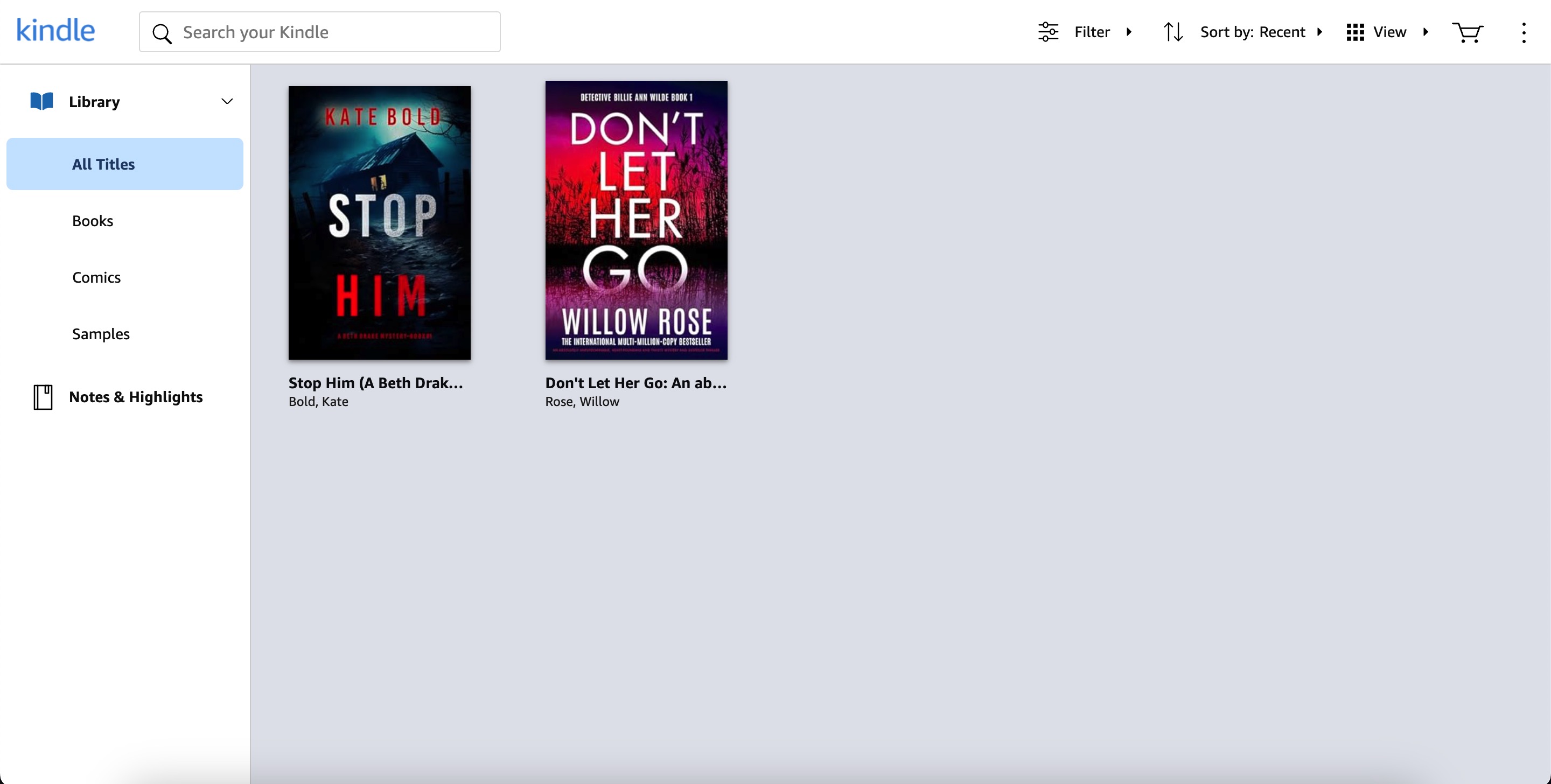
Books you opened recently appear at the top of the library.
Buying Kindle Books for Cloud Reader
If your library is empty, you need to buy a Kindle e-book first. Inside Kindle Cloud Reader, click the Kindle Store option at the top right corner. It is a cart icon. Kindle store lets you browse popular titles or search for a specific book.
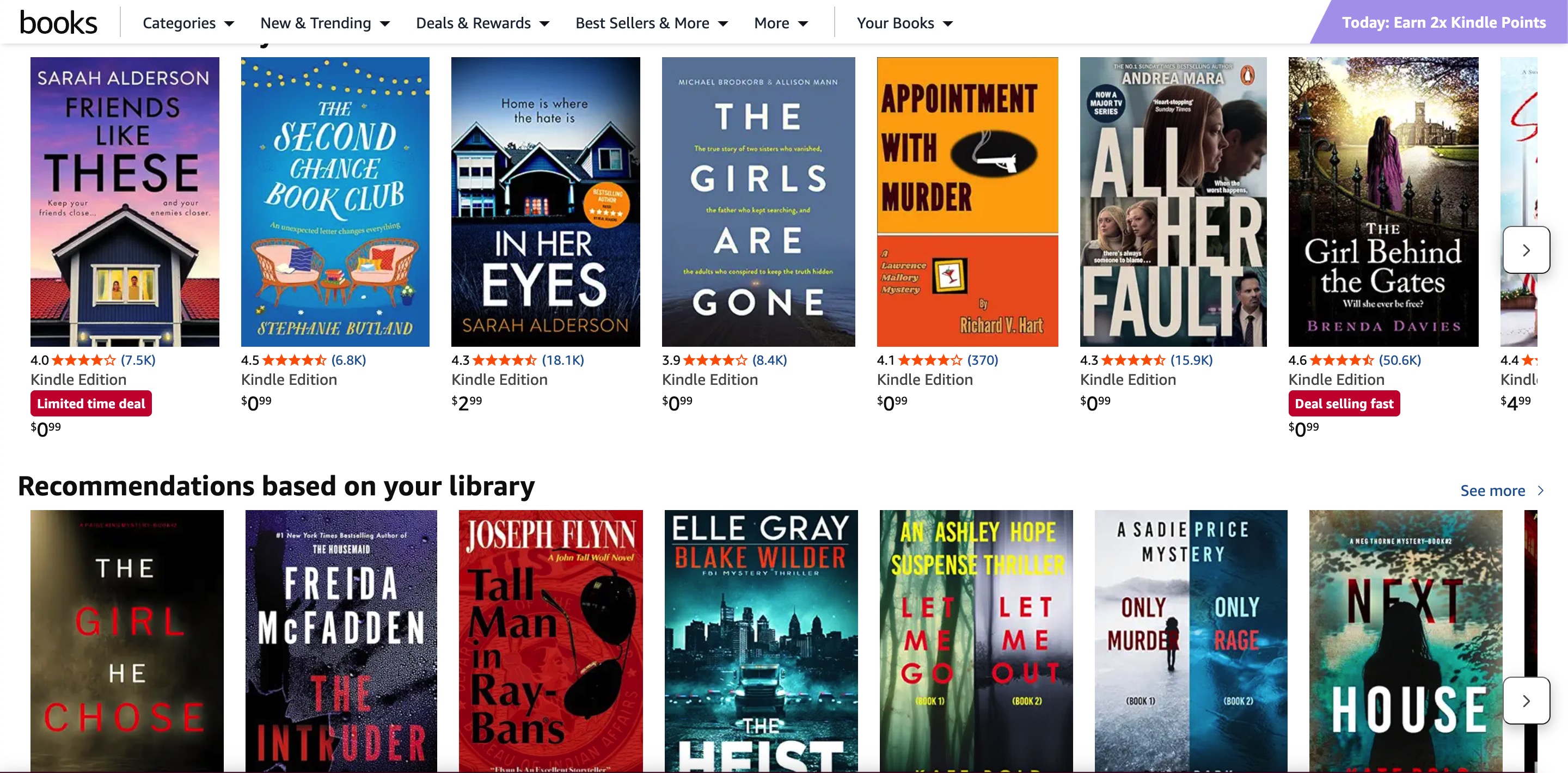
When buying a book on Amazon, make sure you choose the Kindle edition. Before completing the purchase, check the “Deliver to” option and select Kindle Cloud Reader. After payment, the book usually appears in your library within seconds.
If you are an Amazon Prime member, you may also get access to Prime Reading, which includes a large collection of books you can read at no extra cost.
Reading Books in Kindle Cloud Reader
To start reading, click on any book cover in your library. Kindle Cloud Reader remembers where you stopped, so it opens the book from the same page next time.
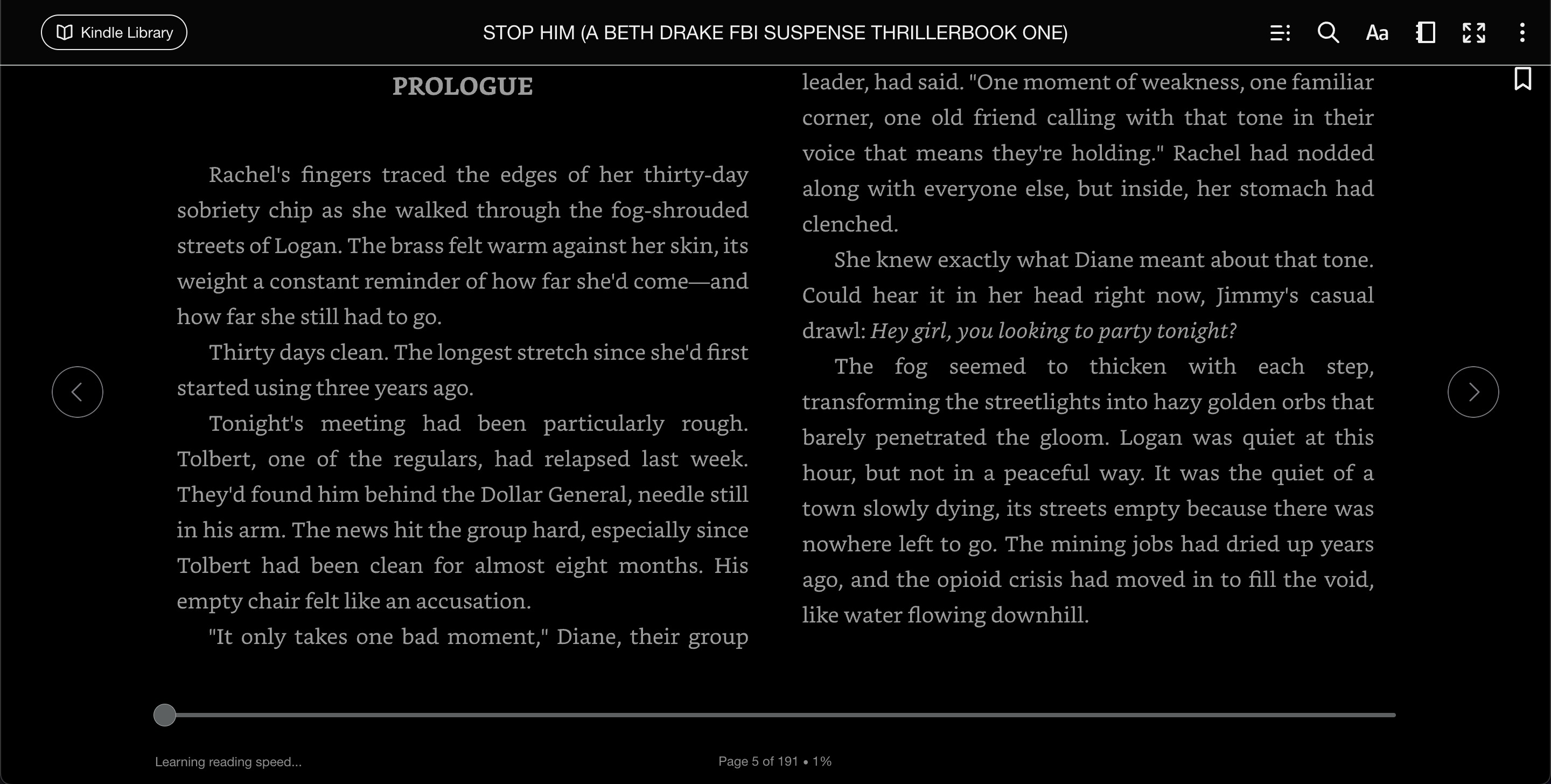
While reading, the menus stay hidden to avoid distractions. Moving the cursor or tapping near the top or bottom of the screen brings them back.
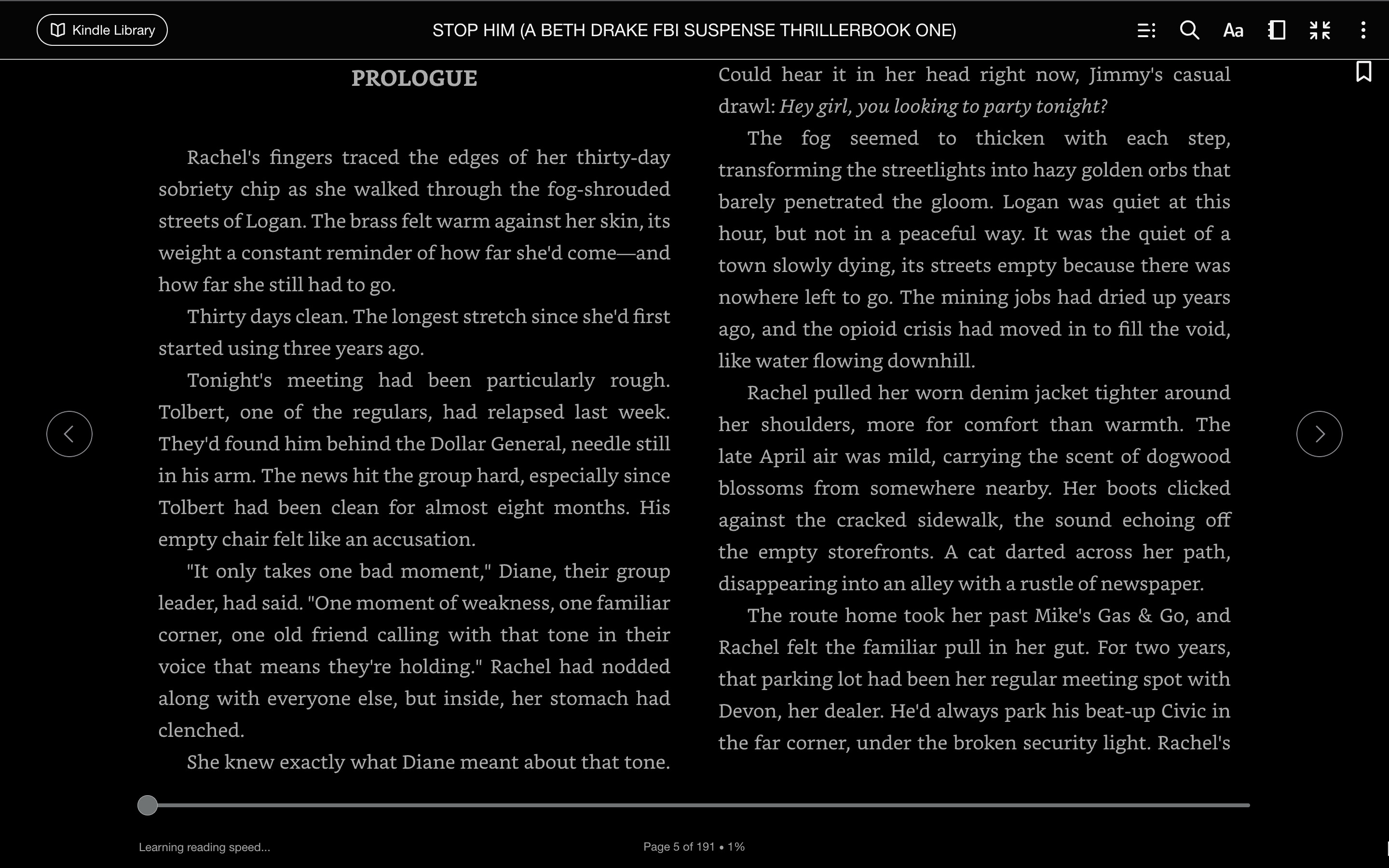
From the top menu, you can jump to the table of contents, adjust font size and layout, add bookmarks, highlight text, write notes, and sync your progress across devices. At the bottom, you can see how much of the book you have completed and quickly move to another section.
You can turn pages using on-screen arrows, scrolling, or touch gestures, depending on your device.
Managing Your Kindle Cloud Reader Library
Kindle Cloud Reader offers basic tools to manage your books. You can switch between grid view and list view and adjust how large the book covers appear. You can also sort books by recent activity, title, or author.
There is an option to view all your highlights and notes in one place. Syncing keeps your reading progress updated across all supported devices linked to your Amazon account.
How to Delete Kindle Books
You cannot delete books directly from Kindle Cloud Reader. To remove a book, you need to sign in to Amazon’s website. Go to Account and Lists, then open Your Content and Devices. From there, select the books you want to remove and choose the delete option.
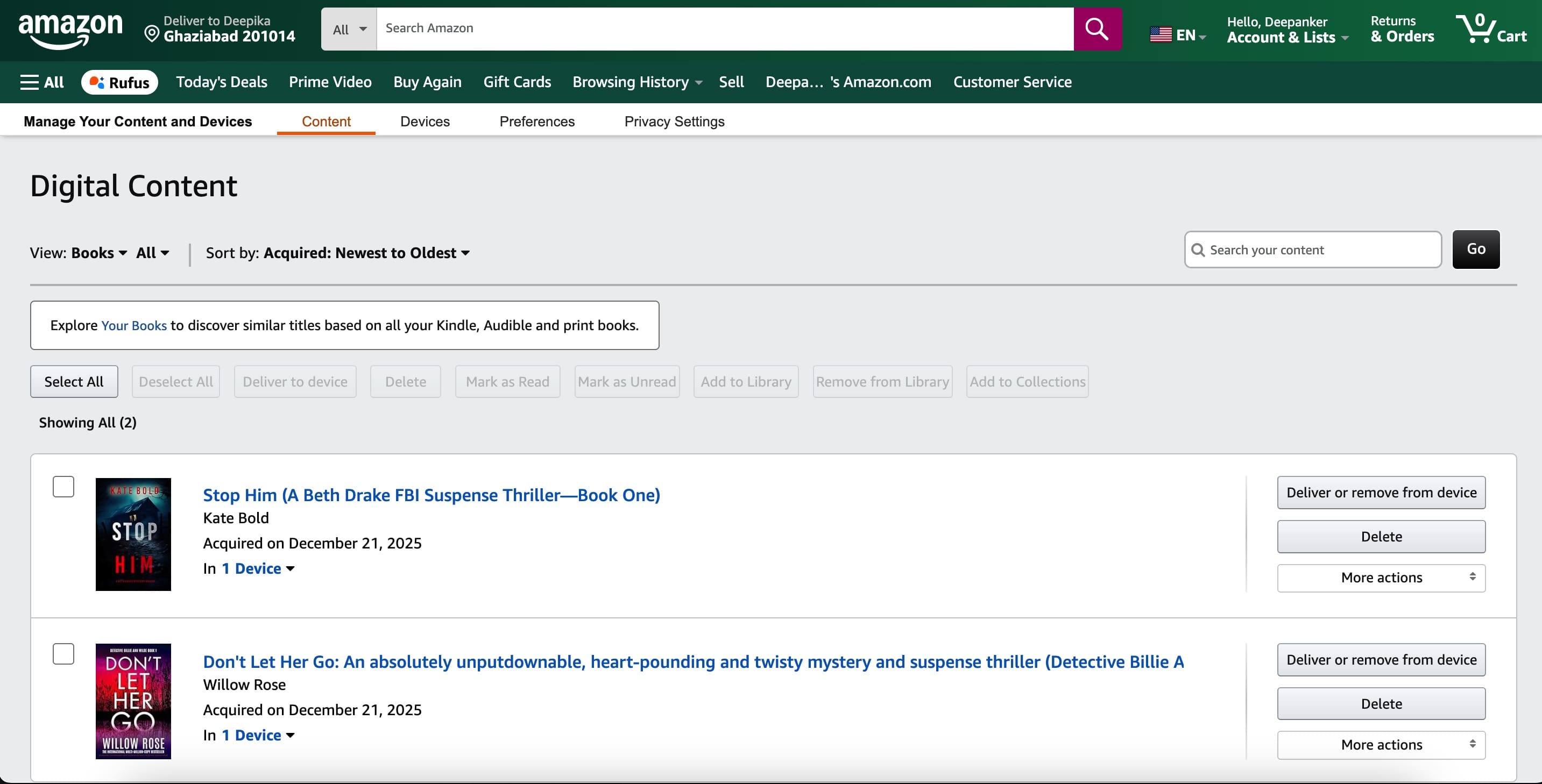
Once deleted, the books disappear from Kindle Cloud Reader as well.
This action is permanent. If you change your mind later, you will need to buy the book again.
Why Kindle Cloud Reader Is Useful
Kindle Cloud Reader makes reading simple and flexible. Books you buy are added automatically to your library. The reading experience is clean and comfortable, similar to reading a physical book. Offline reading is available, and everything stays synced across your account.
It also helps save space at home and money, since e-books are often cheaper than printed copies. For many readers, it is also a more eco-friendly choice.
What Kindle Cloud Reader Cannot Do
Kindle Cloud Reader is more basic than the official Kindle app. One important missing feature is collections. You cannot group books into collections inside the web reader.
You can still create collections using the Kindle app or Amazon’s website, but they will not appear in Kindle Cloud Reader. All books are shown together in one list.
Wrap up
Although I always have my phone to read books via kindle app, but not always comfortable with the small screen. So, I also use Kindle Cloud reader on my laotop to read books. If you also want to try, go ahead. you will surely love the experience.
Related Posts