Now that we have access to fast internet, we can download large files without any problem. But the download speed can also be even better if you enable parallel downloading. Google Chrome has a built-in feature called parallel downloading that can significantly boost downloading speed. The feature splits large files into smaller chunks and downloads them simultaneously. It effectively leverages your high-speed internet and downloads files much faster than normal. In this detailed guide, I will explain how to enable parallel downloading in both the desktop and mobile versions of Google Chrome.
What is Parallel Downloading?
Parallel downloading is a feature that is used to accelerate the download process by breaking a file into smaller segments and downloading multiple segments simultaneously by establishing multiple connections to the file server. This significantly reduces the time required to download large files. The downloaded segments are then reassembled to form the complete file on your system.
Benefits of Parallel Downloading
- Faster Download Speeds: By utilizing multiple connections, parallel downloading can speed up the overall download process, making it ideal for large files.
- Efficient Bandwidth Usage: Parallel downloading maximizes the use of your available internet bandwidth, ensuring that your connection is used as efficiently as possible.
- Improved Download Reliability: Downloading files in smaller chunks can help mitigate the risk of download failures. If one segment fails, it can be re-downloaded without affecting the entire file.

How to Enable Parallel Downloading in Chrome
On Desktop
Launch the Google Chrome on your computer. In the address bar, type chrome://flags, and press Enter. This will open the Chrome Flags page, where you can enable experimental features. In the search box at the top of the Flags page, type “parallel downloading”. This will filter the list of flags to show the parallel downloading option. Once you locate the parallel downloading flag, click on the dropdown menu next to it and select “Enabled”.

After enabling the flag. Click the “Relaunch” button to restart your browser and apply the changes.
On Mobile
Launch the Google Chrome app on your mobile device. In the address bar, type chrome://flags and tap Enter. This will open the Chrome Flags page. Tap on the search box at the top of the Flags page and type “parallel downloading”. This will filter the list of flags to show the parallel downloading option. Locate the parallel downloading flag and tap on the dropdown menu next to it. Select “Enabled” from the options.
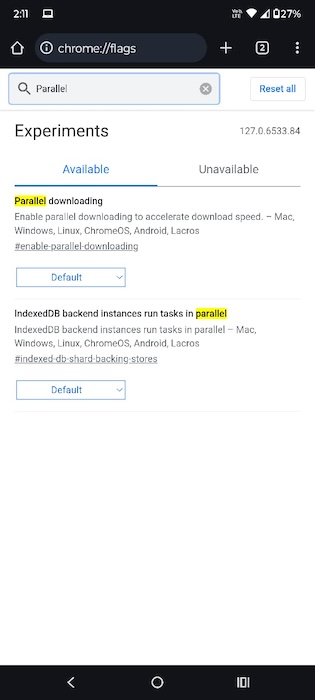
After enabling the flag. Tap the “Relaunch” button to restart your browser and apply the changes.
Wrap Up
Parallel downloading is a powerful feature in Google Chrome. It enhances your download speeds by breaking files into smaller segments and downloading all the segments simultaneously. If you enable parallel downloading, you can make better use of your internet bandwidth and boost download speed. The good thing is that the feature is available on both desktop and mobile devices.
Related Posts