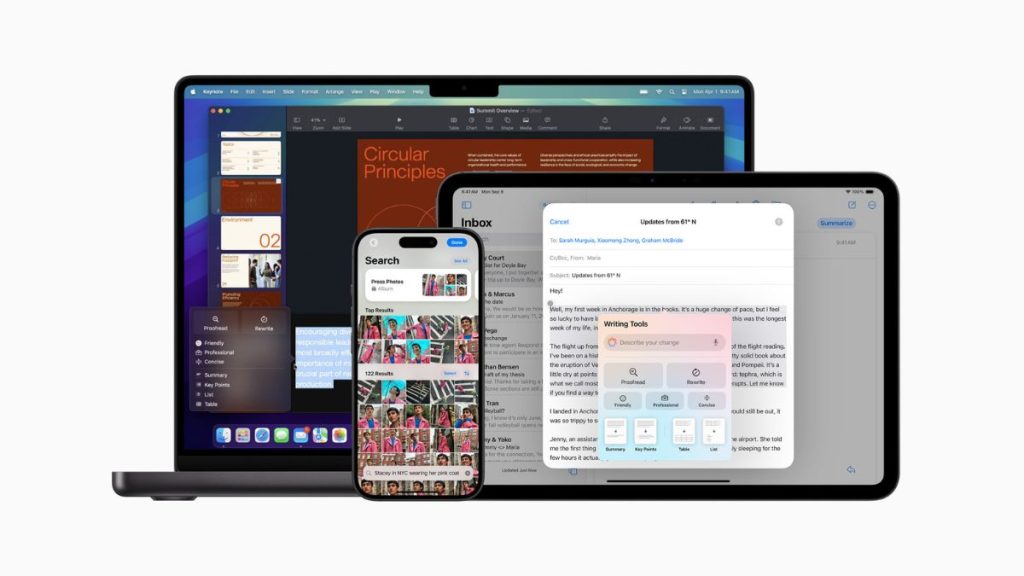
Apple Intelligence is now a much bigger part of macOS. With macOS 27, Apple has integrated its AI features deeper into the operating system, including the new Siri AI, Writing Tools, image creation and other intelligence features.
There is a catch. Apple Intelligence needs local storage, and the requirement has increased with the latest generation. Apple says compatible Macs with an M3 or newer chip and at least 12GB of unified memory can need up to 14GB of storage for Apple Intelligence. Other supported Macs can require up to 8GB.
That can be significant if your Mac has a 256GB or 512GB SSD. Some users have also reported seeing considerably larger amounts of storage associated with Apple Intelligence or System Data. However, the number shown by macOS should not automatically be treated as the space used only by AI models.
If you do not use Apple Intelligence, you can turn off many of its features. Here is what you need to know.
Why does Apple Intelligence need storage?
Unlike a completely cloud-based AI service, Apple Intelligence uses on-device models. These models are downloaded to compatible devices and allow some AI features to work locally. This is the reason Apple Intelligence requires several gigabytes of storage. Apple says the latest generation can require up to 14GB on some newer Macs.
Apple also uses server-side models for some more demanding features, so not every Apple Intelligence task is processed entirely on your Mac.
How to check Apple Intelligence storage on your Mac
macOS does not provide a simple screen showing exactly how many gigabytes are being used by every Apple Intelligence model.
You can still check your Mac’s overall storage usage.
Go to Apple menu > System Settings > General > Storage.
Here you will see how your storage is being used by applications, documents, photos and system data.
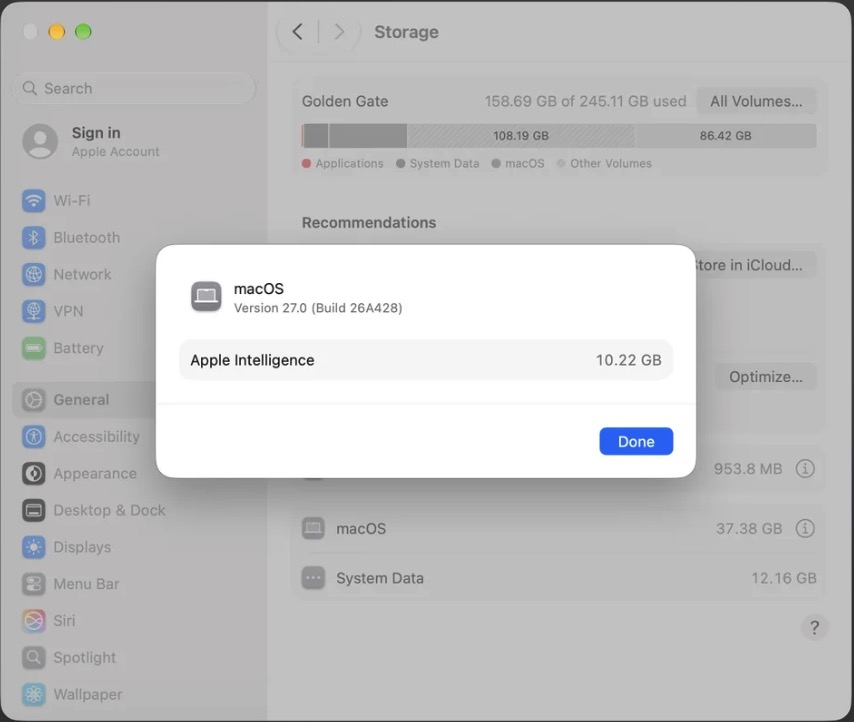
If you see a large amount under System Data, you cannot assume that all of it belongs to Apple Intelligence. System Data also includes other macOS files and temporary data.
How to turn off Apple Intelligence on macOS 27
Apple gives you several ways to disable Apple Intelligence features in macOS 27.
To turn off Siri AI, go to:
System Settings > Siri
Then select Turn Off Siri and confirm your choice.
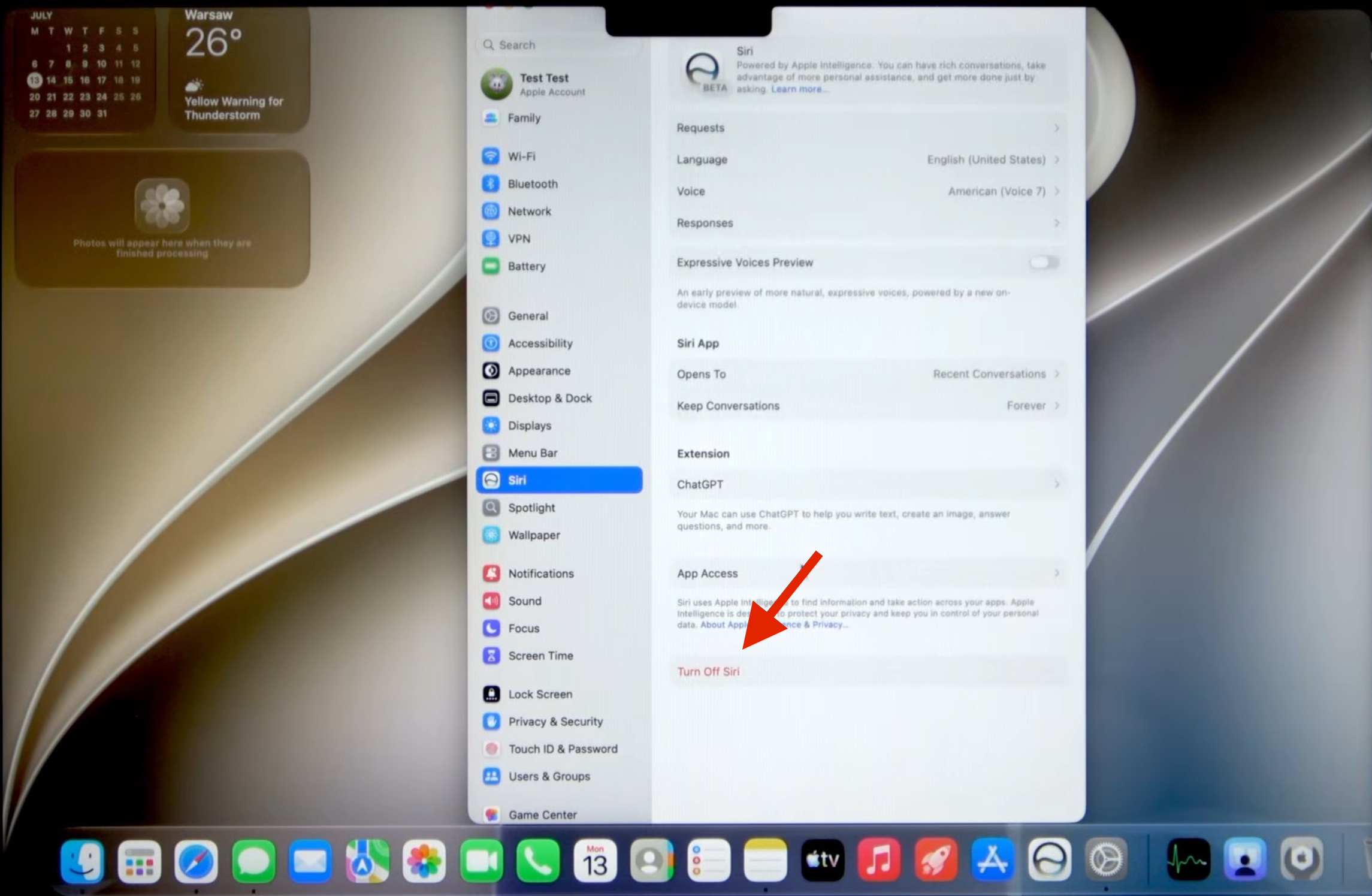
If you still want to use Siri without the new AI features, Apple lets you switch back to Siri Classic. Go to the same Siri settings, turn Siri back on and select Use Siri Classic.
This is different from simply disabling one AI feature. Siri AI, Writing Tools, summaries and other Apple Intelligence features have separate controls.
How to disable Apple Intelligence features individually
You can also turn off individual features instead of disabling Siri completely.
For example, to stop message summaries, open the Messages app and go to Messages > Settings, then turn off Summarise Messages.
For Mail summaries, open Mail > Settings > Viewing and disable the relevant summarisation option. Apple also provides controls for other Apple Intelligence capabilities through macOS settings.
If you want to restrict Apple Intelligence features more broadly, macOS also has controls under System Settings > Screen Time > Content & Privacy. Apple provides options for restricting Apple Intelligence and individual capabilities such as Writing Assistance and Image Creation.
Will turning off Apple Intelligence free up storage?
Apple says that turning off Apple Intelligence removes its on-device models from the device. However, do not expect the Storage page to immediately show a matching increase in free space. macOS can take some time to update its storage calculations, and System Data contains many other types of files.
If you have turned off Apple Intelligence and the storage figure still looks unusually high, restart your Mac and check the Storage page again.
Also remember that Apple’s stated storage requirement is up to 14GB or up to 8GB depending on the Mac. A much larger System Data figure does not automatically mean Apple Intelligence is responsible for all of it.
Should you manually delete Apple Intelligence files?
No. There is no need to manually remove system files to disable Apple Intelligence. You may find Terminal commands and other workarounds online that claim to delete AI model files. These are not the normal controls Apple provides, and future macOS updates could download required files again.
The safer option is to use Apple’s built-in settings to turn off Siri AI and the Apple Intelligence features you do not need.
Is Apple Intelligence worth the storage?
That depends on how you use your Mac.
If you regularly use Writing Tools, image generation, summaries or the new Siri AI features, the local storage requirement is part of the package. If you rarely use these features, several gigabytes of storage may be harder to justify, especially on a Mac with a smaller SSD.
The bigger change with macOS 27 is that AI is becoming part of the operating system itself rather than something users install separately. As Apple adds more capable on-device models, local storage is likely to remain an important part of the equation.
For now, if you do not use Apple Intelligence, turning off Siri AI and the individual features you do not need is the simplest way to reduce its use. Just do not assume that every gigabyte listed under System Data is being used by Apple’s AI.
Related Posts